
Setting your homepage in WordPress is a breeze! Whether you want a stunning static page or a dynamic blog feed, this easy guide will walk you through the steps. Let’s make your website truly yours—it’s time to create an inviting first impression!
How to Set Homepage in WordPress? (Easy Beginner’s Guide)
Are you ready to make your mark on the web with your very own WordPress site? Whether you’re launching a blog, an online store, or a portfolio, setting the right homepage is your first step to creating a powerful online presence. But if you’re new to WordPress, navigating the ins and outs of the platform can feel a bit overwhelming. Don’t worry, though! In this easy beginner’s guide, we’ll walk you through the simple steps to set your homepage exactly how you want it. By the end, you’ll not only have a stunning homepage that captures your visitors’ attention, but you’ll also feel more confident navigating WordPress like a pro. So, let’s dive in and transform your site into a welcoming digital space that showcases your unique vision!
Understanding the Importance of a Customized Homepage
Creating a tailored homepage is essential for making a lasting impression on your visitors. It’s often the first point of contact between your audience and your brand, which makes it crucial to curate a space that reflects your values and engages your users. A customized homepage allows you to highlight what’s important to you—whether it’s your latest products, services, or blog posts—ensuring that visitors find what they need quickly and efficiently.
One of the key advantages of a personalized homepage is the ability to enhance user experience. By structuring your homepage to include elements that resonate with your target audience, you can guide them seamlessly through your content. Consider incorporating:
- Visual elements: Engaging images or videos that communicate your brand identity.
- Clear navigation: Intuitive menus that help users find what they’re looking for without frustration.
- Calls to action: Strategic prompts that encourage visitors to explore further, subscribe, or make a purchase.
Moreover, a customized homepage significantly boosts your SEO efforts. By optimizing your homepage for relevant keywords and structuring it with proper headings and content, you can improve your visibility on search engines. Take advantage of this by incorporating:
| SEO Element | Description |
|---|---|
| Meta Titles | Crafting compelling titles with keywords to attract clicks. |
| Alt Text | Describing images to improve accessibility and SEO. |
| Internal Links | Connecting to other pages to enhance navigation and keep visitors on your site. |
Another pivotal aspect is brand consistency. When your homepage aligns with your overall branding—color scheme, typography, and tone—you reinforce your identity and make your site more memorable. Consistency builds trust, and when visitors feel confident in your brand, they are more likely to engage with your content and make repeat visits.
a customized homepage can adapt and grow with your business. As your objectives evolve, so can your homepage. Regularly updating your layout or featured content will keep your site fresh and relevant, which is vital for retaining audience interest and adapting to market trends.
Exploring Different Types of Homepages for Your Site
When setting up your WordPress site, one of the most crucial decisions you’ll make is what type of homepage to use. Your homepage serves as the first impression for your visitors and can greatly influence their experience. Here are some popular types of homepages that can enhance your site’s appeal:
- Blog Homepage: Ideal for bloggers, this style showcases your latest posts, allowing visitors to scroll through your content easily. It can help drive engagement and keep your audience coming back for more.
- Business Homepage: Perfect for companies, this type includes vital information such as services, testimonials, and contact details, all designed to convert visitors into customers.
- Portfolio Homepage: Great for creatives, a portfolio homepage emphasizes visuals. You can showcase your work in an attractive grid layout that captivates potential clients or employers.
- Landing Page: If you have a specific goal, such as selling a product or collecting email subscribers, a landing page is focused on a single call-to-action, minimizing distractions for visitors.
- One-Page Homepage: This type consolidates all necessary information into one scrollable page, ideal for smaller sites or personal brands, ensuring visitors find everything they need without navigating away.
Choosing the right layout is essential, but the design and functionality are equally important. Consider the following elements when designing your homepage:
- Clear Navigation: Ensure your menu is intuitive, making it easy for visitors to explore your site.
- Compelling Visuals: Use high-quality images and videos that resonate with your brand and audience.
- Responsive Design: Your homepage must look great on all devices, from desktops to smartphones.
- SEO Optimization: Don’t forget about search engines! Use relevant keywords in titles and descriptions to help attract organic traffic.
To help you decide which homepage type is best for your needs, here’s a simple comparison table:
| Homepage Type | Best For | Main Feature |
|---|---|---|
| Blog Homepage | Writers & Bloggers | Latest Posts Display |
| Business Homepage | Companies | Services & Contact |
| Portfolio Homepage | Creatives | Visual Showcase |
| Landing Page | Marketers | Single Call-to-Action |
| One-Page Homepage | Personal Brands | All-in-One Layout |
the homepage you choose can greatly impact user interaction and your website’s overall functionality. By understanding the various types available and their unique features, you can create a homepage that effectively meets your goals while engaging your audience.
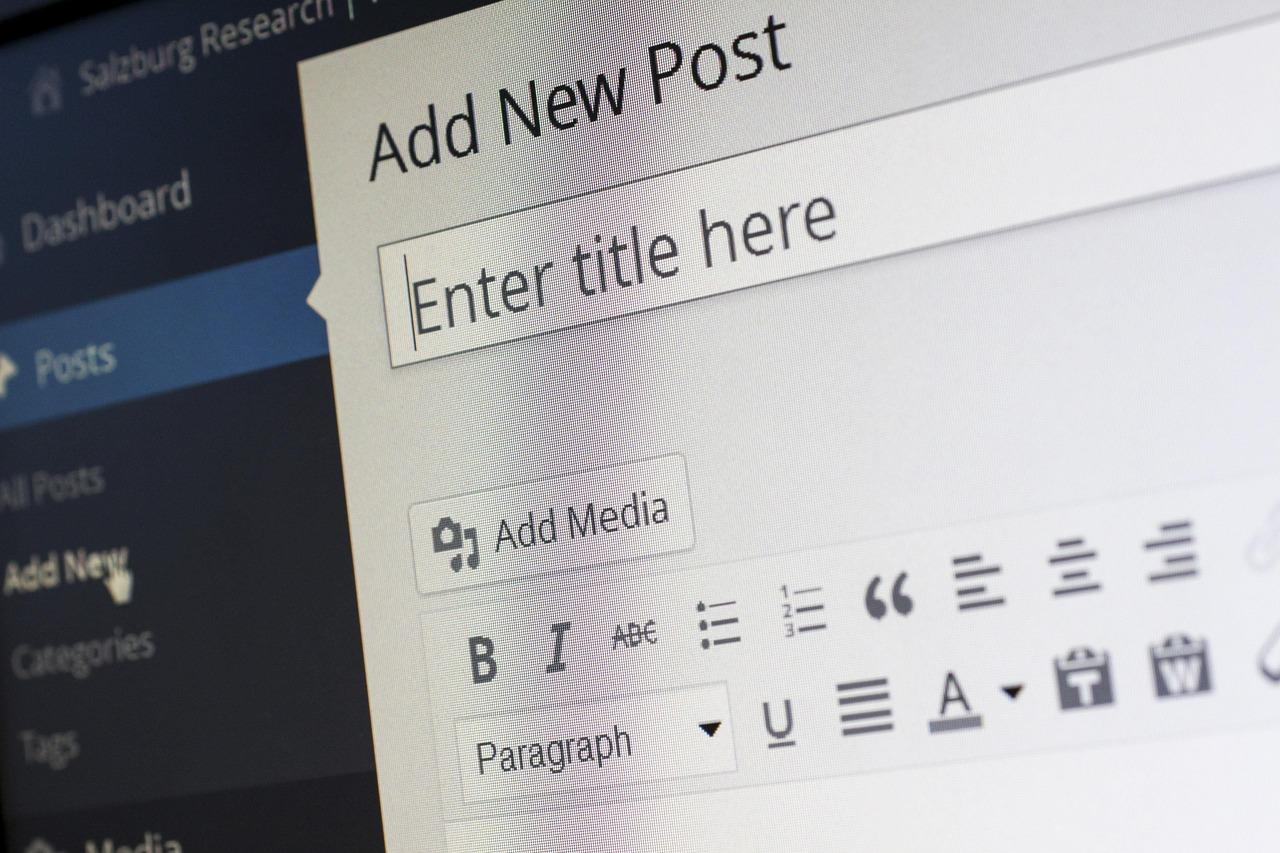
Navigating to the WordPress Dashboard Like a Pro
Once you’re logged into your WordPress site, the Dashboard serves as your command center. Familiarizing yourself with this interface can turn you from a novice into a pro in no time. Here’s how you can make your way around like a seasoned expert:
- Dashboard Overview: The first thing you’ll see is the Welcome panel. This provides quick access to various important sections, including Posts, Pages, and Media.
- Admin Menu: On the left side, you’ll find the Admin Menu. This is your toolkit for managing content. Explore options like Appearance, Plugins, and Settings to unlock your site’s potential.
- Customize Your Dashboard: You can customize what you see in your dashboard. Just click on Screen Options at the top right corner to show or hide panels that matter most to you.
To set your homepage, head over to the Settings section, then select Reading. Here, you can choose between displaying your latest posts or a static page. If you opt for a static page, ensure that you have created the page beforehand under Pages.
Once you’ve made your selections, don’t forget to click Save Changes at the bottom of the screen. This simple step is crucial to ensure that your homepage reflects the updates you want. A quick tip: preview your changes by visiting your site to see how it looks to visitors!
If you’re feeling adventurous, you can also use the Customizer. Access it via the Appearance menu. The live preview feature allows you to see your homepage adjustments in real-time, making it easier to experiment with different layouts and elements.
| Setting | Description |
|---|---|
| Homepage Displays | Choose to show either your latest posts or a static page. |
| Static Page | Select the specific page you want as your homepage. |
| Blog Page | Designate a separate page for your blog posts if you want one. |
By mastering your way around the WordPress Dashboard, you’re not just navigating; you’re steering your website towards success. Keep experimenting, and don’t hesitate to adjust your settings as your site evolves over time. Happy customizing!

Choosing the Right Page to Set as Your Homepage
When it comes to choosing the perfect page for your homepage, there are several factors to consider to ensure that it aligns with your website’s goals and user expectations. Your homepage is often the first impression visitors will have of your site, so making the right choice is crucial.
Start by asking yourself what your primary objective is. Are you looking to showcase your latest blog posts, promote services, or create a portfolio for your work? Here are some popular options for a homepage that can guide your decision:
- Blog Posts: Ideal for bloggers who want to highlight their latest articles and engage visitors with fresh content.
- Static Page: Good for businesses needing a professional introduction that provides key information about services or products.
- Portfolio: Perfect for creatives looking to showcase their work visually and attractively.
- Landing Page: Best suited for specific campaigns or promotions, directing visitors to take action.
Next, think about user experience. Your homepage should be easy to navigate, allowing visitors to find what they’re looking for without any hassle. If your site includes various sections, consider using a page that can effectively summarize each area, guiding users to deeper content. A well-structured homepage will lead to lower bounce rates and higher engagement.
In addition, consider your target audience. What are their preferences and behaviors? Conducting a little research can go a long way. You might want your homepage to reflect the interests and needs of your audience, ensuring it speaks directly to them. This connection can significantly boost user interaction and retention rates.
Lastly, don’t forget to prioritize aesthetics and branding. Your homepage should be visually appealing and consistent with your overall brand identity. Use colors, fonts, and images that represent your brand and resonate with your target audience. A well-designed homepage can evoke emotions and create a memorable experience.
Here’s a quick comparison table to help you decide which type of homepage might work best for your website:
| Homepage Type | Best For | Advantages |
|---|---|---|
| Blog Posts | Content Creators | Regular updates, engagement |
| Static Page | Businesses | Professional look, concise info |
| Portfolio | Artists/Designers | Showcases work effectively |
| Landing Page | Campaigns | Focused call-to-action |
Step-by-Step Guide to Setting Your Homepage in WordPress
Setting your homepage in WordPress is a breeze, and it can significantly enhance the user experience on your site. Whether you want to display your latest blog posts or a static page with information about your business, the process is straightforward. Let’s dive into the steps you need to follow.
First, you’ll want to log in to your WordPress dashboard. Once you’re in, navigate to the Settings menu on the left-hand side of your screen. From there, click on Reading. This is where you can customize what visitors see when they land on your site.
Next, you will see two primary options under Your homepage displays:
- Your latest posts – This displays your most recent blog entries as your homepage.
- A static page – This option lets you choose a specific page to serve as your homepage.
If you want a static homepage, select A static page and then choose the page you’d like to set as your homepage from the dropdown menu. If you haven’t created a page yet, you can do so by going to Pages > Add New. Make sure to publish the page you want to use.
After selecting your desired homepage, scroll down and click the Save Changes button. This will immediately apply your new settings. It’s that simple!
To enhance your homepage further, consider using a page builder plugin or theme options to customize the layout, colors, and content display. Many themes allow for additional customization options that can make your homepage stand out and better serve your audience.
don’t forget to preview your homepage after making changes. Just click on the Visit Site link in your dashboard. This will ensure that everything looks just the way you want it before you start promoting your new homepage to your visitors.
Adding Custom Features to Make Your Homepage Shine
Once you’ve set your homepage in WordPress, it’s time to add some custom features that will not only enhance its aesthetic appeal but also improve user engagement. A well-structured homepage can be a powerful tool in captivating visitors and showcasing what your site has to offer. Here are some effective ways to make your homepage stand out:
- Hero Images and Banners: Utilize large, eye-catching images or banners at the top of your homepage. This immediately draws the visitor’s attention and can convey your brand’s message or the purpose of your site at a glance.
- Custom Navigation Menus: Design a user-friendly navigation menu that highlights important sections of your site. Consider adding dropdown menus for subcategories, ensuring users can easily find what they’re looking for.
- Call-to-Action Buttons: Incorporate compelling call-to-action buttons throughout your homepage. Phrases like “Learn More,” “Get Started,” or “Shop Now” can significantly increase user interaction.
- Testimonials and Reviews: Adding a section for customer testimonials or reviews can enhance trust and credibility. It shows potential customers that others have had positive experiences with your brand.
- Featured Products or Services: If you have products or services to showcase, create a dedicated section on your homepage. Consider using a grid layout for a clean and organized look.
To further enhance your homepage’s functionality, consider adding dynamic features such as:
| Feature | Description | Benefit |
|---|---|---|
| Search Bar | A handy feature allowing users to search for content. | Improves user experience and helps visitors find information quickly. |
| Social Media Integrations | Links to your social profiles or embedded feeds. | Encourages engagement across platforms and builds community. |
| Newsletter Signup | A section for visitors to subscribe to updates. | Grows your email list and keeps your audience informed. |
| Blog Section | A preview of your latest blog posts. | Encourages visitors to explore your content and enhances SEO. |
don’t overlook the importance of responsive design. Ensure your custom features look great on all devices, from desktops to smartphones. Using WordPress themes that are mobile-friendly can make a significant difference in user experience. By implementing these custom features, your homepage will not only shine but also serve its purpose effectively—capturing interest, informing visitors, and converting them into loyal followers or customers.

Optimizing Your Homepage for SEO Success
Creating an effective homepage is crucial for optimizing your website for search engines. When potential visitors land on your page, you want to ensure they find exactly what they’re looking for while also making it easy for search engines to crawl and index your content. Here are some helpful tips to enhance your homepage for SEO success:
- Keyword Research: Identify the primary keywords that your target audience is searching for. Use tools like Google Keyword Planner or Ubersuggest to find relevant terms and integrate them naturally into your homepage content.
- Compelling Title Tag: Your title tag should include your main keyword and be appealing enough to encourage clicks. Keep it under 60 characters to ensure it displays fully in search results.
- Meta Description: Write a concise and engaging meta description that also contains your primary keyword. This snippet provides a brief overview of your homepage in search results, so make it count!
Additionally, optimizing the layout of your homepage is vital. Organize your content logically and use headings (H1, H2, H3) appropriately. This not only improves user experience but also helps search engines understand your content structure.
| Element | SEO Best Practice |
|---|---|
| Images | Use descriptive file names and alt text for better indexing. |
| Internal Links | Link to other relevant pages on your site to improve navigation. |
| Mobile Optimization | Ensure your homepage is responsive for mobile users. |
| Loading Speed | Optimize images and leverage browser caching to enhance speed. |
Don’t forget the importance of engaging content. Use clear calls-to-action (CTAs) that direct visitors to your desired actions, whether it’s signing up for a newsletter, exploring products, or learning more about your services. This not only boosts your engagement metrics but also signals search engines that your site is valuable to users.
regularly update your homepage to keep it fresh and relevant. Search engines favor websites that provide updated content, so periodic revisions not only enhance your SEO but also improve user experience. By following these strategies, you’ll be well on your way to optimizing your homepage for search engine success!
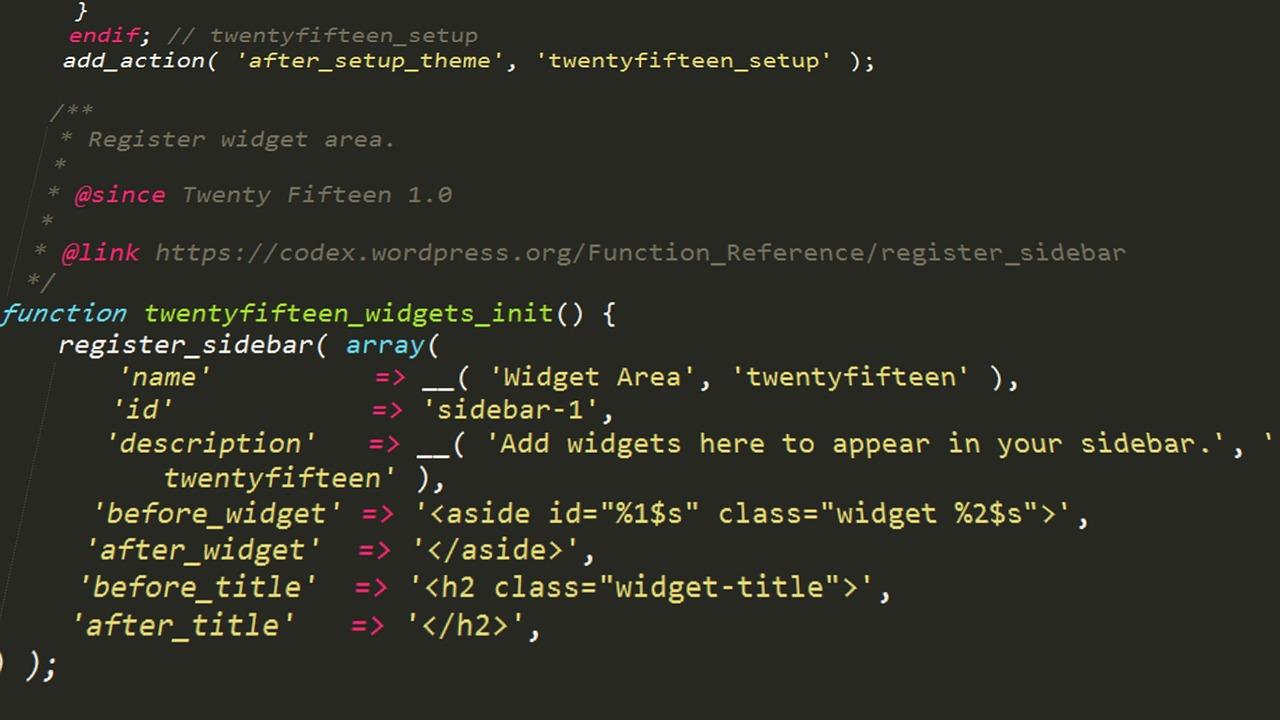
Leveraging Widgets and Plugins for Enhanced Functionality
When it comes to enhancing your WordPress homepage, utilizing widgets and plugins can take your site to the next level. With just a few clicks, you can transform a basic homepage into a dynamic and engaging experience for your visitors. Let’s explore how these tools can enhance functionality and improve user engagement.
Widgets are small blocks that perform specific functions. They are easily customizable and can be added to various areas of your site, such as sidebars, footers, or even directly on your homepage. Here are some popular widgets you might consider:
- Recent Posts: Showcases your latest blog entries to keep content fresh.
- Search Bar: Allows visitors to quickly find what they’re looking for.
- Social Media Links: Connects your audience with your social profiles.
- Custom HTML: Lets you add any custom code or scripts you need.
On the other hand, plugins extend the functionality of your WordPress site even further. They can provide advanced features such as SEO, analytics, and security. Here’s how you can effectively use plugins to enhance your homepage:
- Page Builder Plugins: Tools like Elementor or Beaver Builder allow for drag-and-drop customization, giving you the freedom to design your homepage layout visually.
- SEO Plugins: Integrate tools like Yoast SEO to optimize your content for search engines, ensuring your site is discoverable.
- Analytics Plugins: Use Google Analytics plugins to track visitor behavior and tailor your content accordingly.
- Contact Forms: Incorporate forms to engage users, gather feedback, or generate leads seamlessly.
Combining widgets and plugins not only enriches your homepage but also enhances user experience. For instance, integrating a carousel plugin with image widgets can create an appealing visual display of featured content. Additionally, using a plugin for caching can improve page load times, ensuring your visitors stay engaged rather than bouncing away.
Here’s a quick table to summarize some essential plugins and their benefits:
| Plugin Name | Functionality |
|---|---|
| Elementor | Drag-and-drop page builder for easy customization |
| Yoast SEO | SEO optimization to improve search visibility |
| WPForms | Build custom forms for user engagement |
| MonsterInsights | Simple Google Analytics integration |
Incorporating these tools into your homepage setup not only enriches the content but also boosts functionality and performance. By carefully selecting and configuring the right widgets and plugins, you can create a homepage that not only looks great but also serves as a powerful tool for engaging your audience.
Previewing and Publishing Your Changes with Confidence
Once you’ve made your desired changes to set your homepage in WordPress, it’s crucial to ensure everything looks just the way you want before making it live. Fortunately, WordPress provides a variety of tools to help you preview your changes with confidence. Here’s how you can effectively use these tools:
- Live Preview: Use the built-in Live Preview feature to see how your homepage will look with your changes applied. Simply navigate to Appearance > Customize and click on the Preview button. This allows you to make adjustments in real-time.
- Browser Preview: If you’re editing a page or post, you can click the Preview button in the editor to view how the content will appear to your visitors without publishing it immediately.
- Staging Site: Consider setting up a staging site for more extensive changes. This is a clone of your live site where you can test new themes, plugins, or significant layout changes without affecting your current homepage.
Once you’re satisfied with the preview, it’s time to publish your changes. Don’t rush this step! Take a moment to review your layout, content, and any multimedia elements. A quick checklist can help ensure that everything is in place:
| Checklist Item | Status |
|---|---|
| Visual elements aligned correctly | ✔️ |
| All links functioning | ✔️ |
| Content free of typos | ✔️ |
| Responsive design on mobile | ✔️ |
After checking off all the items on your list, you can hit Publish with peace of mind. Remember, you can always make further adjustments after publishing if necessary. WordPress allows you to edit and update content at any time, so don’t be afraid to tweak things as you receive feedback from your audience.
Lastly, consider sharing your new homepage with a select group of users for feedback before promoting it widely. This can uncover insights you might not have considered and gives you a final layer of confidence in your changes.
Troubleshooting Common Issues When Setting Your Homepage
Setting your homepage in WordPress can sometimes feel like a complicated task, but troubleshooting common issues can make the process much smoother. Here are some common pitfalls and how to resolve them:
- Understanding Your Settings: Ensure you are familiar with the settings under Settings > Reading. If you select the wrong option, it could lead to your blog posts appearing instead of a static page. Double-check that you have chosen the correct homepage option.
- Clearing Cache Issues: If you’ve made changes but they don’t appear to be taking effect, it could be a caching issue. Clear your browser cache or any caching plugins you may have installed. This can sometimes resolve the discrepancy between what you’ve set and what is displayed.
- Theme Compatibility: Some themes have specific requirements for homepage settings. Review your theme documentation to ensure that it supports static homepages and check if there are any special configurations needed.
- Plugin Conflicts: Sometimes, plugins can interfere with how your homepage is displayed. Deactivate all plugins temporarily to see if the issue resolves. If it does, reactivate them one by one to identify the culprit.
In case you’re still experiencing issues, checking the URL structure can also help. Make sure your homepage URL is correctly configured in Settings > General. A mismatch here can lead to unexpected behavior.
If you’re seeking a quick reference for identifying issues, consider the following table:
| Issue | Possible Solution |
|---|---|
| Homepage not displaying correctly | Check Settings > Reading settings |
| Changes are not visible | Clear cache or refresh the page |
| Theme doesn’t support static homepage | Consult theme documentation |
| Plugins causing issues | Deactivate plugins to isolate the problem |
if all else fails, consider reaching out to your hosting provider or the WordPress support forums. Often, others may have encountered similar issues, and you can find helpful insights to guide you.
Frequently Asked Questions (FAQ)
Q: What is a homepage in WordPress?
A: Great question! Your homepage is essentially the first page that visitors see when they enter your website. It sets the tone and gives a sneak peek into what your site is all about. Whether you’re running a blog, a business site, or an online store, having an appealing homepage is crucial!
Q: Why is it important to set my homepage?
A: Setting a homepage allows you to control the first impression visitors have of your site. It’s your chance to showcase your brand, highlight important content, and guide users toward what you want them to see. Trust me, a well-set homepage can significantly enhance user experience and engagement!
Q: How can I set my homepage in WordPress?
A: Setting your homepage is super simple! Just follow these steps:
- Log in to your WordPress dashboard.
- Go to “Settings” and then click on “Reading.”
- You’ll see an option for “Your homepage displays.” Here, you can choose either “Your latest posts” or “A static page.”
- If you opt for a static page, select the page you want as your homepage from the dropdown.
- Don’t forget to hit “Save Changes” at the bottom! And voila, your new homepage is set!
Q: What’s the difference between a static homepage and a blog feed?
A: A static homepage is a single page that remains constant, giving you complete control over what visitors see first. On the other hand, a blog feed shows your latest posts and updates, which is great for keeping your content fresh and engaging! It really depends on your site’s purpose!
Q: Can I customize my homepage?
A: Absolutely! WordPress offers a ton of customization options. You can use page builders like Elementor or WPBakery to create a visually appealing layout. Plus, you can add widgets, images, and videos to make your homepage pop. The sky’s the limit!
Q: What if I want to change my homepage later?
A: No worries at all! Changing your homepage is just as easy as setting it. Simply follow the same steps in the WordPress dashboard, and you can switch it up whenever you want. Keeping your content fresh is key!
Q: Are there any tips for creating an effective homepage?
A: Definitely! Here are a few tips:
- Keep it clean and organized.
- Use high-quality images that resonate with your brand.
- Include clear calls-to-action to guide your visitors.
- Make sure it’s mobile-friendly – a lot of users browse on their phones!
- Regularly update it with new content or features.
Q: Where can I find more resources on WordPress?
A: There are tons of fantastic resources out there! The official WordPress support site is a great start. You can also check out blogs, YouTube tutorials, and online courses focused on WordPress. The community is super helpful, so don’t hesitate to reach out for guidance!
Q: I’m feeling overwhelmed. Is WordPress really easy to use?
A: I totally get it! It can feel a bit daunting at first, but WordPress is designed with beginners in mind. With just a little patience and practice, you’ll be navigating and customizing your site like a pro in no time. Plus, you have plenty of helpful guides and resources right at your fingertips!
By following these simple steps and tips, you’ll be well on your way to creating a stunning homepage that not only captures your unique style but also keeps visitors coming back for more! Happy WordPress-ing!
The Way Forward
And there you have it! Setting your homepage in WordPress is not just a breeze; it’s an essential step in creating a website that truly reflects your vision. Whether you want to showcase your latest blog posts, highlight your services, or create a stunning landing page for your visitors, you now have the tools to make it happen.
Remember, your homepage is often the first impression people have of your site, so take the time to customize it to suit your style and audience. Don’t hesitate to experiment with different layouts and designs until you find the perfect fit. After all, WordPress is all about flexibility and creativity!
If you found this guide helpful, why not share it with your fellow WordPress enthusiasts? And if you have any questions or need further assistance, drop a comment below. We’re here to help you on your WordPress journey. Happy blogging!

New Providers

Enjoy The Speed Of Downloading & Uploading With 1GBPS Port



Affordable Dedicated Servers & Colocation Services. Services: Dedicated Servers Colocation Private Cabinet Colocation DDoS Protection

Up to 85% off hosting + website builder

We specialize in providing Web hosting reviews. Where you can search for potential hosts.