
Ready to move your WordPress media library to a new site? It’s easier than you think! In just three simple steps, you can seamlessly transfer all your images, videos, and files. Say goodbye to tedious uploads—let’s make your move smooth and stress-free!
How to Move WordPress Media Library to a New Site (In 3 Simple Steps)
Are you ready to take your WordPress site to the next level but unsure how to transfer your media library seamlessly? Whether you’re migrating to a new domain, switching hosts, or revamping your online presence, moving your media files can feel daunting. After all, those images, videos, and audio files are often the heart and soul of your website! But fear not—this guide will walk you through the process in just three simple steps. By the end, you’ll feel confident and empowered to make the switch without losing any of your precious content. So, grab a cup of coffee, roll up your sleeves, and let’s dive into the world of WordPress media migration!
Understanding the Importance of Transferring Your WordPress Media Library
When managing a WordPress site, the media library is often an overlooked yet essential component. This repository houses your images, videos, and other media files, providing the visual appeal and functionality that engage your audience. Transferring your WordPress media library to a new site isn’t just about moving files; it’s about ensuring a seamless experience for your visitors and maintaining the integrity of your content.
Here are a few reasons why transferring your media library is crucial:
- Consistency in Branding: Your visual assets are key to your brand identity. Moving your media library ensures that your new site retains the same look and feel that your audience recognizes.
- SEO Benefits: Search engines index your media, so keeping your images on the same URLs helps maintain your SEO rankings. A transfer ensures that all alt text and descriptions are preserved.
- User Experience: Broken links or missing images can frustrate visitors. A complete transfer means that users will find the same content they expect, enhancing their overall experience.
Moreover, transferring your media library can prevent potential data loss. If you only copy files without ensuring that the accompanying database entries are included, you might end up with orphaned files that no one can access. This not only creates clutter but also makes it difficult to manage your media effectively.
| File Type | Importance | Transfer Method |
|---|---|---|
| Images | Core branding elements | Direct upload or plugin |
| Videos | Engagement boosters | Embed links or upload |
| Audio Files | Enhances content richness | Direct upload or cloud links |
investing time in this process pays off in the long run. A well-organized media library not only saves time when creating new posts but also enhances your site’s performance. A streamlined media library facilitates better loading speeds, reducing bounce rates and keeping users on your site longer.
Preparing Your New Site for a Seamless Media Migration
When gearing up for a media migration, the first step is ensuring that your new site environment is ready to welcome your content with open arms. A smooth transition hinges on a few key preparations that can make all the difference in avoiding headaches down the line.
Backup Your Existing Media Library
Before diving into the migration process, it’s crucial to back up your current media library. This ensures that you have a safety net in case anything goes awry. Here’s how you can do it:
- Utilize a reliable backup plugin like UpdraftPlus or BackWPup.
- Manually download the wp-content/uploads folder via FTP to your local machine.
- Export your media attachments using the WordPress Export tool.
Check Your New Site’s Settings
Next, ensure that your new site is properly configured. This includes:
- Setting up the correct permalinks to maintain consistent URLs for your media files.
- Installing and configuring any necessary plugins for optimal media handling.
- Verifying your theme supports the media formats you plan to use.
Prepare Your Database
Once you have your media files backed up and your new site settings in check, it’s time to prepare your database. This is where your media files are linked to posts and pages, and it’s vital to ensure that these connections remain intact. Consider the following:
- Run a search and replace tool (like Better Search Replace) to update any old URLs to point to your new site.
- Optimize your database using a plugin like WP-Optimize to enhance performance post-migration.
With these preparations in place, you’re setting the stage for a seamless media migration. Each step not only safeguards your content but also smooths the transition, allowing you to focus on what truly matters—creating and sharing amazing content on your new site.
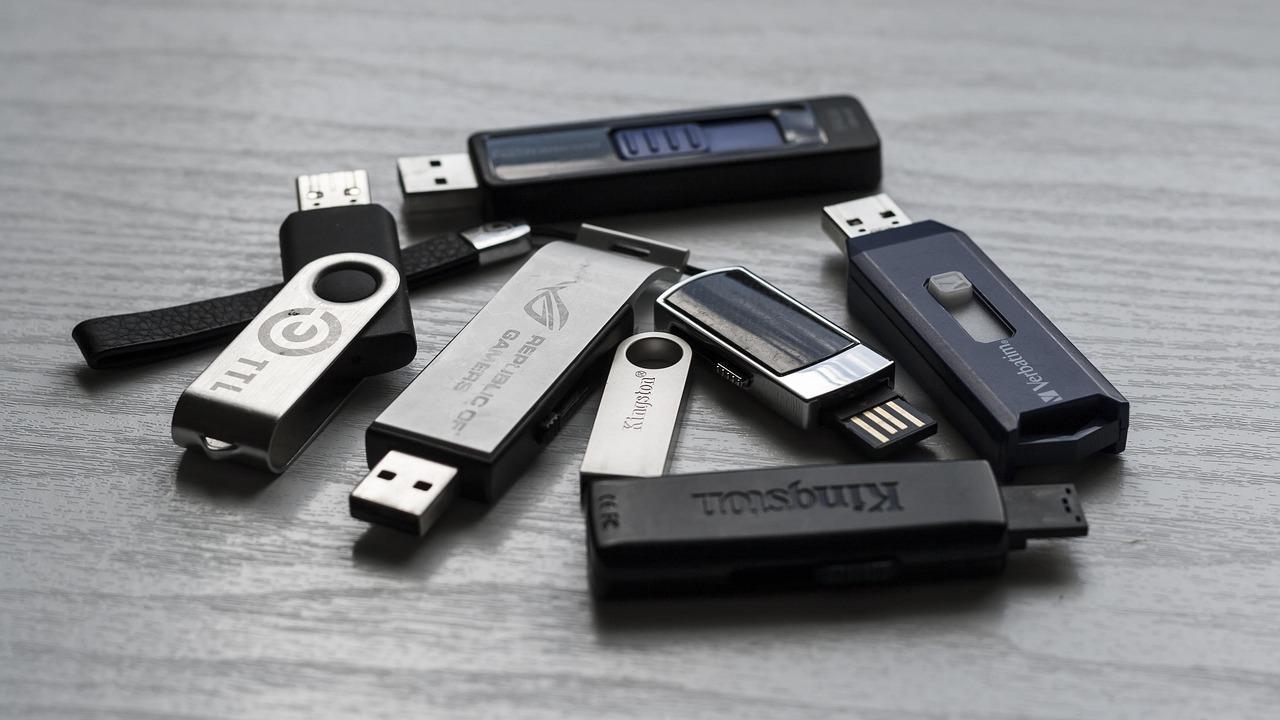
Choosing the Right Method for Moving Your Media Files
When it comes to transferring your WordPress media library, choosing the right method is crucial for a smooth and hassle-free process. Each approach has its own advantages and may cater to different situations depending on factors like site size, technical comfort level, and available resources.
Here are some popular methods to consider:
- Manual Upload: This traditional approach involves downloading your media files directly from your old site and then re-uploading them to the new one via the WordPress admin panel. Although straightforward, it can be time-consuming if you have a large media library.
- Using a Plugin: Several plugins can simplify this process significantly. Tools like WP Migrate DB or All-in-One WP Migration allow for easy migration of media files along with your posts and pages. This is often the preferred method for those who want to save time and reduce the risk of errors.
- FTP Transfer: If you’re comfortable with file transfers, using FTP is a powerful option. By accessing your server files directly, you can quickly move your entire uploads folder to the new site. However, this method requires some technical know-how to avoid potential pitfalls.
Before you make a decision, consider the following:
| Method | Ease of Use | Time Required | Best For |
|---|---|---|---|
| Manual Upload | Moderate | High | Small sites or few files |
| Using a Plugin | Easy | Low | Most users |
| FTP Transfer | Advanced | Medium | Experienced users |
Ultimately, the method you choose should align with your technical skills and the size of your media library. If you’re not sure where to start, using a plugin can help you migrate your files efficiently while minimizing the risk of data loss or broken links.
Don’t forget to back up your original site before starting the migration process! This precaution will safeguard your data in case anything goes awry during the transfer. With the right strategy in place, moving your media files to a new WordPress site can be a seamless experience.
Step-by-Step Guide to Exporting Your Media Library
Exporting your media library doesn’t have to be a daunting task. Follow these straightforward steps to ensure a smooth transition of your WordPress media files to your new site. The key here is to be organized and systematic, making the process hassle-free.
First, you’ll want to navigate to your WordPress dashboard. From there, head to the Tools section on the left sidebar and select Export. Here’s what you should do:
- Choose Media to focus solely on your media files.
- Select any specific date range or leave it blank to export everything.
- Click the Download Export File button. This will generate an XML file containing all of your media library items.
Once you have the XML file downloaded, it’s time to move to your new site. Log into your new WordPress installation and go back to the Tools menu. This time, you will select Import. Here’s how to proceed:
- Find the WordPress option in the list and click on Install Now if it’s not already installed.
- Activate the importer, and then choose the Run Importer option.
- Upload the XML file you downloaded earlier and click Upload file and import.
During the import process, you’ll be prompted to assign authors to the media items. You can either create a new user or assign the files to an existing author. Ensure the option to Download and import file attachments is checked to get all your media files transferred properly.
After the import is complete, it’s good practice to verify that all your media files have successfully migrated. You can do this by visiting the Media section in your new site’s dashboard. If everything looks good, congratulations! You’ve successfully exported and imported your media library.
If you encounter any issues, consider using a dedicated migration plugin. These plugins can automate the process, reducing the risk of missing files or broken links. Here’s a quick comparison of a few popular options:
| Plugin Name | Features | Price |
|---|---|---|
| All-in-One WP Migration | Easy drag-and-drop interface, supports large files | $69 |
| Duplicator | Backup and migration in one, includes database support | Free / Pro starts at $69 |
| Migrate Guru | Free migrations, no size limits | Free |
By following these steps or utilizing a plugin, you can seamlessly export and import your media library, ensuring your new site has all the visual elements you need to thrive.
Effortlessly Importing Media to Your New WordPress Site
Transferring your media files to a new WordPress site can seem daunting, but it doesn’t have to be. With the right approach, you can seamlessly import all your images, videos, and other media assets in just a few clicks. Here’s how to make the process smooth and efficient.
First, it’s essential to gather all your media files. You can do this by:
- Exporting your media library: Use a plugin like Media Tools or WP All Export to create a comprehensive list of your files.
- Downloading files: Access your old site’s file manager through FTP or cPanel to download your entire
wp-content/uploadsfolder.
Once you have everything organized, you can move on to your new site. Here are the steps to import your media:
- Upload files: Use an FTP client to upload your downloaded media files to the
wp-content/uploadsdirectory of your new WordPress site. - Sync media library: Install a plugin such as Media Sync or Media from FTP to ensure the new site recognizes the files you just uploaded.
- Check your links: After syncing, verify that all images and media files display correctly on your new site.
Consider using a plugin like Better Search Replace to update any old URLs and ensure that your media links point to the correct locations on your new site. This step is crucial, especially if your domain name has changed.
To make it even easier, here’s a quick comparison of useful plugins:
| Plugin Name | Features | Price |
|---|---|---|
| Media Tools | Export/Import media easily | Free |
| WP All Export | Advanced export options | Paid |
| Media Sync | Sync uploaded files to media library | Free |
| Better Search Replace | Update URLs in database | Free |
By following these straightforward steps and utilizing the right tools, you can efficiently import your media library to your new WordPress site with minimal hassle. Don’t let the technicalities slow you down—embrace the power of these plugins to keep your content visually appealing and your workflow uninterrupted.
Verifying and Organizing Your Media After the Transfer
Once you’ve successfully transferred your media files to the new site, the next crucial step is to verify and organize everything. This ensures that all your images, videos, and other media elements are correctly linked and ready for use. Here’s how you can streamline this process:
Check for Missing Files: After the transfer, it’s common for some files to go missing or not link correctly. To verify that everything is in place:
- Go to your Media Library and scroll through the list to identify any broken links or missing images.
- Use the
Regenerate Thumbnailsplugin to ensure that all images are displayed correctly. - Run a search in the Media Library for specific file types to confirm all files are present.
Reorganize Your Library: With your files verified, you might want to tidy up your Media Library. A well-organized library not only improves efficiency but also helps with SEO. Consider the following:
- Create folders or categories based on media types, such as images, videos, and documents.
- Use descriptive file names and alt text to enhance your SEO and accessibility.
- Implement tags to make searching for files easier in the future.
Update Links and References: After organizing your files, it’s essential to ensure that all internal links and references to your media across posts and pages are updated. This can be done by:
- Using a plugin like
Velvet Blues Update URLsto update old URLs to the new ones. - Manually checking posts for any broken links and correcting them as needed.
To ease the process, you can also create a simple table to keep track of verified files and their status:
| File Name | Status | Category |
|---|---|---|
| image1.jpg | Verified | Images |
| video1.mp4 | Missing | Videos |
| document1.pdf | Verified | Documents |
By taking the time to verify and organize your media library post-transfer, you not only enhance your workflow but also ensure that your new WordPress site runs smoothly. This careful approach helps maintain the integrity of your content, making it easier for you and your users to navigate.
Troubleshooting Common Issues During the Migration Process
Moving your WordPress media library can be a straightforward process, but it’s not uncommon to run into some bumps along the way. Here are some common issues you might encounter, along with solutions to help you navigate through them smoothly.
1. Missing Media Files
After migration, you may notice that some media files are missing. This often happens if the files were not properly transferred or if the URLs need to be updated. To fix this:
- Ensure that all files are uploaded to the new site’s
wp-content/uploadsdirectory. - Use a plugin like Velvet Blues Update URLs to update any file URLs in your database.
2. Broken Image Links
If your images are showing as broken links, it’s typically due to incorrect paths or URLs. Here’s how to resolve this:
- Check the
wp-config.phpfile for the correct site URL and home URL. - Run a search and replace through your database to correct any old URLs with the new site URLs.
3. Plugin Conflicts
Sometimes, plugins can cause conflicts during migration, leading to unexpected issues. You can troubleshoot this by:
- Deactivating all plugins and checking if the media library works properly.
- Reactivate plugins one at a time to identify the culprit.
4. Server Configuration Problems
Issues can also arise from server settings, such as permissions or PHP limits. Make sure to:
- Check the file and folder permissions; they should typically be set to
755for folders and644for files. - Increase PHP limits in your
.htaccessfile, if necessary, to allow for larger uploads.
5. Backup Failures
Don’t overlook the importance of backups! If your backup fails, it can complicate the migration process. Here’s how to avoid this:
- Test your backup solution before the migration.
- Consider using multiple backup methods to ensure all media files are safely stored.
By being aware of these common issues and applying the suggested solutions, you can minimize downtime and ensure a smoother transition for your WordPress media library. Happy migrating!
Tips for Keeping Your Media Library Organized Going Forward
Maintaining an organized media library is crucial for efficiency and effectiveness in managing your WordPress site. Here are some practical strategies to keep your media files in check:
- Consistent Naming Conventions: Use clear and descriptive names for your media files. Rather than generic names like ”IMG_1234.jpg,” opt for something like “beach-sunset-2023.jpg.” This makes it easier to search and identify files later.
- Use Folders and Categories: If you’re using a media library plugin that supports folder organization, take advantage of it. Group your media files into relevant categories such as ‘Images’, ‘Videos’, ‘Documents’, etc.
- Regular Cleanup: Schedule time every few months to review your media library. Delete unused files or duplicates to reduce clutter and free up space.
- Optimize for Performance: Compress images and use appropriate file formats. This not only saves storage space but also helps improve your site’s loading speed.
Establishing a routine for content uploads can also greatly aid in maintaining order. Consider implementing the following best practices:
- Plan Media Uploads: Before uploading files, plan your content calendar. Knowing what media you’ll need in advance allows for a more strategic upload process.
- Tagging and Metadata: Use tags and metadata effectively. By adding relevant keywords and descriptions, you can enhance searchability within your media library.
- Backup Regularly: Although this falls outside direct organization, ensure your media files are regularly backed up. This precaution protects against accidental loss and maintains your library’s integrity.
consider utilizing tools and plugins designed to enhance media organization within WordPress. Below is a simple comparison of some popular options:
| Plugin Name | Features | Pricing |
|---|---|---|
| Media Library Assistant | Folder Management, Tagging, Shortcode Support | Free |
| Enhanced Media Library | Folder Creation, File Types Filter, Media Categories | Starting at $19 |
| WP Media Folder | Drag and Drop Uploads, Cloud Storage Integration | Starting at $78 |
By implementing these practices, you’ll not only simplify your workflow but also enhance the overall performance of your WordPress site. Keeping your media library organized is a step towards a more professional and efficient online presence!
Enhancing Your New Site with Optimized Media Management
As you embark on the journey of moving your WordPress media library to a new site, the importance of optimized media management cannot be overstated. High-quality images, videos, and other media files are essential for engaging your audience and leaving a lasting impression. Here are some strategies to enhance your new site with efficient media management:
- Organize Your Files: A well-structured media library makes it easier to locate and manage files. Consider categorizing your media by type (images, videos, audio) or by project to streamline the process.
- Use Descriptive File Names: Renaming your files with descriptive titles not only helps in SEO but also makes it easier for you and your team to find them later. Instead of “IMG1234.jpg,” opt for “sunset-beach-vacation.jpg.”
- Optimize Images: Before uploading, ensure images are compressed and resized for the web. Tools like TinyPNG or Adobe Photoshop can help reduce file sizes without compromising quality, improving loading times and user experience.
One powerful way to manage your media library is by utilizing plugins specifically designed for media optimization and migration. These plugins can automate the process, saving you time and reducing the risk of errors. Here’s a quick comparison table of some popular media management plugins:
| Plugin Name | Key Features | Best For |
|---|---|---|
| Media Library Assistant | Advanced media handling, custom taxonomies | Large libraries |
| WP Media Folder | Folder management, drag & drop | Visual organization |
| Smush | Image optimization, lazy loading | Speed improvement |
Another critical aspect is ensuring your media files are backed up. Relying solely on one source can be risky; therefore, consider implementing a robust backup strategy that includes both your website files and media. Popular plugins like UpdraftPlus or BackupBuddy offer seamless backup solutions to keep your content safe.
remember to regularly audit your media library. Over time, you may accumulate unused or duplicated files, which can clutter your library and slow down your site. Tools like Media Cleaner can help identify and delete unnecessary files, keeping your media management streamlined and efficient.
Frequently Asked Questions (FAQ)
Sure! Here’s a Q&A format for an article titled “How to Move WordPress Media Library to a New Site (In 3 Simple Steps)” that captures a conversational and persuasive tone.
Q: Why would I need to move my WordPress media library to a new site?
A: Great question! If you’re launching a new website, redesigning your existing one, or even migrating to a different hosting provider, you want to ensure that all your media—images, videos, and documents—transfers over seamlessly. Keeping your media organized and accessible is crucial for maintaining your brand’s image and ensuring a smooth user experience. Plus, who wants to start from scratch with their media files?
Q: Is it really as easy as 3 simple steps?
A: Absolutely! While it may sound daunting at first, moving your media library can be done quickly and efficiently. By following our straightforward steps, you’ll find that it’s easier than you might think. Trust me; you’ll be patting yourself on the back for taking this on!
Q: What do I need to prepare before I start the process?
A: Before diving in, there are a few essentials you should have ready: a backup of your current site (you never know what might happen!), access to both your old and new WordPress sites, and a good FTP client or a file manager. Having these tools at your disposal will make the process smoother and give you peace of mind.
Q: Can I still maintain my media file organization during the transfer?
A: Definitely! One of the perks of using our method is that it allows you to keep your media files organized just as they are. You won’t have to worry about losing track of your images or having them jumbled together. Our process ensures that everything transfers neatly, just like it was before.
Q: What if I encounter issues during the transfer?
A: No worries! It’s completely normal to run into a few hiccups, especially if you’re new to this. Just remember, the best thing to do is stay calm. We’ll walk you through troubleshooting tips in the article, and the WordPress community is a fantastic resource for getting help. You’ve got this!
Q: What happens after the transfer is complete?
A: Once you’ve successfully moved your media library, it’s time to check everything! Go through your new site and ensure that all your images and files are displaying correctly. This is also a great opportunity to optimize your media files if needed, making your new site even faster and more efficient.
Q: Is there a way to automate this process?
A: Definitely! If you’re looking for a more hands-off approach, there are several plugins available that can automate the transfer process for you. Just make sure to choose a reputable one and follow the instructions carefully. This can save you time and effort, especially if you have a large media library to move.
Q: Why should I trust your guide for this process?
A: Well, our step-by-step guide is designed with you in mind! We’ve broken down complex tasks into simple actions, making it accessible for beginners while still being effective for seasoned users. Plus, we’re here to empower you to take control of your website and enhance your online presence. You’ll thank us later!
Feel free to tweak any of the questions or answers to better suit your article’s style or focus!
In Retrospect
And there you have it! Moving your WordPress Media Library to a new site doesn’t have to be a daunting task. With these three simple steps, you can seamlessly transfer your images, videos, and other media without missing a beat.
Think about all the time you’ll save, the stress you’ll avoid, and the peace of mind that comes with knowing your media is safe and sound in its new home. Plus, with this handy guide in your toolkit, you’re well-equipped to tackle any future moves like a pro.
So, what are you waiting for? Dive in and give your new site the media library it deserves. If you have any questions or run into any hiccups along the way, don’t hesitate to reach out. Happy migrating!

New Providers

Enjoy The Speed Of Downloading & Uploading With 1GBPS Port



Affordable Dedicated Servers & Colocation Services. Services: Dedicated Servers Colocation Private Cabinet Colocation DDoS Protection

Up to 85% off hosting + website builder

We specialize in providing Web hosting reviews. Where you can search for potential hosts.