
Ready to transform your website? Installing a WordPress theme is easier than you think! In this beginner’s guide, we’ll walk you through every step. Let’s make your site not just functional but fabulous—let’s dive in and get started!
How to Install a WordPress Theme? [Beginner’s Guide]
Are you ready to give your WordPress site a fresh new look? Installing a WordPress theme might sound a bit daunting, especially if you’re just starting out, but don’t worry! You’re in the right place. In this beginner’s guide, we’ll walk you through the simple steps to install a WordPress theme that perfectly captures your style and vision. Whether you’re setting up a blog, an online store, or a portfolio, the right theme can transform your website from ordinary to extraordinary. So, grab a cup of coffee, get comfortable, and let’s dive into the exciting world of WordPress themes! By the end of this guide, you’ll be equipped with all the knowledge you need to create a stunning website that stands out. Let’s get started!
Understanding WordPress Themes and Their Importance
When diving into the world of WordPress, understanding the role of themes is crucial for both new and seasoned users. A WordPress theme acts as the visual and functional foundation of your website, dictating how it looks and operates. Essentially, it’s the attire of your site, defining its style, layout, and overall user experience.
Here’s why themes are paramount:
- Design Flexibility: Themes provide a wide array of design options, enabling you to choose a layout that aligns with your brand’s personality.
- Functionality: Many themes come packaged with built-in features, such as sliders, galleries, and custom widgets, reducing the need for additional plugins.
- SEO Optimization: High-quality themes often include code optimized for search engines, giving your site a better chance of ranking higher in search results.
- Responsive Design: Most modern themes are designed to be mobile-friendly, ensuring your site looks great on any device.
Choosing a theme goes beyond aesthetics; it affects site performance, user engagement, and even your site’s security. For instance, poorly coded themes can slow down your website, negatively impacting user experience and SEO. Therefore, opting for reputable themes from trusted sources is essential.
Here’s a quick comparison of different types of themes you might consider:
| Theme Type | Pros | Cons |
|---|---|---|
| Free Themes | Cost-effective, easy to find | Limited features, less support |
| Premium Themes | More features, dedicated support | Costly, may require additional plugins |
| Custom Themes | Unique design tailored to needs | Time-consuming, higher costs |
Ultimately, the right theme can elevate your website’s appeal and functionality, making it more engaging for visitors. Investing time in choosing the perfect theme will pay off in the long run as you build an online presence that not only looks good but also performs exceptionally well.
Choosing the Perfect Theme for Your Website
When it comes to building your online presence, selecting the right theme for your WordPress website is crucial. A well-chosen theme not only defines the aesthetic but also enhances functionality, ensuring a seamless user experience. Here are some key factors to consider:
- Purpose of Your Website: Identify what you want your website to achieve. Whether it’s a blog, an e-commerce site, or a portfolio, different themes cater to varying needs.
- Responsiveness: In today’s mobile-first world, ensure your chosen theme is responsive, meaning it looks great on all devices.
- Customization Options: Look for themes that offer extensive customization without needing to code. This way, you can easily tweak colors, fonts, and layouts to fit your brand.
- SEO-Friendly: An SEO-optimized theme can significantly enhance your site’s visibility on search engines, drawing more traffic to your content.
- Support and Updates: Choose a theme from reputable developers who provide regular updates and ongoing support, ensuring your site remains secure and functional.
Once you have a shortlist of themes that meet your criteria, it’s wise to test them out. Many developers offer demo versions, allowing you to see how your content will look and perform. Pay attention to:
- Load Speed: A theme that loads quickly can positively impact your visitor engagement and SEO ranking.
- User Experience: Navigate through the demo to evaluate the layout, ease of use, and overall functionality.
To assist in your decision-making process, here’s a quick comparison of some popular WordPress themes you might consider:
| Theme Name | Type | Best For |
|---|---|---|
| Astra | Multipurpose | Blogs, Portfolios, E-commerce |
| Divi | Visual Builder | Customization Lovers |
| OceanWP | Responsive | All Types |
| GeneratePress | Lightweight | Speed Enthusiasts |
Remember, a theme isn’t just a pretty face; it lays the foundation for your website’s functionality. As you explore your options, keep your unique vision and audience in mind. The perfect theme should resonate with your brand’s message while providing a delightful experience for your visitors.
How to Download and Prepare Your Theme Files
Before you can showcase your stunning new WordPress theme, you’ll need to download and prepare your theme files correctly. Follow these simple steps to ensure a smooth installation process.
First things first, let’s talk about where to find and download your theme. There are two main sources:
- Official WordPress Repository: This is a great place to start if you’re looking for free themes. Simply navigate to wordpress.org/themes, browse through various options, and click “Download” for the theme you choose.
- Premium Theme Marketplaces: Websites like ThemeForest, Elegant Themes, or StudioPress offer high-quality premium themes. Purchase your desired theme, and you’ll typically receive a .zip file.
Once you’ve downloaded the theme file, you might notice that it comes in a compressed format (usually a .zip file). It’s essential to extract this file to access the theme folder. Here’s how:
- Locate the downloaded .zip file in your computer’s downloads folder.
- Right-click on the file and select “Extract All” (or use a similar option depending on your operating system).
- After extraction, you’ll see a new folder containing the theme files, which often includes folders like assets, css, js, and sometimes documentation.
Now, the next step is to ensure your theme is ready for installation. Most WordPress themes will have a specific structure. Verify that your extracted folder contains the necessary files:
| File/Folder | Description |
|---|---|
| style.css | This file contains the theme’s stylesheet and essential information. |
| index.php | The main template file that controls the theme’s layout. |
| functions.php | A file used to define theme functions and features. |
| README.txt | Documentation on setup and customization (if included). |
Make sure all these files are present. If you find an additional .zip within the extracted folder, it may indicate that you need to extract that file too. This is often the case with premium themes that come bundled with demo content or additional plugins.
With your theme files prepared, you are now ready to proceed to the installation phase. This groundwork ensures that everything will work smoothly, allowing you to focus on customizing your site to reflect your unique style.
Step-by-Step Guide to Installing Your Theme
Installing a new WordPress theme can transform the look and feel of your website in just a few clicks. Here’s your handy roadmap to get started with this exciting process.
Step 1: Access the WordPress Dashboard
Log in to your WordPress admin area. This is typically found at yourwebsite.com/wp-admin. Once logged in, you’ll land on the dashboard where all the magic happens!
Step 2: Navigate to the Themes Section
On the left sidebar, hover over the Appearance tab and click on Themes. This section displays your currently installed themes along with options to add new ones.
Step 3: Add a New Theme
At the top of the Themes page, click on the Add New button. You’ll be taken to the WordPress theme repository where thousands of themes await you.
Step 4: Search or Browse Themes
You can either browse by popular or featured themes or use the search bar to find a specific theme you have in mind. Once you find one that catches your eye, hover over the theme’s thumbnail and click Install.
Step 5: Activate Your Theme
After the theme is installed, you’ll see an Activate button. Click on it to make your new theme live on your site. Your website will instantly adopt the new design!
Step 6: Customize Your Theme
Now that your theme is activated, it’s time to customize it. Go back to the Appearance section and select Customize. Here, you can adjust settings, colors, fonts, and more to make the theme truly yours.
Quick Reminder:
- Always preview your changes before going live.
- Backup your existing theme or site before making significant changes.
- Check compatibility with plugins you are using.
By following these simple steps, you’re well on your way to creating a stunning online presence. Don’t hesitate to explore different themes until you find the perfect one that resonates with your brand!
Customizing Your Theme to Reflect Your Brand
Once you’ve installed your WordPress theme, it’s time to dive into the customization options that can help your site truly reflect your brand’s identity. Making your theme work for you involves more than just picking a pretty layout—it’s about creating an immersive experience for your visitors that aligns with your brand’s values and aesthetics.
Begin by exploring the Theme Customizer. Navigate to Appearance > Customize in your WordPress dashboard. Here, you’ll find various options to tweak your theme, including:
- Site Identity: Add your logo and set your site’s title and tagline.
- Colors: Choose a color palette that resonates with your brand.
- Typography: Select fonts that reflect your brand’s voice—whether it’s modern, classic, or playful.
Utilizing the right colors can significantly influence how your audience perceives your brand. Consider creating a color scheme that complements your logo and overall branding. You might want to use tools like Adobe Color or Coolors to help generate a cohesive palette.
Your choice of fonts also plays a critical role. Fonts convey emotion and can set the tone for your entire site. Aim for a combination of fonts that enhances readability while also establishing the character of your brand. For example, pairing a clean sans-serif font for headings with a more traditional serif font for body text can create a striking contrast.
Imagery is another key component in making your theme feel unique to your brand. Invest in high-quality images or custom graphics that represent your products or services. You can also enhance your site with custom backgrounds or header images that reflect your brand’s aesthetic. Not sure where to start? Here are some image sources:
- Unsplash: Free high-resolution images.
- Canva: Create custom graphics.
- Adobe Stock: A wide array of professional images.
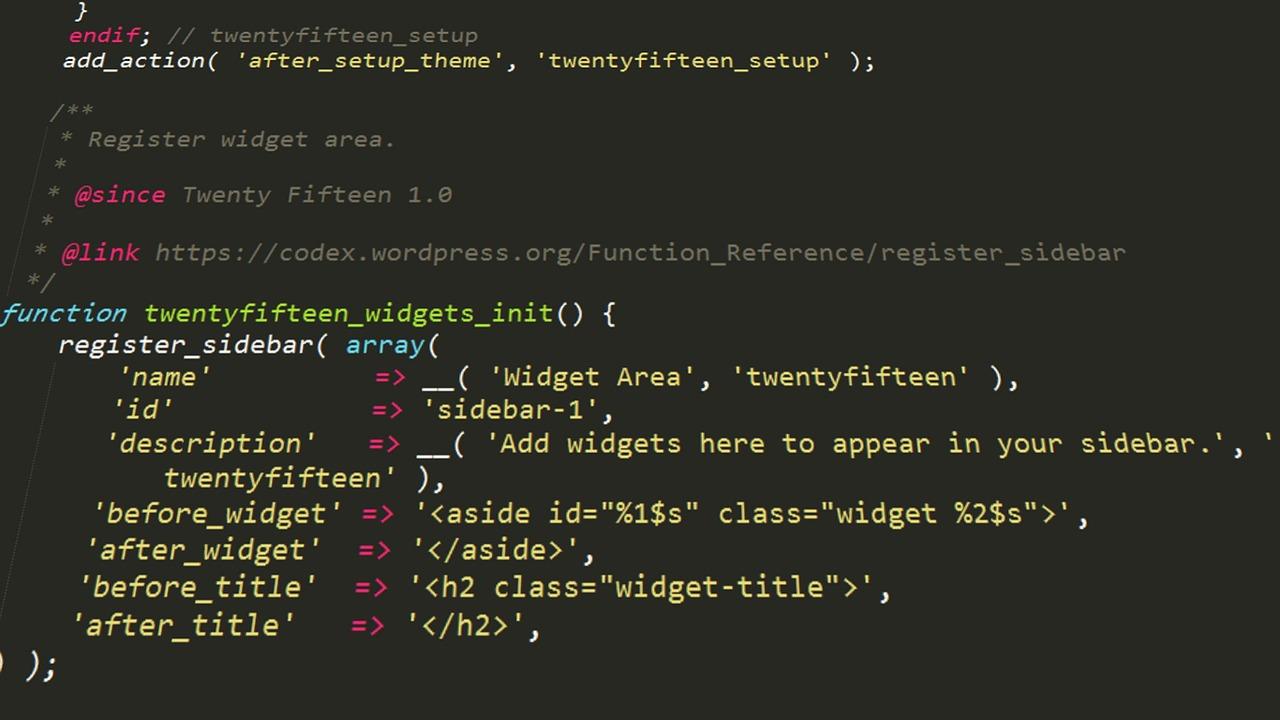
don’t forget about the widget areas. Use these spaces to promote your brand through social media links, testimonials, or a call-to-action that drives engagement. Customizing these sections can not only enhance your site’s functionality but also keep the branding consistent across different pages.
| Element | Purpose |
|---|---|
| Logo | Brand recognition |
| Color Palette | Emotional connection |
| Fonts | Personality expression |
| Images | Visual storytelling |
Troubleshooting Common Theme Installation Issues
Installing a WordPress theme can sometimes feel overwhelming, especially for beginners. While the process is generally straightforward, various issues may arise that can hinder your progress. Here are some common problems you might encounter during theme installation, along with effective solutions.
1. Theme ZIP File Not Uploading
If you’re having trouble uploading the theme ZIP file, check the following:
- File Size: Ensure the theme file size doesn’t exceed the maximum upload limit set by your hosting provider. You may need to increase this limit through your
php.inifile or your hosting control panel. - Correct File: Make sure you’re uploading the correct ZIP file. Some theme packages include documentation and other files, so double-check that you’re using the right one.
- Browser Issues: Try a different web browser or clear your current browser’s cache to see if that resolves the problem.
2. Missing Stylesheet Error
This common error typically occurs when the theme folder structure is incorrect. To fix it:
- Extract the ZIP file on your computer and ensure that the
style.cssfile is present in the main theme folder. - Make sure you’re uploading the root theme folder and not a parent folder that contains it.
3. Theme Activation Issues
After successfully uploading your theme, you might encounter activation issues. Here’s how to troubleshoot:
- Check for Plugin Conflicts: Deactivate all plugins temporarily and try activating the theme again. If it works, reactivate your plugins one by one to find the culprit.
- Update WordPress: Ensure you’re using the latest version of WordPress. An outdated version can lead to compatibility issues.
- PHP Version: Verify that your website is running an appropriate version of PHP as required by the theme. You can usually check this in your hosting account settings.
4. Visual Issues After Installation
Upon activation, some themes may not appear as expected due to missing dependencies or demo content. To resolve this, follow these tips:
- Check if the theme comes with a recommended plugin. Installing and activating these plugins can often restore full functionality.
- Look for demo content import options in the theme settings. This can help set up your site to mirror the theme’s demo.
- Review the theme documentation for any additional setup instructions that may be necessary.
If you encounter other issues that aren’t covered here, don’t hesitate to consult the theme developer’s support or community forums. Many users share their experiences and solutions, making it easier to find help specific to your situation.
Enhancing Your Site with Essential Plugins
Once you’ve installed your WordPress theme, the next step is to enhance your site with essential plugins that can supercharge its functionality and user experience. Plugins are like adding new tools to your toolkit—each one designed to solve specific problems or add exciting features. Here’s how you can make the most of your website with the right plugins.
First up, consider installing SEO plugins. These tools help you optimize your content for search engines, making it easier for potential visitors to find you. A popular choice is Yoast SEO, which provides real-time feedback on your content’s readability and keyword usage. Here are a few other essential SEO plugins:
- All in One SEO Pack
- Rank Math
- SEOPress
Next, don’t overlook security plugins. Keeping your website safe from threats is crucial, especially if you’re handling sensitive information. Plugins like Wordfence and iThemes Security offer robust protection against hackers and malware. Here’s a quick comparison:
| Plugin | Key Features | Cost |
|---|---|---|
| Wordfence | Firewall, malware scanner | Free / Premium Available |
| iThemes Security | Two-factor authentication, brute force protection | Free / Premium Available |
To improve user engagement, consider adding contact form plugins. Form plugins allow visitors to reach out easily, providing a seamless way for potential customers to get in touch with you. Options like WPForms and Contact Form 7 are user-friendly and customizable, enabling you to create forms that suit your needs perfectly.
Lastly, think about performance optimization plugins. Speed is a critical factor for user satisfaction and SEO. Plugins such as WP Rocket or W3 Total Cache can significantly reduce your site’s loading time, making it more enjoyable for your visitors. A fast site can lead to lower bounce rates and higher conversion rates, making this an essential investment.
By carefully selecting and installing these essential plugins, you can transform your WordPress site into a powerful, user-friendly platform that not only attracts traffic but also retains visitors. Each plugin serves a purpose, enhancing your site’s functionality while streamlining your workflow. Take your time to explore different options, and remember that quality is often more important than quantity when it comes to plugins.
Keeping Your Theme Updated for Optimal Performance
Keeping your WordPress theme updated is essential for not just aesthetics, but also performance, security, and compatibility. Regular updates from theme developers often include new features, bug fixes, and improvements in code efficiency. Ignoring these updates can lead to a sluggish website, security vulnerabilities, and even potential conflicts with plugins or WordPress core updates.
Here are some key benefits of maintaining an updated theme:
- Improved Security: Developers continuously patch vulnerabilities that could be exploited by malicious users. Keeping your theme updated ensures you’re protected against threats.
- Enhanced Performance: Updates often come with optimizations that enhance loading speed and overall functionality, contributing to a better user experience.
- New Features: Updates may introduce new features or enhancements that can elevate your site’s functionality, allowing you to take advantage of the latest technology.
- Compatibility: As WordPress itself evolves, so do themes. Updating your theme ensures it works seamlessly with the latest version of WordPress and other plugins.
To keep your theme updated, follow these simple steps:
- Log in to your WordPress admin dashboard.
- Navigate to Appearance > Themes.
- Check for any available updates under the theme you are using.
- If an update is available, click on Update Now.
If you are using a premium theme, ensure that you regularly check the theme developer’s website or your email for update notifications. It’s also a good practice to back up your website before performing any updates to prevent data loss.
Consider setting up a schedule for updates. You could check for updates weekly or bi-weekly, depending on your site’s activity level. Consistency will make it easier to manage your theme and ensure you’re always operating at peak performance.
Table: Common Theme Update Issues
| Issue | Solution |
|---|---|
| Site breaks after update | Restore previous version and check compatibility with plugins. |
| Missing features | Review theme documentation for new settings or features. |
| Slow loading times | Optimize images and consider a caching plugin. |
staying on top of theme updates is a simple yet powerful way to ensure your WordPress site runs smoothly and securely. So, make it a habit, and you’ll be well on your way to an optimized online presence.
Exploring Premium vs. Free Themes: What You Need to Know
When it comes to choosing a theme for your WordPress website, one significant decision you’ll face is whether to opt for a premium theme or a free theme. Each option has its own set of advantages and drawbacks that can impact your site’s design, functionality, and overall user experience.
Free themes are a great starting point for beginners or those on a tight budget. They offer a variety of styles and layouts, enabling you to find something that suits your needs without any upfront costs. However, keep in mind that:
- Customization options may be limited.
- Support may be minimal or non-existent.
- Some free themes might not be regularly updated, exposing your site to security risks.
- They often lack advanced features that could enhance your website’s performance.
On the other hand, premium themes come with a price tag, but they often justify the investment with a range of benefits, including:
- Enhanced customization options that allow for a more unique look.
- Better support, with dedicated customer service and documentation.
- Regular updates that help keep your site secure and compatible with the latest WordPress version.
- Advanced features like SEO optimization, page builders, and more robust functionality.
To make the right choice for your site, consider the following factors:
| Factor | Free Themes | Premium Themes |
|---|---|---|
| Cost | Free | Paid (typically $30-$100+) |
| Customization | Limited | Extensive |
| Support | Community forums | Dedicated support |
| Updates | Irregular | Regular |
Ultimately, your choice between a premium and a free theme will depend on your specific needs and goals. If you’re serious about building a professional online presence, investing in a premium theme could be worth it. However, if you’re just starting out or testing the waters, a free theme might be the perfect way to dip your toes in the vast ocean of WordPress possibilities.
Tips for Testing and Launching Your New Theme
Once you’ve installed your new WordPress theme, the next step is to test and prepare it for launch. This phase is crucial, as it ensures that your site not only looks appealing but also functions smoothly. Here are some key tips to guide you through the process:
- Check Responsiveness: Use different devices and screen sizes to ensure your theme is mobile-friendly. A responsive design is essential for a great user experience.
- Test Across Browsers: Make sure your website looks consistent on various web browsers like Chrome, Firefox, and Safari. This helps you catch any compatibility issues.
- Verify Site Speed: A slow-loading site can deter visitors. Use tools like Google PageSpeed Insights to evaluate and optimize your site’s performance.
- Review Functionality: Thoroughly check all features such as menus, buttons, and forms. Ensure that they work seamlessly to avoid frustrating your users.
After testing, you’ll want to prepare for the official launch. Here’s how to make sure everything is ready:
- SEO Optimization: Use an SEO plugin to optimize your site’s content, meta descriptions, and alt tags. This enhances your visibility in search engines.
- Backup Your Site: Before launching, create a backup of your site. This ensures you have a fallback option in case anything goes awry after the launch.
- Set Up Analytics: Install Google Analytics or another analytics tool to track your site’s performance and user behavior post-launch.
- Create a Launch Checklist: Document every step from testing to launch. A checklist helps you keep track of what’s been completed and what’s still pending.
consider using a staging environment for testing. This allows you to make changes without affecting your live site. Once you’re confident everything is functioning correctly, it’s time to make your new theme live!
| Testing Aspect | Tools/Methods |
|---|---|
| Responsiveness | BrowserStack, Responsinator |
| Site Speed | Google PageSpeed Insights, GTmetrix |
| SEO | Yoast SEO, All in One SEO Pack |
| Analytics | Google Analytics, Matomo |
Frequently Asked Questions (FAQ)
Q&A: How to Install a WordPress Theme? [Beginner’s Guide]
Q1: Why should I bother changing my WordPress theme? Isn’t the default one good enough?
A: Great question! While the default theme is functional, it often lacks the personality and features your site might need. A custom theme can enhance your site’s appearance, improve user experience, and even boost your site’s performance. Plus, with thousands of themes out there, you have the opportunity to find one that perfectly matches your brand and vision!
Q2: I’m a beginner. Is installing a WordPress theme really easy?
A: Absolutely! If you can navigate a web browser and click a few buttons, you’re more than capable of installing a theme. WordPress has made the process super user-friendly, so even if you’re just starting out, you’ll be able to follow along without any hiccups.
Q3: What do I need before I start the installation?
A: Before diving in, make sure you have a WordPress account and that you’re logged in. It’s also helpful to have a theme in mind or downloaded. You can find many free themes in the WordPress theme directory or purchase premium themes from reputable sites.
Q4: Can you walk me through the installation process? It sounds intimidating!
A: Of course! Here’s a simple step-by-step:
- Log in to your WordPress dashboard.
- Go to ‘Appearance’ and click on ‘Themes’.
- Click on ‘Add New’ to explore free themes or use the ’Upload Theme’ button for a theme you downloaded.
- Once you find a theme you like, click ‘Install’, and then ‘Activate’ it. Voila! Your new theme is live!
See? It’s as easy as pie!
Q5: What if I don’t like the theme after I install it?
A: No worries at all! You can easily switch back to your previous theme or try a different one. Just go back to the ‘Themes’ section, and you can activate any installed theme in a flash. It’s all about finding what feels right for you!
Q6: Are there any tips for choosing the right theme for my site?
A: Definitely! Here are a few tips to keep in mind:
- Consider your niche: Choose a theme that aligns with the purpose of your site.
- Look for responsiveness: Ensure your theme looks good on both desktops and mobile devices.
- Check for reviews and ratings: This can give you insights into the theme’s performance and support.
- Customization options: Look for a theme that allows you to tweak colors, fonts, and layouts without needing to code.
Choosing the right theme is crucial, so take your time!
Q7: What about updates? Do I need to update my theme regularly?
A: Yes, keeping your theme updated is essential! Updates often include new features, security patches, and performance improvements. You can easily check for updates in your WordPress dashboard under ‘Themes’. Just click ‘Update’ when prompted.
Q8: Is it possible to create my own theme?
A: Absolutely! If you’re feeling adventurous and have a bit of coding knowledge, you can definitely create your own theme. WordPress has tons of resources and tutorials to guide you through the process. It’s a great way to truly make your site unique!
Q9: I want to use a premium theme. Is it worth the investment?
A: Many premium themes come with advanced features, dedicated support, and regular updates, making them a worthwhile investment for serious bloggers and businesses. If you find a theme that perfectly suits your needs and enhances your site’s functionality, it’s definitely worth considering!
Q10: Any final thoughts on installing a WordPress theme?
A: Just remember, the right theme can transform your site and engage your audience. Don’t rush the process—take your time to explore options, read reviews, and find what resonates with you. Happy theming, and enjoy the exciting journey of building your WordPress website!
Feel free to ask more questions or share your theme experiences in the comments! We’re here to help you every step of the way!
Future Outlook
And there you have it! Installing a WordPress theme doesn’t have to be a daunting task. With the steps outlined in this beginner’s guide, you’re now equipped to transform your website into a stunning online presence that reflects your style and vision. Remember, the right theme can make all the difference in attracting visitors and keeping them engaged.
So go ahead, explore the themes available, and don’t be afraid to experiment until you find the perfect fit! If you run into any hiccups along the way, don’t hesitate to revisit this guide or reach out to the vibrant WordPress community.
Now that you know how to install a WordPress theme, it’s time to unleash your creativity. Your website is your digital canvas—make it a masterpiece! Happy blogging!

New Providers

Enjoy The Speed Of Downloading & Uploading With 1GBPS Port



Affordable Dedicated Servers & Colocation Services. Services: Dedicated Servers Colocation Private Cabinet Colocation DDoS Protection

Up to 85% off hosting + website builder

We specialize in providing Web hosting reviews. Where you can search for potential hosts.