
Are you tired of the default WordPress admin interface? Customizing it can enhance your workflow and make your site management a breeze! With simple tweaks, you can streamline your dashboard, tailor menus, and boost productivity. Let’s dive in!
How to Customize WordPress Admin Interface
Are you tired of the standard, cookie-cutter look of your WordPress admin interface? You’re not alone! Many WordPress users and developers feel that the default dashboard can be a bit overwhelming or just plain uninspiring. The good news is, you have the power to transform that bland interface into something that truly reflects your brand and makes your workflow more efficient. In this article, we’ll explore the exciting world of WordPress customization, diving into simple yet effective ways to tailor your admin interface to better suit your needs. Whether you’re a seasoned pro or just starting out, customizing your WordPress admin can enhance your productivity, streamline your processes, and even make managing your site a bit more enjoyable. Ready to unlock the full potential of your WordPress experience? Let’s get started!
Understanding the WordPress Admin Interface Basics
The WordPress admin interface is your command center for managing your website. It’s where you’ll find all the tools and features you need to customize your site, manage content, and engage with your audience. Starting with a solid understanding of this interface can significantly enhance your efficiency as a site administrator.
Upon logging in, you’re greeted by the Dashboard, which provides a snapshot of your site’s performance, recent activity, and quick access to important features. Familiarizing yourself with this section is key. Here are some elements you’ll encounter:
- At a Glance: Provides a quick overview of your posts, pages, and comments.
- Activity: Shows recent comments and posts, helping you stay updated.
- Quick Draft: Allows you to create a new post quickly without navigating away from the dashboard.
Next, let’s explore the Posts and Pages sections. These are the backbone of your content strategy. In the Posts section, you can manage your blog entries, categorize them, and tag them for better organization. The Pages section operates similarly but is typically used for static content like your homepage or contact page.
Customization is also made easy through the Appearance menu. Here, you can choose your theme, customize widgets, and manage menus. Each theme has its own settings, so it’s important to explore these options to tailor your website’s look and feel. Key areas to focus on include:
- Customize: Make real-time changes to your site’s appearance.
- Widgets: Enhance your sidebars and footers with additional features.
- Menus: Organize your navigation for better user experience.
One of the most powerful features of the WordPress admin interface is the Plugins section. Plugins extend the functionality of your site, allowing you to add features like SEO tools, social media integration, and security enhancements. To maximize your site’s potential, consider installing popular plugins such as:
- Yoast SEO: Optimize your content for search engines.
- WooCommerce: Build an online store with ease.
- Wordfence: Secure your site from potential threats.
Lastly, don’t forget about the Users section where you can manage user roles and permissions. This is particularly important if you have multiple contributors or editors on your site. Assigning the right roles ensures that everyone has access to the tools they need while maintaining control over sensitive areas of your website.
Understanding these fundamental components of the WordPress admin interface will empower you to customize your site effectively. With a little practice, you’ll find yourself navigating the dashboard with ease, making adjustments, and enhancing your site’s functionality and design.
Why Customization Matters for Your Workflow
Customization is more than just a buzzword; it’s a game changer for enhancing productivity and streamlining your workflow. By tailoring the WordPress admin interface to your specific needs, you can eliminate distractions, reduce the time spent navigating the platform, and ultimately increase your efficiency.
When you take the time to customize your workspace, you’re setting the stage for a more organized approach to managing your website. Here are a few key reasons why personalization is essential:
- Enhanced Focus: By decluttering your admin dashboard and prioritizing the tools you use most, you can maintain your focus on the tasks that matter.
- Improved Navigation: Custom menus and shortcuts facilitate quicker access to frequently used settings, making it easier to manage your site without extensive searching.
- Personalized User Experience: Customization allows you to modify the interface to suit your personal style, which can make using WordPress more enjoyable and less daunting.
Moreover, think about the collaborative aspect of your workflow. If you manage a team, customizing the admin interface can help each member find their way around more easily. You can create user roles that not only limit access but also display customized menus tailored to what each team member needs to see.
Consider this simple table demonstrating how different types of users can benefit from specific customizations:
| User Type | Customization Benefits |
|---|---|
| Content Creators | Quick access to posts and media libraries. |
| Editors | Enhanced review processes with streamlined approval workflows. |
| Administrators | Comprehensive dashboard with essential metrics and site management tools. |
Incorporating these elements into your WordPress experience not only improves day-to-day operations but also fosters a sense of ownership. When you feel that your workspace reflects your requirements, you’re more likely to be engaged and proactive in your website management duties.
Ultimately, customizing your WordPress admin interface empowers you to take control of your workflow. The benefits are clear: reduced frustration, increased productivity, and a more tailored experience that keeps you motivated to achieve your goals. Don’t just settle for a default setup—transform your admin area to work for you!
Exploring User Roles and Permissions for Tailored Experiences
Understanding user roles and permissions is crucial for creating a customized WordPress admin interface that caters to diverse needs. By effectively managing these roles, you can enhance user experience and streamline workflow. Here’s how to leverage user roles to tailor experiences in your WordPress dashboard.
WordPress comes with predefined user roles ranging from Administrator to Subscriber, each with specific capabilities. This flexibility allows you to:
- Control Access: Limit what each user can do based on their role.
- Enhance Security: Reduce the risk of unauthorized changes by restricting access to sensitive areas.
- Improve Usability: Simplify the dashboard for users who don’t need the full array of options.
To customize user experiences effectively, consider creating custom roles that fit your specific needs. Using plugins like User Role Editor, you can easily define what actions each role can perform. For instance, you might want to create a role for content editors that gives them permission to publish posts but not to change themes or settings. This can keep your site organized and safe.
| Role | Capabilities |
|---|---|
| Administrator | Full access to all features |
| Editor | Can publish and manage posts |
| Author | Can publish their own posts |
| Contributor | Can write and manage their own posts but cannot publish |
| Subscriber | Can manage their profile and read posts |
Another important aspect is using custom dashboards. By utilizing plugins like Adminimize or WP Admin UI Customize, you can hide unnecessary menu items or dashboard widgets based on user roles. This not only declutters the interface but also focuses users on tasks relevant to their responsibilities.
Lastly, consider regular audits of user roles and permissions. As your site evolves, so do its needs. Periodically reviewing who has access to what can help you maintain a secure and efficient environment. With tailored experiences, you empower your users, making their interactions with your site not only productive but also enjoyable.
Choosing the Right Plugins to Enhance Your Admin Dashboard
When it comes to customizing your WordPress admin interface, selecting the right plugins can make all the difference. A well-chosen plugin can simplify your workflow, improve usability, and even add delightful features that enhance your overall experience. Here’s how to navigate the vast sea of options and pick the plugins that will elevate your admin dashboard.
First and foremost, consider what specific functionalities you need. Are you looking to streamline your content creation process, enhance user management, or perhaps improve your site’s SEO? Identifying your primary goals will help you narrow down the choices. Here are a few categories to think about:
- Productivity Tools: Plugins like Adminimize or WP Admin UI Customize allow you to tailor your dashboard, hiding unnecessary items and decluttering your workspace.
- SEO Enhancements: Tools such as Yoast SEO or All in One SEO Pack provide valuable insights directly from your dashboard, helping optimize your content seamlessly.
- Performance Boosters: Plugins like WP Rocket or W3 Total Cache can be managed from the dashboard, ensuring that your site runs smoothly without constant technical checks.
Next, user experience is crucial. Look for plugins that offer an intuitive interface and are compatible with other tools you already use. A plugin with a steep learning curve can slow down your productivity instead of enhancing it. Always check the user reviews and ratings to gauge how well the plugin performs in real-world scenarios.
Another essential factor is support and updates. Opt for plugins that are actively maintained and frequently updated. This not only ensures compatibility with the latest version of WordPress but also means you have access to new features and security improvements. You can often find this information on the plugin’s page in the WordPress Repository.
To provide a clearer picture, here’s a quick comparison of popular plugins based on functionality and user satisfaction:
| Plugin Name | Functionality | User Rating |
|---|---|---|
| Adminimize | Dashboard customization | 4.8/5 |
| Yoast SEO | SEO optimization | 4.9/5 |
| WP Rocket | Performance optimization | 4.7/5 |
don’t forget to assess the plugin’s impact on your site’s performance. Some plugins can bloat your admin dashboard and slow down your site. Opt for plugins that are lightweight and well-optimized to ensure a smooth experience. Regularly review your active plugins and deactivate any that are unnecessary to keep your admin area efficient and responsive.
Crafting a Unique Dashboard Layout for Improved Navigation
When it comes to managing your WordPress site, having a well-organized dashboard can make a world of difference. By customizing the layout, you can streamline your workflow and enhance productivity. Here are some tips to create a more intuitive dashboard setup:
- Prioritize Key Widgets: Start by identifying which widgets you use most frequently. Consider moving them to the top of your dashboard for quicker access. You can easily drag and drop widgets to rearrange them according to your preferences.
- Remove Unused Widgets: If there are widgets that you never touch, it’s time to let them go. Disabling or removing these can declutter your dashboard and help you focus on what really matters.
- Utilize Custom Links: Adding custom links to your dashboard can save you time. You can link directly to frequently used pages, settings, or external resources, placing them in an easily accessible location.
One effective way to ensure your dashboard meets your needs is by using plugins that allow for greater customization. Consider tools like WP Admin UI Customize or Adminimize. These plugins provide flexible options for tweaking the admin interface, including:
- Customizing menu items
- Hiding unnecessary dashboard widgets
- Reordering admin menus for easier navigation
Another helpful approach is to categorize your dashboard items. Organizing your widgets into sections can significantly enhance clarity. Here’s a simple way to layout your dashboard:
| Section | Widgets |
|---|---|
| Site Management | Activity, Quick Draft |
| Content Creation | Posts, Pages, Media |
| Settings & Tools | Settings, Themes, Plugins |
don’t forget to consider user roles when customizing the dashboard. If you manage a team, tailoring the interface to fit each user’s role can improve their efficiency. For instance, editors may benefit from quick access to posts and pages, while contributors might prefer links to user profiles and content submission areas.
By investing a little time in crafting a unique dashboard layout, you can transform your WordPress experience into something that feels tailor-made for your needs. The result? A more efficient, enjoyable workflow that keeps you focused on what you do best.

Utilizing Custom Colors and Branding for a Personal Touch
Customizing the colors and branding of your WordPress admin interface not only enhances your website’s identity but also creates a more enjoyable user experience. By incorporating your brand’s color palette and logo into the admin dashboard, you’ll foster a sense of ownership and connection. Here’s how to bring your unique touch to your WordPress backend.
First, consider the color scheme that aligns with your brand. You can easily implement this through a few lines of code in your theme’s functions.php file or by using a plugin. Here’s an example of how you can set your custom colors:
function my_custom_admin_colors() {
echo '';
}
add_action('admin_head', 'my_custom_admin_colors');
In addition to colors, adding your logo to the admin interface can significantly personalize the experience. You can achieve this by uploading a custom logo through the WordPress Customizer. Here’s how you can do it:
- Navigate to Appearance > Customize.
- Select the “Site Identity” section.
- Upload your logo and adjust its display settings.
Moreover, you can enhance the visual appeal of your admin area with a custom login page using plugins like Custom Login Page Customizer. This allows you to style the login page, using your brand colors and logo, creating a seamless transition from login to dashboard. A well-branded login page not only looks professional but also welcomes users with familiar visuals.
If you’re interested in a more comprehensive approach, consider creating a custom admin theme. This can give you complete control over the appearance and functionality of the backend. You can define a consistent look and feel, ensuring that every aspect of the admin area resonates with your brand ethos.
| Customization Aspect | Action Required |
|---|---|
| Admin Color Scheme | Custom CSS/Plugin |
| Custom Logo | Appearance > Customize |
| Login Page Style | Custom Login Page Plugin |
| Full Admin Theme | Custom Development |
By implementing these customizations, you’ll not only enhance the aesthetic appeal of your WordPress admin interface but also create a more intuitive and user-friendly environment that reflects your brand identity. It’s time to transform the ordinary into the extraordinary!
Implementing Custom Widgets to Boost Functionality
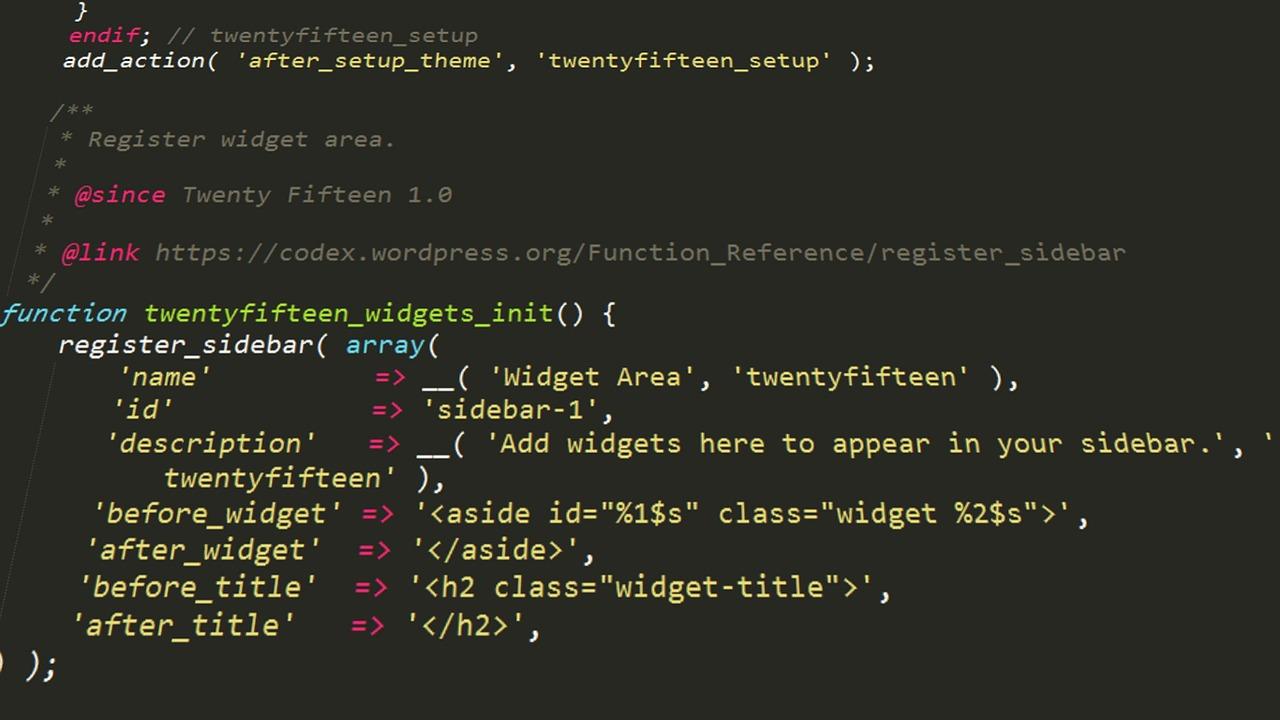
When it comes to enhancing the WordPress admin interface, custom widgets can play a pivotal role in elevating user experience and functionality. By embedding tailored widgets, you can provide quick access to essential tools and data tailored to your specific needs. Imagine having everything you require at your fingertips without digging through menus!
Creating a custom widget involves a few straightforward steps, and you don’t need to be a coding guru to pull it off. Here’s a brief outline on how you can get started:
- Define Your Purpose: Determine what information or functionality your widget should provide.
- Set Up the Widget Class: Utilize the WordPress Widget API to create your widget class.
- Register Your Widget: Hook your custom widget into WordPress using the
widgets_initaction. - Customize Display Options: Use the
form,update, andwidgetmethods to manage how your widget appears and behaves.
For instance, imagine a widget that displays the latest comments or a quick analytics overview. You could structure your widget to show real-time statistics or updates related to your site’s performance. This can keep you informed without constantly refreshing or navigating through different sections of the dashboard.
Here’s a simplified example of what your widget’s code might look like:
        class My_Custom_Widget extends WP_Widget {
            function __construct() {
                parent::__construct('my_custom_widget', __('My Custom Widget', 'text_domain'));
            }

            public function widget($args, $instance) {
                echo $args['before_widget'];
                // Output the widget content
                echo __('Hello, World!', 'text_domain');
                echo $args['after_widget'];
            }

            public function form($instance) {
                // Form options for the widget
            }

            public function update($new_instance, $old_instance) {
                // Update options
            }
        }
Moreover, it’s essential to ensure that your custom widgets align with your overall admin interface design. By employing WordPress styling classes, you can maintain consistency. Consider using the following CSS classes for a polished look:
| CSS Class | Description |
|---|---|
| .widget-title | Styles the title of your widget. |
| .widget-content | Defines the main content area of the widget. |
| .widget-button | Applies styles to buttons within your widget. |
Incorporating custom widgets can significantly improve the usability of your WordPress admin interface. By personalizing your workspace, you enhance productivity and streamline your workflow. So why not try creating a custom widget that caters to your unique requirements? It’s a fun project that can yield tremendous benefits!
Streamlining Menu Items for Quick Access to Essential Features
Customizing the WordPress admin interface is all about enhancing your workflow and making essential features more accessible. By streamlining your menu items, you can create a more efficient environment that allows you to focus on what truly matters—content creation and management.
One of the first steps is to prioritize your most-used features. Take a moment to analyze which menu items you frequently access. This could include:
- Posts – For quick blog updates
- Pages – For managing static content
- Media – To quickly upload images and files
- Appearance – For theme modifications
- Settings – For site configuration
Once you’ve identified your key areas, you can hide or remove less important items from the menu. Utilizing a plugin like Admin Menu Editor allows you to drag-and-drop menu items and even create custom menus. This way, you can:
- Rearrange the order of the menu items to fit your workflow
- Hide items that you rarely use, decluttering your interface
- Add custom links to external resources or frequently used pages
Another effective strategy is to leverage custom post types and taxonomy. If your website has specific needs, creating tailored post types can help keep the admin area focused and relevant. For instance, if you run an online store, you might want to add a custom post type for products that can be easily accessed from the main menu.
Here’s a simple table to illustrate how you might categorize different types of content:
| Content Type | Menu Item | Frequency |
|---|---|---|
| Blog Posts | Posts | Daily |
| Landing Pages | Pages | Weekly |
| Images and Files | Media | Daily |
| Site Design | Appearance | Monthly |
don’t overlook the importance of personalizing user roles. If you’re managing a team, granting access based on necessity can streamline your admin interface significantly. Limiting access not only enhances security but also reduces the number of visible menu items, emphasizing only what’s essential for each role.
By taking these steps to streamline your WordPress admin menu, you’ll find that navigating your dashboard becomes more intuitive, enhancing productivity and creating a more enjoyable editing experience.
Tips for Maintaining a Clean and Organized Admin Area
Keeping your admin area tidy and organized not only enhances productivity but also makes navigating the WordPress dashboard a breeze. Here are some effective strategies to achieve that spotless workspace:
- Utilize Custom Admin Menus: Streamline your admin menu by hiding unnecessary items or rearranging them based on your workflow. Plugins like Admin Menu Editor can help you customize your menu’s appearance and functionality.
- Organize Plugins: Regularly review your installed plugins. Deactivate and delete any that you no longer use. This minimizes clutter and reduces potential security vulnerabilities.
- Group Similar Features: Consider creating a dashboard widget that groups related administrative tasks. This can help you find what you need quickly while keeping distractions to a minimum.
Another key aspect is the management of your media library. An organized media library can save you a lot of time:
- Use Folders: Implement a folder structure within the media library to categorize images and files. Although WordPress doesn’t support this natively, plugins like Media Library Organizer can assist you.
- Tagging and Naming: Always use descriptive names for your media that include keywords. This not only helps in finding files but also improves SEO.
It’s also beneficial to manage your dashboard widgets effectively:
| Widget Type | Function | Recommendation |
|---|---|---|
| Site Health | Check website performance | Keep Enabled |
| At a Glance | Overview of your site | Keep Enabled |
| Quick Draft | Fast content creation | Keep Enabled |
| WordPress News | Updates and tips | Disable |
Lastly, consider setting a regular cleaning schedule. Just like any workspace, your admin area requires ongoing maintenance to stay organized:
- Weekly Review: Spend a few minutes each week reviewing your dashboard, deleting outdated content, and updating plugins.
- Monthly Cleanup: Take a more in-depth look at your media library, removing unused files and optimizing images.
By following these tips, you’ll create an efficient and aesthetically pleasing admin area that reflects your unique workflow and style, making your WordPress experience more enjoyable.
Regular Updates and Best Practices for Ongoing Customization
To keep your WordPress admin interface tailored to your needs, it’s essential to stay informed about the latest updates and techniques for customization. Regularly check for updates to both WordPress itself and any plugins you use. These updates often include new features and enhancements that can improve your customization experience.
Consider subscribing to WordPress newsletters or following reputable blogs focused on WordPress development. This way, you’ll receive timely information about best practices and new tools that can enhance your admin interface. Here are some top sources to follow:
- WordPress.org Blog: Official updates and community news.
- Tuts+: Tutorials and courses on WordPress customization.
- WPBeginner: Beginner-friendly tips and tricks.
In addition to keeping up with updates, cleaning up your admin dashboard can drastically improve your workflow. Take advantage of plugins like Adminimize or User Role Editor to hide unnecessary items and streamline your interface. This can help minimize distractions and focus on what truly matters to your site’s management.
Another useful practice is to regularly audit your installed plugins and themes. Remove any that are outdated or no longer in use, as they can bog down your admin experience and create security vulnerabilities. Here’s a simple table to help you assess your plugins:
| Plugin Name | Purpose | Status |
|---|---|---|
| Yoast SEO | Optimize SEO | Active |
| WPForms | Create forms | Active |
| Old Plugin | Unused | Inactive |
don’t overlook the power of user feedback. If you work with a team or clients, encourage them to share their experiences using the admin interface. Conducting periodic surveys can help identify pain points and potential areas for improvement. Use their insights to guide your customization efforts and create a more efficient environment for everyone involved.
Frequently Asked Questions (FAQ)
Q: Why should I customize the WordPress admin interface?
A: Customizing the WordPress admin interface can greatly enhance your workflow. When you tailor the dashboard to your needs, you can streamline your tasks, eliminate distractions, and find what you need quicker. If you’re running a site for a client, a customized admin panel can also make it easier for them to navigate, leading to a better user experience.
Q: What are some easy ways to start customizing my WordPress admin interface?
A: Great question! One of the simplest ways to customize your admin interface is to install a plugin like “Adminimize,” which allows you to hide unnecessary options from the dashboard. You can also change the color scheme and add your branding with plugins like “WP Admin Color Scheme.” Remember, even small tweaks can make a big difference!
Q: Can I hide certain menu items from specific users?
A: Absolutely! With plugins like “User Role Editor,” you can customize the admin menu based on user roles. This is especially useful if you’re managing a team or giving access to clients who don’t need to see everything. It keeps things clean and focused, helping everyone stay on task.
Q: Is it possible to change the login page design?
A: Yes, and it’s easier than you think! You can use plugins like “Custom Login Page Customizer” to modify your login page’s look and feel. You can add your logo, change colors, and even use background images. A customized login page not only enhances branding but also provides a more professional look.
Q: What about dashboard widgets? Can I customize those too?
A: Definitely! You can rearrange, add, or remove dashboard widgets to display only the information that’s relevant to you. Plugins like “Dashboard Widgets Suite” give you the freedom to create custom widgets or remove those that clutter your view. Keeping your dashboard tidy can really improve your productivity.
Q: I’m not very tech-savvy. Can I still customize the admin interface?
A: Of course! Many customization options in WordPress are user-friendly and don’t require any coding skills. With plugins, you can make significant changes with just a few clicks. Plus, there are countless tutorials and guides available that can walk you through each step. Remember, customizing your admin interface is all about making it work for you!
Q: Will customizing the admin interface affect my website’s performance?
A: Generally, no! As long as you choose reputable plugins and don’t overload your admin with too many features, your site’s performance shouldn’t be affected. In fact, a well-organized admin can make site management more efficient, which may even enhance your overall productivity!
Q: How often should I consider updating my customizations?
A: It’s a good idea to review your customizations periodically, especially when you add new functionalities or your site grows. As your needs evolve, so should your admin interface. Regular updates ensure that your setup remains efficient and aligned with your current workflow.
Q: Any final tips for someone looking to customize their WordPress admin interface?
A: Absolutely! Start simple. Pick one or two changes that will have the most impact on your daily tasks, and expand from there. Don’t hesitate to experiment with different plugins until you find the perfect fit for your needs. And remember, a customized admin interface is not just about aesthetics; it’s about creating an environment that helps you succeed!
In Retrospect
As we wrap up our journey into the world of customizing the WordPress admin interface, we hope you’re feeling inspired and equipped to take your site to the next level. Remember, a tailored admin dashboard doesn’t just enhance your workflow; it can also make managing your content more enjoyable and intuitive.
Whether you decide to streamline your menu, add your own branding, or tweak those pesky default settings, every small change contributes to a more personalized experience that reflects your unique style and needs. So don’t hesitate—dive in and start customizing!
And if you ever feel stuck or need a little extra guidance, the WordPress community is a treasure trove of resources. Share your experiences, ask questions, and connect with fellow users.
Happy customizing, and here’s to a more efficient and enjoyable WordPress journey ahead!

New Providers

Enjoy The Speed Of Downloading & Uploading With 1GBPS Port



Affordable Dedicated Servers & Colocation Services. Services: Dedicated Servers Colocation Private Cabinet Colocation DDoS Protection

Up to 85% off hosting + website builder

We specialize in providing Web hosting reviews. Where you can search for potential hosts.