
Changing your WordPress password is a breeze, and it’s crucial for keeping your site secure! Follow our step-by-step guide to enhance your site’s safety. Don’t wait—take control of your security today and protect your content!
How to Change Password in WordPress: Step-by-Step Guide
Introduction:
Hey there! If you’re managing a WordPress site, you know how crucial it is to keep your site secure, and one of the simplest yet most effective ways to do that is by changing your password regularly. Whether you’ve just realized your password isn’t as strong as it should be or maybe you’ve had a hunch that it’s time for a refresh, you’re in the right place! In this step-by-step guide, we’ll walk you through the process of changing your password in WordPress, making it easy and hassle-free. Trust me, taking this small step can make a big difference in keeping your site safe from prying eyes. So, let’s dive in and empower you to take control of your site’s security!
Understanding the Importance of a Strong Password for Your WordPress Site
In the digital landscape, where cyber threats are increasingly sophisticated, having a robust password for your WordPress site is not just a good practice; it’s essential for safeguarding your online presence. A strong password acts as the first line of defense against unauthorized access, protecting your valuable content and user data from malicious attacks.
So, what constitutes a strong password? Here are some key characteristics:
- Length: Aim for at least 12 characters.
- Complexity: Use a mix of uppercase letters, lowercase letters, numbers, and special characters.
- Unpredictability: Avoid common words, phrases, or easily guessable information like birthdays or names.
- Uniqueness: Don’t reuse passwords across different sites; each account should have its own distinct password.
Using a strong password significantly reduces the risk of brute-force attacks, where hackers attempt to gain access by systematically trying multiple combinations. Furthermore, WordPress sites are common targets for cybercriminals, making it imperative for site owners to prioritize password security. Remember, a compromised password can lead to unauthorized changes, data loss, or even complete site takeover.
To illustrate the difference a strong password can make, consider this simple comparison:
| Password Type | Strength Level | Estimated Time to Crack |
|---|---|---|
| 123456 | Weak | Instant |
| Pa$$word123! | Moderate | Minutes |
| vF!7n$k3b@9Lp | Strong | Centuries |
It’s not just about creating a strong password; it’s also crucial to change it regularly. This practice ensures that even if a password is compromised, the window of opportunity for abuse remains limited. Additionally, consider enabling two-factor authentication (2FA) for an extra layer of security. This adds a second step to your login process, making it significantly harder for anyone to gain unauthorized access.
By prioritizing password strength and implementing best practices, you can protect your WordPress site from potential threats and ensure your content remains secure. Remember, in the world of cybersecurity, a little effort goes a long way in protecting your digital assets.
Navigating to the User Profile to Change Your Password
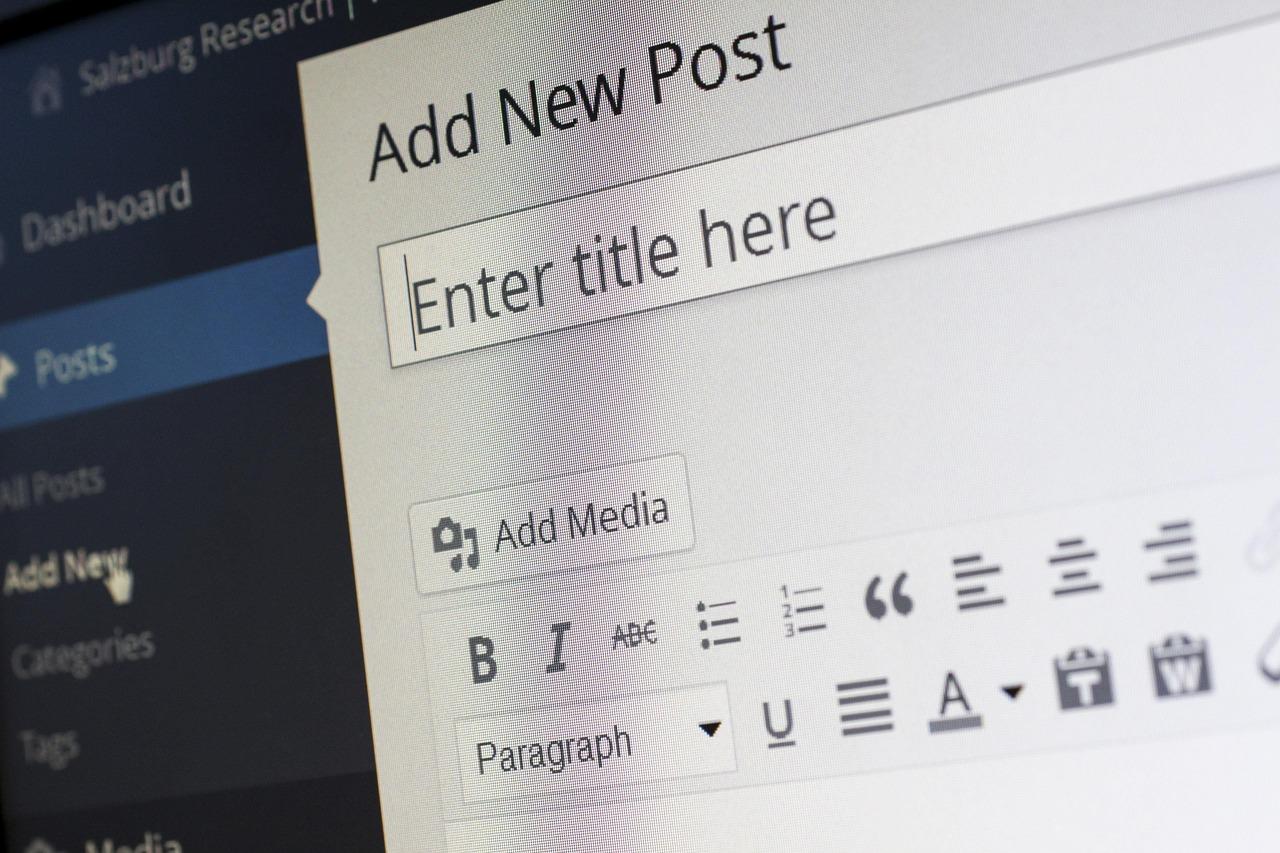
Using the WordPress Dashboard for Quick Password Changes
Changing your password in WordPress is a breeze, especially when leveraging the intuitive WordPress Dashboard. This user-friendly interface makes it simple for both beginners and seasoned users to ensure their accounts remain secure. To get started, simply log in to your WordPress admin area. Once you’re in, follow these steps:
- Navigate to the Users menu: On the left sidebar, locate and click on “Users.” If you’re managing multiple accounts, choose “All Users” to see the list of all registered users.
- Select your profile: Click on your username. This takes you to your profile page where you can make various changes.
- Change your password: Scroll down to the “Account Management” section. Here, you’ll find the option to generate a new password. Click on the “Generate Password” button.
- Set your new password: You can either use the generated password or enter a custom one. Make sure it’s strong and memorable for you!
WordPress even provides feedback on the strength of your chosen password, which is crucial for maintaining the security of your site. Once you’re satisfied with your new password, don’t forget to click the “Update Profile” button at the bottom of the page to save your changes.
If you’re managing a multi-user site, this dashboard method also allows you to change passwords for other users. Just ensure you have the proper permissions to do so. Follow the same steps as outlined above for each user, and encourage them to choose strong passwords too, possibly even using a password manager.
For a quick reference, here’s a concise table summarizing the steps to change your password through the WordPress Dashboard:
| Step | Action |
|---|---|
| 1 | Log in to WordPress Dashboard |
| 2 | Go to Users > All Users |
| 3 | Select your profile |
| 4 | Generate or enter a new password |
| 5 | Save changes |
Regularly updating your password is a simple yet effective way to enhance your site’s security. With the WordPress Dashboard at your fingertips, changing your password has never been easier!
Resetting Your Password via the Login Screen
Forgetting your password can be frustrating, but WordPress makes it easy to reset it directly from the login screen. Follow these straightforward steps to regain access to your account quickly and securely.
When you arrive at the WordPress login page, look for the “Lost your password?” link located beneath the login fields. Click on this link to initiate the password reset process.
Next, you’ll be prompted to enter your username or the email address associated with your account. Make sure to provide the correct information, as this is how WordPress will send you the reset instructions.
Once you submit your username or email, check your inbox for an email from WordPress. This email will contain a link to create a new password. If you don’t see it in your inbox, remember to check your spam or junk folder, as it might end up there.
After clicking the link in the email, you’ll be taken to a new page where you can enter your new password. Choose a password that is both strong and memorable. A good password typically includes:
- At least 12 characters long
- A mix of uppercase and lowercase letters
- Numbers
- Special characters (like !@#$%^&*)
Once you’ve entered your new password, click the “Reset Password” button. You should receive a confirmation message that your password was successfully changed. Now, return to the login screen and enter your credentials with the new password to access your WordPress dashboard.
It’s essential to keep your password secure. To help remember it, consider using a password manager or writing it down in a safe place. Regularly updating your password is also a good practice to enhance your site’s security.
Leveraging the Password Reset Email Feature
One of the most user-friendly features in WordPress is the password reset email functionality. This tool not only helps you regain access to your account quickly but also enhances the overall security of your site. By leveraging this feature, you can ensure that your users can easily reset their passwords without needing technical assistance, which can improve user satisfaction and reduce support tickets.
When a user forgets their password, they can simply click on the “Lost your password?” link on the login page. This action triggers an email that contains a unique password reset link. Here’s why you should encourage your users to utilize this feature:
- Convenience: No need to remember complex passwords; users can swiftly reset them anytime.
- Security: Unique links prevent unauthorized access, ensuring user accounts remain protected.
- Reduced Downtime: Users can quickly regain access to their accounts without waiting for admin intervention.
To make the process even smoother, consider customizing the content of the password reset email. By default, WordPress sends a generic message, but adding a personal touch can greatly enhance user trust. You can use plugins like WP Better Emails or WP Mail SMTP to modify the email template. Here’s a quick overview of what to include in your custom email:
| Element | Description |
|---|---|
| Greeting | A friendly welcome to make the user feel valued. |
| Instructions | Clear steps on how to reset their password. |
| Link | Direct link to reset their password, ensuring it is highlighted. |
| Support Information | Contact details for further assistance if needed. |
Once users click the reset link, they will be directed to a secure page where they can create a new password. Remind them to choose a strong password that combines letters, numbers, and special characters to enhance their account security. Providing tips on creating secure passwords can further empower your users and strengthen your site’s integrity.
Additionally, consider enabling two-factor authentication (2FA) for an extra layer of security, especially for users with administrative privileges. This way, even if someone gains access to their email, they won’t be able to reset the password without the second verification step.
not only simplifies the recovery process but also builds a more secure, user-friendly WordPress site. Encouraging users to utilize this functionality can significantly improve their experience, making them feel more in control of their accounts.

Choosing a Secure Password: Tips and Best Practices
When it comes to password security, it’s essential to create strong and unique passwords that protect your WordPress site from unauthorized access. A secure password is your first line of defense against cyber threats, so take the time to develop a password that’s difficult for others to guess. Here are some tips to help you craft a secure password:
- Length Matters: Aim for at least 12 characters. The longer your password, the more difficult it will be to crack.
- Mix It Up: Use a combination of uppercase and lowercase letters, numbers, and special characters. This complexity adds layers of security.
- Avoid Common Words: Steer clear of easily guessable passwords like “password,” ”123456,” or your name. Instead, use phrases that are meaningful to you but hard for others to predict.
- Use Password Managers: Consider using a reputable password manager to generate and store your passwords securely. This way, you can create complex passwords without having to remember each one.
Another vital practice is to avoid reusing passwords across different accounts. If one account gets compromised, others may be at risk if they share the same password. To simplify this process, create a password formula or structure that allows you to maintain uniqueness while still being somewhat memorable.
Additionally, regularly updating your passwords is key. Set a reminder to change your passwords every few months. This ensures that even if your password is compromised without your knowledge, the potential damage is minimized. Utilize your WordPress dashboard to keep track of when you last updated your password.
| Strategy | Benefit |
|---|---|
| Long Passwords | Harder to crack |
| Character Variety | Increased complexity |
| Unique Passwords | Minimized risk |
| Password Managers | Simplified management |
enable two-factor authentication (2FA) for an added layer of security on your WordPress site. This feature requires not only a password but also a second form of verification, such as a code sent to your mobile device. Implementing 2FA can significantly reduce the chances of unauthorized access to your account, making it even more challenging for potential intruders.
Updating Your Password from the Database for Advanced Users
If you find yourself locked out of your WordPress account and the usual password reset methods aren’t working, accessing your database might be the way forward. This method is a bit technical but can be incredibly effective for advanced users who are comfortable working with MySQL databases.
First, you’ll need to access your hosting control panel. Look for the phpMyAdmin option, which allows you to manage your database. Once inside, follow these steps:
- Locate your WordPress database on the left side of the phpMyAdmin interface.
- Click on the database to see all the tables associated with it.
- Look for the table named wp_users. (The prefix might differ if you changed it during installation.)
After you’ve found the wp_users table, click on it. You’ll see a list of users registered on your site. Find your username and click on the Edit option next to it.
Now, locate the user_pass field. Here’s where you’ll enter your new password. However, before you type it in, it’s crucial to select MD5 from the function dropdown next to this field. This ensures that your password is encrypted properly.
Once you’ve entered your new password and selected MD5, scroll down and click on Go to save your changes. Congratulations! You’ve successfully updated your password directly from the database.
As a quick reference, here’s a simple table summarizing the steps:
| Step | Action |
|---|---|
| 1 | Access phpMyAdmin through your hosting control panel. |
| 2 | Select your WordPress database. |
| 3 | Open the wp_users table. |
| 4 | Edit your username record. |
| 5 | Change the user_pass field and select MD5. |
| 6 | Click Go to save your new password. |
After this, you should be able to log in to your WordPress dashboard using your new password. Remember to keep your passwords strong and unique for better security!

Using Plugins to Enhance Password Management
Managing passwords effectively is critical in today’s digital landscape, especially for WordPress users who want to protect their websites from unauthorized access. One of the best ways to enhance your password management is by utilizing plugins specifically designed for this purpose. These tools not only help in generating strong passwords but also streamline the entire process of password updates.
Here are some compelling reasons to consider integrating password management plugins into your WordPress site:
- Secure Password Generation: Many plugins offer robust password generation features, creating complex passwords that are hard to crack. This eliminates the risk of using weak or commonly used passwords.
- Password Storage: Some plugins provide a secure vault for storing and managing all your passwords. This is especially useful for users who manage multiple accounts and don’t want to rely on memory.
- Automatic Password Updates: With the right plugin, you can set up automatic reminders for password changes, ensuring that your passwords are never outdated.
- Two-Factor Authentication: Enhance your security further by choosing plugins that offer two-factor authentication, adding an extra layer of protection to your login process.
When selecting a password management plugin, consider the following features to ensure it meets your needs:
| Plugin Name | Key Features | Price |
|---|---|---|
| LastPass | Secure storage, password sharing, form filling | Free / Premium |
| 1Password | Two-factor authentication, password generator | $2.99/month |
| Dashlane | Dark web monitoring, VPN service | $3.33/month |
Choosing the right plugin can make a significant difference in how you manage and secure your passwords on WordPress. Always look for user reviews and compatibility with your version of WordPress to ensure a smooth integration.
By enhancing your password management with plugins, you not only secure your website but also save time and reduce stress associated with remembering multiple passwords. So, take the leap and empower your password management strategy today!

Regularly Updating Your Password: Why It Matters
Keeping your online accounts secure is more important than ever in today’s digital landscape. One of the simplest yet most effective ways to safeguard your WordPress site is by regularly updating your password. Doing so can help prevent unauthorized access and protect your sensitive information. Here’s why this practice should be a part of your routine:
- Defense Against Unauthorized Access: Regularly changing your password minimizes the risk of someone gaining entry to your site. Even if your password is leaked or stolen, changing it frequently ensures that it remains secure.
- Mitigating Data Breaches: Data breaches can happen anywhere, and your WordPress site is no exception. By updating your password routinely, you can reduce the chances of a breach affecting your content and user data.
- Strengthening Security Posture: Regularly updating your password forces you to reflect on your security habits, encouraging you to adopt stronger password practices, such as longer lengths and a mix of characters.
- Adaptation to Threats: Cyber threats are constantly evolving. Regular password changes can help you stay one step ahead, especially if you suspect any suspicious activity on your site.
Consider implementing a password management system, which can help you generate and store complex passwords securely. This takes the hassle out of remembering different passwords while ensuring they are robust and unique. Additionally, you might want to explore two-factor authentication (2FA) as an added layer of protection.
To understand the impact of password changes, take a look at the following table illustrating the advantages of regular updates:
| Advantage | Description |
|---|---|
| Increased Security | Regular updates reduce vulnerability to hacks and attacks. |
| Account Control | Maintains control over who can access your site and data. |
| Peace of Mind | Knowing that your accounts are secure reduces anxiety about potential breaches. |
the importance of regularly updating your password cannot be overstated. It’s a straightforward yet powerful measure that can significantly enhance your site’s security and keep your valuable content safe. Make it a habit, and you’ll be well on your way to achieving a more secure WordPress experience.

Final Thoughts on Keeping Your WordPress Site Secure
Ensuring the security of your WordPress site goes beyond merely changing your password; it encompasses a comprehensive strategy to protect your valuable digital space. A secure site not only safeguards your data and that of your users but also enhances your credibility and boosts your SEO ranking. Here are some essential practices to keep in mind:
- Regularly Update Your Password: Make it a routine to update your password every few months. This reduces the risk of unauthorized access.
- Use Strong Passwords: Combine uppercase and lowercase letters, numbers, and special characters to create a password that’s difficult to crack.
- Implement Two-Factor Authentication: Adding an extra layer of security can significantly enhance your site’s protection against hacking attempts.
- Secure Your Login Page: Change the default login URL and limit login attempts to deter brute-force attacks.
Another vital aspect of site security lies in keeping your plugins and themes updated. Outdated software can expose vulnerabilities that hackers often exploit. Regularly check for updates, and remove any unused plugins or themes to minimize potential risks.
Additionally, consider using a reputable security plugin. These tools can help monitor your site for suspicious activity, block malicious traffic, and provide real-time alerts in case of security breaches. Investing in a solid security solution is a proactive measure that pays off in the long run.
| Security Measure | Description | Benefit |
|---|---|---|
| Password Changes | Regularly update and strengthen your passwords. | Reduces unauthorized access risks. |
| Two-Factor Authentication | Requires a second verification step. | Enhances login security significantly. |
| Security Plugins | Tools for monitoring and protecting your site. | Provides real-time alerts and support. |
don’t underestimate the power of regular backups. If the worst happens, having a secure backup can be your lifeline. Make sure to store backups in a location separate from your website to ensure you can restore your site quickly and efficiently in case of an emergency.
By implementing these practices and maintaining a proactive approach to your site’s security, you can significantly reduce the risk of breaches and ensure a safe experience for you and your visitors. Stay vigilant, stay updated, and keep your WordPress environment secure!
Frequently Asked Questions (FAQ)
Q&A: How to Change Password in WordPress - Step-by-Step Guide
Q1: Why should I change my WordPress password?
A: Great question! Changing your WordPress password regularly is essential for maintaining the security of your website. Considering that many websites are targeted by hackers, a strong, unique password can make a significant difference in protecting your data. Plus, if you suspect your password has been compromised, it’s crucial to update it immediately!
Q2: How often should I change my password?
A: Ideally, you should change your password every three to six months. However, if you notice any suspicious activity on your site or you’re using a shared computer, it’s best to change it right away. Keeping your password fresh is a simple yet effective way to enhance your site’s security.
Q3: What’s the first step to change my password in WordPress?
A: The first step is to log in to your WordPress dashboard. Simply go to yoursite.com/wp-admin and enter your current credentials. Once you’re logged in, you’re ready to make some changes!
Q4: Can I change my password directly from the dashboard?
A: Absolutely! Once you’re in the dashboard, navigate to the “Users” section on the left sidebar. Click on “Profile” or “All Users,” depending on whether you want to change your own password or someone else’s. You’ll find the option to set a new password right there!
Q5: What if I’ve forgotten my password? How can I reset it?
A: No worries! If you can’t recall your password, head over to yoursite.com/wp-admin and click on the “Lost your password?” link. Follow the prompts to enter your email address, and WordPress will send you a link to reset your password. Just make sure to check your spam folder if you don’t see it in your inbox!
Q6: Is there a way to strengthen my new password?
A: Definitely! When creating a new password, aim for at least 12 characters, including uppercase letters, lowercase letters, numbers, and special symbols. A strong password might look something like this: T!m3t0Ch@ng3. Using a password manager can also help you generate and store complex passwords without the hassle of remembering them all.
Q7: Can I change my password from the website’s front end?
A: Yes, if you have a user account that allows front-end login, you can change your password from the profile settings in your account area. Just look for the “Change Password” option, and you’re good to go!
Q8: What if I run into issues while changing my password?
A: If you’re having trouble, don’t panic! Check to make sure you’re using the latest version of WordPress, as outdated versions can sometimes cause glitches. If the problem persists, consider reaching out to your hosting provider or consulting the WordPress support forums for assistance.
Q9: Is there any additional security measure I should take after changing my password?
A: Yes! Once you’ve updated your password, consider enabling two-factor authentication (2FA) for an extra layer of security. This feature requires not just your password but also a code sent to your phone. It’s a great way to ensure that even if someone gets your password, they still can’t access your account!
Q10: Any final tips on keeping my WordPress site secure?
A: Absolutely! Regularly update your WordPress version, themes, and plugins to minimize vulnerabilities. Use strong passwords, enable 2FA, and consider security plugins that add firewalls and malware scans to your site. A proactive approach to security will keep your website safe and sound.
Changing your password might seem like a small task, but it’s a giant leap for your website’s security. So, take a moment today to follow our step-by-step guide and keep your WordPress site protected!
Final Thoughts
And there you have it! Changing your password in WordPress is a straightforward process that can significantly enhance your website’s security. By following these simple steps, you’re not just protecting your content but also ensuring your visitors feel safe online.
Remember, a strong password is your first line of defense against unauthorized access, so don’t underestimate its importance. If you haven’t updated your password in a while, now is the perfect time to do so!
If you found this guide helpful, why not share it with others who might benefit? And don’t hesitate to check back for more tips and tricks to keep your WordPress site running smoothly. Happy blogging, and stay secure!

New Providers

Enjoy The Speed Of Downloading & Uploading With 1GBPS Port



Affordable Dedicated Servers & Colocation Services. Services: Dedicated Servers Colocation Private Cabinet Colocation DDoS Protection

Up to 85% off hosting + website builder

We specialize in providing Web hosting reviews. Where you can search for potential hosts.