
Are WordPress errors holding you back? Don’t let technical glitches dampen your passion! Discover the 10 most common issues that frustrate users and learn simple, effective solutions to transform your website into a thriving online presence. Embrace the journey!
10 Most Common WordPress Errors and How to Fix Them
Every WordPress user, whether a novice blogger or a seasoned developer, has faced the daunting reality of website errors. These pesky obstacles can feel like insurmountable roadblocks, halting your creative flow and stifling your online presence. But fear not! Each challenge presents an opportunity for growth and learning. In this article, we’ll explore the 10 Most Common WordPress Errors that can derail your website’s performance, along with actionable solutions to overcome them. By understanding these pitfalls and how to fix them, you’ll gain the confidence to navigate your WordPress journey with ease. Embrace these challenges as stepping stones toward mastery, and let’s transform your website into a seamless, efficient, and inspiring platform. Together, we’ll turn frustration into empowerment and errors into opportunities for improvement. Let’s dive in!
Identifying the Most Frequent WordPress Errors
When it comes to managing a WordPress site, errors can impede your progress and frustrate both you and your visitors. Understanding the most common pitfalls is essential for maintaining a seamless online experience. Here are some of the frequent errors that users encounter, along with actionable insights to resolve them.
- White Screen of Death: Often caused by PHP errors or plugin conflicts, this issue leaves your site blank. To fix it, enable debugging in your wp-config.php file and identify the culprit.
- 404 Error: A common hurdle, this error occurs when a page is not found. Check your permalinks and ensure they are correctly configured. Resetting the permalink structure can often resolve this issue.
- Memory Exhausted Error: If you encounter this, it means your site has reached its memory limit. Increase the memory limit in your wp-config.php file or consult your hosting provider for support.
- Login Issues: Sometimes, users can’t log in due to incorrect credentials or cookie issues. Clear your browser cookies and cache, or reset your password through the “Lost your password?” link.
- Maintenance Mode Error: This occurs when updates or installations are interrupted. To resolve it, simply delete the .maintenance file from your site’s root directory.
It’s not just about identifying these errors; it’s about knowing how to tackle them with confidence. By familiarizing yourself with these common challenges, you can proactively prevent potential site downtime and ensure that your audience always has access to your content.
| Error Type | Possible Causes | Quick Fix |
|---|---|---|
| White Screen of Death | PHP errors, plugin conflicts | Enable debugging |
| 404 Error | Incorrect permalinks | Reset permalinks |
| Maintenance Mode Error | Interrupted updates | Delete .maintenance file |
By staying informed about these common WordPress errors and their solutions, you can navigate challenges with ease, ensuring your website remains a reliable resource for your audience. Remember, every problem has a solution; all it takes is the right approach and a willingness to adapt.
Understanding the Impact of WordPress Errors on Your Site
WordPress errors can significantly affect your website’s performance, usability, and ultimately, your brand’s reputation. When users encounter issues, they are less likely to return, which can lead to a drop in traffic and conversion rates. Understanding these errors is the first step toward maintaining a seamless online experience for your visitors.
Common errors, such as the White Screen of Death or the infamous 404 Error, can leave users feeling frustrated and confused. When these problems occur, they don’t just disrupt the user journey; they also diminish the credibility of your site. It’s crucial to address these issues promptly not only to restore functionality but also to demonstrate your commitment to providing a reliable service.
To navigate these challenges effectively, consider implementing a routine maintenance schedule. This can include:
- Regular updates: Keep your WordPress core, themes, and plugins up to date to minimize compatibility issues.
- Backup solutions: Regularly back up your site to prevent data loss and make recovery easier in case of errors.
- Performance monitoring: Utilize tools to track site performance and identify any potential issues before they escalate.
In addition, investing time in understanding the most frequent errors can empower you to fix them without panic. For instance, knowing how to resolve a database connection error involves checking your wp-config.php file and ensuring that your database credentials are accurate. Recognizing these errors and their solutions can pave the way for a more resilient website.
Here’s a snapshot of some common errors and their potential impacts:
| Error Type | Impact | Solution |
|---|---|---|
| 500 Internal Server Error | Site inaccessible, loss of user trust | Check .htaccess file, disable plugins |
| 403 Forbidden | Users unable to access content | Check file permissions |
| Memory Exhausted Error | Site crashes, poor performance | Increase PHP memory limit |
By understanding the implications of each error, you can take proactive measures to avoid them. Empower yourself with knowledge, establish preventive practices, and cultivate a website that not only functions smoothly but also builds trust and loyalty among your audience.
The White Screen of Death and How to Overcome It
Encountering a blank screen when updating or modifying your WordPress site can feel like a nightmare, commonly referred to as the White Screen of Death (WSOD). It leaves users and website owners in a state of confusion, often leading to frustration and concern about their site’s integrity. Fortunately, there are several effective strategies to diagnose and resolve this issue.
One of the first steps to troubleshoot the WSOD is to deactivate all plugins. A faulty plugin might be the culprit behind the white screen. You can do this easily by accessing your WordPress files via FTP or your hosting file manager. Navigate to the wp-content folder, find the plugins directory, and rename it to pluginsold. This will deactivate all plugins at once and allow you to check whether the problem persists.
If the screen is no longer blank, reactivate your plugins one by one to identify the problematic one. This method not only helps pinpoint the error but also ensures that your website remains functional while you troubleshoot. Remember, keeping your plugins updated is vital in preventing such issues in the future.
Another common fix involves switching to a default theme. Sometimes, the theme you are using may conflict with WordPress updates or other plugins, resulting in the WSOD. To switch themes, navigate to wp-content/themes and rename your current theme folder. WordPress will automatically revert to the default theme. If this resolves the issue, consider revising or replacing your current theme.
In some cases, the issue may arise due to memory limits being exceeded. You can increase your WordPress memory limit by editing your wp-config.php file. Add the following line just above the line that says / That's all, stop editing! Happy blogging. /:
define('WPMEMORY_LIMIT', '256M');. This adjustment can provide your site with the resources it needs to function smoothly.
| Potential Causes | Solutions |
|---|---|
| Faulty Plugin | Deactivate all plugins and reactivate them one by one. |
| Theme Conflict | Switch to a default theme to check for compatibility issues. |
| Memory Limit | Increase memory limit in wp-config.php. |
| Corrupted Files | Re-upload core WordPress files. |
Lastly, if none of these solutions work, consider reviewing your error logs. Accessing your server’s error log can provide specific details about the error causing the WSOD, allowing for more targeted troubleshooting. In situations where the technicalities seem overwhelming, reaching out to your hosting provider for support can also prove invaluable. They often have insights and tools to help resolve the issue swiftly.
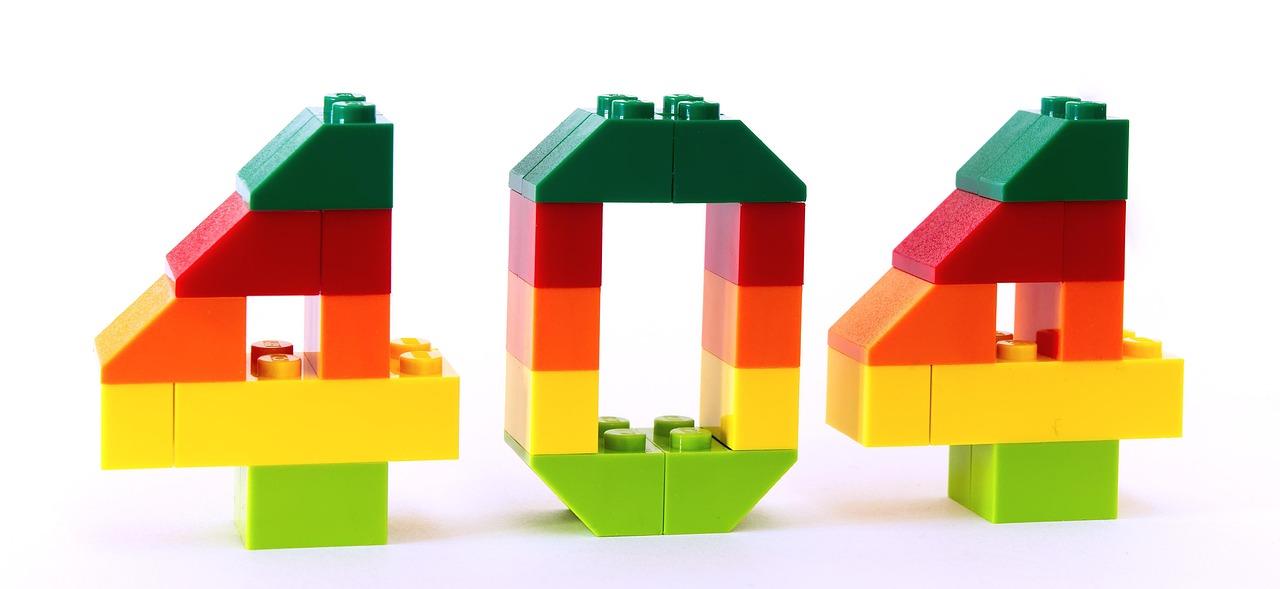
Fixing the 404 Error: A Step-by-Step Guide
Encountering a 404 error on your WordPress site can be frustrating, but the good news is that it’s often easy to resolve. A 404 error means that the server cannot find the page you’re trying to access. This can happen for various reasons, including broken links or changes to the URL structure. Here’s how to tackle this common WordPress issue step-by-step:
Step 1: Check the URL
Before diving into deeper fixes, ensure that the URL you entered is correct. Small typos can easily lead to a 404 error.
Step 2: Refresh Your Permalinks
One of the most common causes of 404 errors in WordPress is permalink issues. To refresh your permalinks:
- Go to your WordPress dashboard.
- Navigate to Settings > Permalinks.
- Without making any changes, click on the Save Changes button.
This action flushes rewrite rules and often resolves any permalink-related 404 errors.
Step 3: Check for Broken Links
Broken links can lead visitors to dead ends. Use a plugin like Broken Link Checker to scan your site for any links that need fixing. Once identified, either update or remove these links to ensure a smooth user experience.
Step 4: Utilize 301 Redirects
If you’ve changed the URL of a post or page, you can implement a 301 redirect to guide visitors to the new location. This can be done easily with plugins such as Redirection, ensuring you don’t lose traffic to outdated URLs.
Step 5: Restore the Page
If the page in question has been deleted or is experiencing issues, consider restoring it from a backup. Regular backups can save you from significant errors and losses.
Step 6: Check for Theme and Plugin Conflicts
Sometimes, conflicts with themes or plugins can trigger 404 errors. Temporarily deactivate plugins or switch to a default theme to determine if this resolves the issue. If it does, reactivate one by one to identify the culprit.
Common Causes of 404 Errors
| Cause | Solution |
|---|---|
| Incorrect URL entered | Double-check and correct the URL. |
| Changed permalink structure | Refresh permalinks in settings. |
| Deleted content | Restore from backup if available. |
| Plugin/theme conflicts | Deactivate and reactivate to find the issue. |
Taking these steps not only resolves the immediate issue but also enhances the overall user experience on your site. Ensuring visitors can access all content seamlessly is crucial for engagement and retention. Don’t let a 404 error deter your efforts—embrace these solutions and keep your website thriving!

Battle of the Plugins: Resolving Compatibility Issues
In the vibrant world of WordPress, plugins serve as the lifeblood of functionality and creativity, but when they clash, the experience can quickly turn sour. Compatibility issues can manifest unexpectedly, leading to frustration and downtime. However, with the right strategies, you can navigate these challenges effectively.
To maintain harmony among your plugins, consider the following tactics:
- Keep Everything Updated: Regular updates can prevent many compatibility issues. Ensure your WordPress core, themes, and plugins are always running on the latest versions.
- Choose Quality Over Quantity: Sometimes, less is more. Limit the number of plugins to those that truly enhance your site and are regularly maintained by reputable developers.
- Read Reviews and Documentation: Before adding a new plugin, check user reviews and the developer’s documentation for potential compatibility issues with your existing setup.
- Test in a Staging Environment: Before deploying new plugins on your live site, use a staging environment to test functionality and interactions without affecting your actual site.
Additionally, if you encounter a specific compatibility issue, consider these troubleshooting steps:
- Deactivate all plugins and reactivate them one by one to identify the culprit.
- Consult the support forum for the problematic plugin; often, other users have faced similar issues.
- Look for alternative plugins that offer similar functionality but are known for their compatibility.
- If necessary, reach out to the developer for support; they may be aware of the issue and have a fix available.
For a more comprehensive analysis of your plugins’ compatibility, you might want to utilize tools that can identify conflicts and provide detailed reports. Consider incorporating the following:
| Tool | Functionality |
|---|---|
| Plugin Detective | Diagnoses plugin conflicts by running tests. |
| Health Check & Troubleshooting | Allows you to troubleshoot without affecting visitors. |
| Query Monitor | Debugs queries and identifies slow plugins. |
the battle of plugins doesn’t have to be a chaotic struggle. With diligence and a methodical approach, you can create a seamless experience for both you and your visitors. Remember, every plugin you install should add value, so choose wisely and stay informed.
The Importance of Backups in Error Recovery
In the ever-evolving world of WordPress, where creativity meets technology, errors can strike at the most inconvenient times. Whether it’s a plugin conflict, theme malfunction, or an unexpected server issue, the impact can be devastating. This is where the significance of backups shines through. Having a reliable backup system in place is not just a precaution; it’s a lifeline for your website’s integrity and continuity.
Imagine you’ve spent hours crafting the perfect blog post or designing a stunning landing page, only to find it disappears due to an unforeseen error. Without a backup, you’re left scrambling to recreate that content from memory. Backups serve as your safety net, allowing you to restore your site to a previous state, thus saving you time, effort, and frustration.
Consider the following advantages of maintaining regular backups:
- Peace of Mind: Knowing you can quickly recover from errors reduces anxiety and allows you to focus on creating great content.
- Data Protection: Backups safeguard not only your posts and pages but also vital settings and configurations that define your website.
- Quick Recovery: In the event of a major error, you can restore your site swiftly, minimizing downtime and preserving your online presence.
A strategic backup plan involves keeping multiple copies in different locations. For instance, you could store backups both on cloud services and locally on your computer. This dual approach ensures that your data remains safe even if one storage method fails.
| Backup Method | Advantages | Disadvantages |
|---|---|---|
| Cloud Storage | Accessible from anywhere, automatic updates | Dependent on internet connectivity |
| Local Storage | Complete control, no internet required | Risk of loss due to hardware failure |
| Managed Backup Services | Convenient, often includes support | Ongoing costs, dependence on a third party |
Incorporating a backup strategy into your website management routine isn’t just smart—it’s essential for safeguarding your hard work. Don’t wait for an error to remind you of its importance; take proactive steps now to ensure that you can bounce back from any mishap without losing a beat. Your creativity deserves to be protected, and with reliable backups, you can venture into the world of WordPress with confidence.
Database Connection Failures and Their Solutions
Encountering a database connection failure can be one of the most frustrating experiences for any WordPress user. This issue typically arises due to incorrect configuration settings that prevent your website from communicating with its database. Understanding the common causes and their respective solutions can empower you to resolve these issues swiftly and effectively.
Here are some common causes of database connection failures:
- Incorrect Database Credentials: This occurs when the username, password, database name, or hostname in your
wp-config.phpfile is incorrect. - Database Server Overload: If your database server is experiencing high traffic, it may temporarily refuse connections.
- Corrupted Database: Sometimes, your database can become corrupted due to plugin conflicts or sudden server crashes.
- Hosting Provider Issues: Your hosting provider might be facing technical difficulties that affect database connectivity.
To troubleshoot these issues, consider the following solutions:
- Verify Database Credentials: Double-check your
wp-config.phpfile for accuracy. Ensure your database name, username, password, and host are correct. - Check Server Status: If your database server is down, reach out to your hosting provider for updates or assistance.
- Repair the Database: You can repair your database by adding the following line to your
wp-config.phpfile:define('WPALLOWREPAIR', true);. Then navigate tohttp://yourwebsite.com/wp-admin/maint/repair.phpto initiate the repair process. - Contact Support: If you are unable to resolve the issue, consider contacting your hosting provider’s support team for help.
| Issue | Potential Solution |
|---|---|
| Incorrect Credentials | Update wp-config.php with the correct details |
| Server Overload | Wait or upgrade your hosting plan |
| Corrupted Database | Use the repair feature in WordPress |
| Hosting Provider Issues | Check with support for server status |
By taking proactive measures and staying informed about potential issues, you can minimize your chances of running into database connection failures. Remember, every challenge presents an opportunity to learn and grow, not just as a WordPress user but also as a web developer. Embrace the journey!

Restoring Your Site After a Malicious Attack
Experiencing a malicious attack on your site can be disheartening, but it’s essential to remain calm and take decisive action to restore your WordPress site effectively. The first step is to assess the damage. Identify which files and data have been compromised by reviewing your backups and server logs meticulously. This will help you determine the best course of action.
Once you have a clear understanding of the attack, it’s vital to restore your site from a clean backup. Ensure that you have backups stored in a secure location, as these will serve as your lifeline. When restoring, consider the following:
- Choose the Most Recent Backup: Opt for a backup that predates the attack to avoid restoring compromised files.
- Scan for Malware: Use a reputable security plugin to scan your site thoroughly after restoration.
- Update All Software: Ensure your WordPress core, themes, and plugins are updated to the latest versions to patch any security vulnerabilities.
After the restoration process, it’s crucial to tighten your security measures. Implementing a multi-layered security approach can significantly reduce the risk of future attacks. Here are some effective strategies:
- Regular Backups: Schedule automated backups and store them in multiple secure locations.
- Secure Your Login: Use strong passwords and consider two-factor authentication for an additional layer of protection.
- Limit User Access: Only grant necessary access to users, minimizing the risk of internal threats.
Monitoring your site’s performance and security after a restoration is equally important. Regularly check for suspicious activity, unusual traffic spikes, and changes in your site’s content. Utilize tools such as:
| Tool | Purpose |
|---|---|
| Wordfence | Security plugin for firewall and malware scanning. |
| Google Analytics | Monitor traffic and detect anomalies. |
| Uptime Robot | Check site uptime and receive alerts. |
educate yourself and your team about security best practices. Awareness and knowledge are your best defenses against future threats. Regular training sessions on identifying phishing attacks and maintaining secure coding practices can foster a proactive approach to site security.
Optimizing Your Sites Performance to Avoid Errors
To ensure your WordPress site runs smoothly and efficiently, it’s essential to focus on optimizing its performance. When your site performs well, it not only enhances user experience but also minimizes the risk of various errors that can frustrate both you and your visitors. Here are some effective strategies to help you achieve optimum performance:
- Leverage Caching: Utilize caching plugins like W3 Total Cache or WP Super Cache to reduce the loading time of your pages. This can significantly improve performance by storing static versions of your content.
- Optimize Images: Large images can slow down your site. Use tools like Smush or ShortPixel to compress images without sacrificing quality, ensuring faster loading times.
- Minify CSS and JavaScript: Compress your site’s CSS and JavaScript files to reduce their size. Plugins like Autoptimize can help automate this process, making your site quicker and more responsive.
In addition to these optimization techniques, regularly monitoring your site’s performance is crucial. Utilize tools like Google PageSpeed Insights or GTmetrix to analyze your site and identify areas for improvement. Keep an eye on load times, as delays can lead to higher bounce rates and decreased user satisfaction.
Another critical factor in performance optimization is the choice of hosting. Selecting a reliable hosting provider can make all the difference. Look for options that offer:
| Feature | Importance |
|---|---|
| High Uptime Guarantee | Ensures your site is accessible at all times. |
| Scalability | Accommodates traffic growth without performance loss. |
| 24/7 Support | Helps you resolve issues promptly. |
Lastly, consider implementing a Content Delivery Network (CDN). A CDN stores copies of your site in multiple locations worldwide, allowing users to access your content from the nearest server. This drastically reduces loading times and enhances user experience, especially for visitors from different geographical regions.
By adopting these strategies and maintaining a proactive approach to your site’s performance, you’ll not only reduce the chances of encountering common WordPress errors but also create a seamless experience for your visitors. Every step taken towards optimization is a step towards a more successful online presence.

Mastering Updates: Keeping Your WordPress Site Secure
Regular updates are essential for maintaining the security and integrity of your WordPress site. Each update not only introduces new features but also resolves vulnerabilities that could be exploited by malicious actors. By staying ahead of updates, you can protect your website from potential threats.
Here are a few key reasons why you should prioritize updates:
- Patch Security Vulnerabilities: Each update often includes security patches. Ignoring them can leave your site exposed.
- Enhance Performance: Updates frequently improve the speed and efficiency of your site.
- Compatibility Improvements: Keeping your plugins and themes updated ensures they work seamlessly with the latest version of WordPress.
To effectively manage updates, consider implementing the following strategies:
- Set a Regular Schedule: Make it a habit to check for updates weekly to ensure you don’t miss important patches.
- Backup Before Updating: Always create a backup of your website before applying updates, ensuring you can restore it if anything goes awry.
- Test on a Staging Site: If possible, run updates on a staging site first to identify any issues before affecting your live site.
In addition to regular updates, using strong security measures is vital. Here’s a simple table illustrating some effective practices:
| Security Measure | Description |
|---|---|
| Use Strong Passwords | Employ complex passwords for all user accounts to deter unauthorized access. |
| Install a Security Plugin | Plugins can help monitor your site for vulnerabilities and provide additional security features. |
| Restrict Login Attempts | Limit the number of login attempts to reduce the chance of brute-force attacks. |
Remember, a proactive approach to updates and security can save you from potential headaches down the line. Each step you take to fortify your site is a step towards ensuring its longevity and success. Embrace the process, and you’ll find that mastering updates not only protects your site but also empowers you as a website owner.
Empowering Yourself with Knowledge: Preventative Measures
Knowledge is the beacon that guides us through the complexities of managing a WordPress site. By understanding common errors, you’re not just fixing problems but also empowering yourself to prevent them in the future. Below are essential preventative measures that will fortify your WordPress experience.
Regular Updates: One of the most effective ways to avoid common errors is by keeping your WordPress core, themes, and plugins updated. These updates often include vital security patches and bug fixes. Set a reminder to check for updates weekly, or enable automatic updates for a hassle-free experience.
Back-Up Solutions: Regular backups are your safety net. Investing in a reliable backup solution ensures that you can restore your site quickly in case of errors or crashes. Consider using plugins like UpdraftPlus or BackupBuddy, which offer automated backup options and easy restoration processes.
Choose Quality Hosting: The foundation of any successful website is its hosting provider. Opt for a reputable hosting service that offers robust uptime guarantees and excellent customer support. Poor hosting can lead to frequent errors, slow loading times, and even site outages. Research and choose wisely!
Security Measures: Protecting your site from vulnerabilities is crucial. Implement security plugins such as Wordfence or Sucuri, which help identify and mitigate potential threats. Regularly scan your site for malware and unwanted changes, ensuring your data remains safe.
Optimize Your Database: A cluttered database can lead to performance issues and errors. Utilize plugins like WP-Optimize to clean up your database by removing unnecessary post revisions, spam comments, and transient options. A clean database ensures your site runs smoothly and efficiently.
Test New Plugins and Themes: Before introducing new plugins or themes, test them in a staging environment. This approach allows you to identify potential conflicts without disrupting your live site. Additionally, read reviews and check compatibility with your current setup before installation.
Training and Resources: invest time in learning. Utilize online resources, tutorials, and forums to expand your knowledge about WordPress. The more you know, the better equipped you’ll be to troubleshoot issues and implement best practices.
| Preventative Measure | Description |
|---|---|
| Regular Updates | Keep your WordPress core, themes, and plugins up to date. |
| Back-Up Solutions | Implement regular backups for data safety. |
| Security Measures | Use security plugins to protect against threats. |
| Optimize Your Database | Clean your database to enhance performance. |
Resources for Ongoing Support and Learning
In the dynamic world of WordPress, continuous learning is essential for maintaining an effective online presence. With the right resources, you can easily navigate the most common challenges and elevate your website management skills. Here are some valuable tools and platforms to help you on your journey:
- WordPress Codex: The official documentation is a treasure trove of information, providing detailed guides on everything from installation to advanced features.
- WPBeginner: This beginner-friendly website offers comprehensive tutorials, tips, and tricks to help you resolve common errors and enhance your site.
- WordPress Forums: Engage with the community through the WordPress support forums, where you can ask questions, share experiences, and find solutions.
- YouTube Channels: Channels like WP Crafter and WPCrafter offer visual tutorials that can simplify complex processes and help you learn at your own pace.
- Online Courses: Platforms like Udemy and Coursera feature courses tailored to WordPress users, covering everything from basic troubleshooting to advanced development.
To further support your learning, consider utilizing these additional resources:
| Resource | Description | Best For |
|---|---|---|
| WordPress Meetups | Local gatherings to discuss WordPress topics and share knowledge. | Networking and community support. |
| Slack Communities | Real-time chat platforms where users collaborate and assist each other. | Quick support and discussion. |
| Podcasts | Informative shows covering various WordPress topics and trends. | Learning on the go. |
| Blogs and Newsletters | Regular updates on best practices, new features, and case studies. | Staying informed and inspired. |
Embracing these resources empowers you to tackle common WordPress errors with confidence. Whether you’re a novice or a seasoned developer, there’s always something new to learn. Invest your time in these valuable tools, and watch your skills and website flourish.

Embracing the Journey: Turning Errors into Opportunities
Every website owner knows that errors are an inevitable part of managing a WordPress site. Instead of viewing these hiccups as setbacks, consider them as valuable lessons on your journey to mastering this powerful platform. Each error presents a chance to learn, adapt, and ultimately strengthen your site’s foundation.
When you encounter issues like the infamous “White Screen of Death”, it can feel overwhelming. However, this common error encourages you to delve deeper into debugging practices. By enabling error reporting and reviewing your plugins, you learn to troubleshoot effectively, which enhances your technical skills and prepares you for future challenges.
Another frequent error users face is the “Error Establishing a Database Connection.” This scenario pushes you to explore your hosting environment and database management. Each time you resolve this issue, you’re not just fixing a problem; you’re building a robust understanding of how your website interacts with its database, making you a more competent site manager.
Consider the recurring “404 Not Found” errors as a reminder to strengthen your site’s navigation and user experience. Every broken link you identify and fix adds clarity to your website, ultimately leading to increased visitor satisfaction. This transformation turns a frustrating situation into a stepping stone for improvement.
Even security issues, such as facing the “403 Forbidden” error, can be viewed as opportunities for growth. By enhancing your site’s security measures, you’re not only protecting your content but also gaining peace of mind that comes with knowing your site is resilient against threats.
| Error Type | What You Learn | Opportunity for Growth |
|---|---|---|
| White Screen of Death | Troubleshooting skills | Better debugging practices |
| Error Establishing Database Connection | Database management | Enhancing technical competence |
| 404 Not Found | Improving navigation | Boosting user satisfaction |
| 403 Forbidden | Security awareness | Building a robust site |
Embracing these obstacles equips you with not just solutions but an empowered mindset. Each resolved issue serves as a badge of honor, showcasing your commitment to growth and your dedication to creating a seamless experience for your users. So, the next time you face a WordPress error, remember: it’s not just a problem; it’s a pivotal moment in your journey as a website owner.

Building a Resilient WordPress Site for the Future
Creating a WordPress site that can withstand the challenges of the digital landscape requires proactive measures and a keen understanding of common pitfalls. When developing your site, remember that resilience is not just about fixing errors; it’s about anticipating them and building a framework that minimizes future issues. Here are key strategies to ensure your WordPress site remains robust and reliable:
- Regular Backups: Invest in a reliable backup solution to ensure that your data is safe. Plugins like UpdraftPlus or BackupBuddy can automate this process.
- Security Measures: Utilize WordPress security plugins such as Wordfence or Sucuri to protect against vulnerabilities. Regularly update themes and plugins to patch security holes.
- Optimize Performance: A slow site can lead to frustrated users and lost traffic. Utilize caching plugins like WP Rocket or W3 Total Cache to enhance load times.
- Responsive Design: Ensure your site is mobile-friendly by using responsive themes. Test your site on various devices to provide a seamless user experience.
- Monitor Uptime: Use monitoring services like UptimeRobot to keep track of your site’s availability. Downtime can hurt your credibility and SEO rankings.
Additionally, understanding common errors can empower you to create a more resilient site. Below is a simple breakdown of frequent WordPress issues along with quick fixes:
| Error | Quick Fix |
|---|---|
| White Screen of Death | Disable plugins via FTP or enable debugging mode. |
| 404 Errors | Reset permalinks in the WordPress settings. |
| Maintenance Mode | Clear the .maintenance file from the root directory. |
| Memory Exhausted Error | Increase the PHP memory limit in wp-config.php. |
By addressing these common errors and implementing the strategies mentioned, you can build a WordPress site that does not just survive but thrives. Remember, resilience is about preparation and adaptability. Stay informed, keep your knowledge up to date, and you’ll ensure your site is well-equipped for whatever the future holds.
Frequently Asked Questions (FAQ)
Q&A for “10 Most Common WordPress Errors and How to Fix Them”
Q1: What are the most common WordPress errors that users encounter?
A1: Many WordPress users face a variety of common errors, including the White Screen of Death, the 404 Not Found error, and memory limit issues. Each of these can hinder your website’s performance and user experience. However, acknowledging these issues is the first step toward mastering your site!
Q2: Why is it essential to address WordPress errors promptly?
A2: Addressing WordPress errors promptly is crucial for maintaining a professional online presence. Not only do unresolved issues impact your site’s functionality, but they can also lead to a loss of traffic and, ultimately, potential revenue. By tackling these errors head-on, you can ensure a seamless experience for your visitors, fostering trust and encouraging conversions.
Q3: Can you provide a specific example of a common error and how to fix it?
A3: Absolutely! Take the infamous ”Error Establishing a Database Connection” error, for example. This usually occurs when your database credentials (username, password, host) are incorrect. To fix it, access your wp-config.php file, double-check your database settings, and ensure they match the credentials provided by your hosting provider. With a little patience, you can restore your site’s vitality.
Q4: How can I prevent these errors from occurring in the first place?
A4: Prevention is key! Regularly updating your themes, plugins, and WordPress core can significantly minimize errors. Additionally, using reliable hosting services and implementing strong security measures will safeguard your site against common pitfalls. Remember, a proactive approach today leads to a powerful website tomorrow!
Q5: What resources can help me troubleshoot WordPress errors?
A5: There are numerous resources available at your fingertips! From the WordPress support forums to extensive documentation and video tutorials, you have a wealth of knowledge to draw from. Engaging with the vibrant WordPress community can also provide insights and solutions from fellow users who’ve faced similar challenges. Never hesitate to reach out—support is just a click away!
Q6: Is it worth investing in professional help for WordPress errors?
A6: Absolutely! While many errors can be fixed independently, investing in professional help can save you time and stress, allowing you to focus on what you do best—growing your business. Experts can not only resolve current issues but also optimize your site for future success. Remember, your website is an invaluable asset; treat it with the care it deserves!
Q7: How does fixing these errors impact my website’s SEO?
A7: Fixing WordPress errors significantly improves your website’s SEO performance. Search engines favor sites that function smoothly and provide a great user experience. By addressing issues like slow loading times and broken links, you not only enhance your visitors’ experience but also boost your rankings, driving more traffic to your site. It’s a win-win!
Q8: What mindset should I adopt when tackling WordPress errors?
A8: Approach WordPress errors with a growth mindset. View each challenge as an opportunity to learn and grow your skills. Embrace the troubleshooting process, and remember that every error you resolve brings you one step closer to becoming a WordPress expert. Celebrate your victories, no matter how small, and inspire others with your journey!
As you delve into the “10 Most Common WordPress Errors and How to Fix Them,” remember that every challenge you encounter is a stepping stone to success. With determination, knowledge, and a supportive community, you can conquer any obstacle!
In Retrospect
As we wrap up our exploration of the 10 most common WordPress errors and their fixes, remember that every challenge you encounter on your website is an opportunity for growth and learning. Each hiccup not only tests your problem-solving skills but also strengthens your ability to manage and enhance your digital presence.
With the knowledge you’ve gained from this article, you’re equipped to tackle these issues head-on, transforming potential setbacks into stepping stones toward a more robust and dynamic website. Embrace the journey, for every error you resolve brings you one step closer to mastering the art of WordPress.
So, roll up your sleeves, dive into your site, and take control! Your website doesn’t just reflect your brand; it’s a living testament to your dedication and creativity. Turn those frustrations into triumphs, and let your remarkable online journey inspire others. The world of WordPress is vast and full of possibilities—go out there and make it your own!

New Providers

Enjoy The Speed Of Downloading & Uploading With 1GBPS Port



Affordable Dedicated Servers & Colocation Services. Services: Dedicated Servers Colocation Private Cabinet Colocation DDoS Protection

Up to 85% off hosting + website builder

We specialize in providing Web hosting reviews. Where you can search for potential hosts.