
Looking to boost your event visibility? Connecting Eventbrite with WordPress is a game changer! Whether you choose the seamless plugin method or embed code, it’s super easy. Let’s dive into these two simple ways to enhance your site and streamline ticket sales!
How to Connect Eventbrite With WordPress (2 Methods)
Are you ready to take your event planning to the next level? If you’re using Eventbrite to manage your events but want to seamlessly integrate it with your WordPress site, you’re in the right place! Connecting Eventbrite with WordPress can streamline your ticketing process, boost your event visibility, and enhance the overall experience for your attendees. In this article, we’ll explore two easy methods to link these powerful platforms, ensuring you spend less time juggling tools and more time focusing on creating unforgettable events. Whether you’re a seasoned event organizer or just getting started, we’ve got you covered with step-by-step instructions that make the process a breeze. Let’s dive in and unlock the potential of your events!
Understanding the Benefits of Connecting Eventbrite with WordPress
Connecting Eventbrite with WordPress opens up a world of opportunities for enhancing your event management and marketing efforts. By integrating these two powerful platforms, you streamline your workflow and create a seamless experience for your attendees. Here are some key advantages to consider:
- Centralized Event Management: By linking Eventbrite to your WordPress site, you can manage all your events from a single dashboard. This means fewer tools to juggle and a more organized approach to event planning.
- Enhanced Visibility: Your events will be more accessible to your audience. When you integrate Eventbrite with WordPress, events can be prominently displayed on your website, increasing visibility and driving more traffic.
- Automatic Updates: Changes made in Eventbrite can automatically reflect on your WordPress site. This ensures that your attendees always have the latest information regarding event details, such as dates, locations, and ticket availability.
- Customizable Event Listings: You can tailor the event listings to match your website’s design and branding. This cohesive look enhances user experience and reinforces your brand identity.
- Increased Sales Opportunities: Directly integrating ticket sales into your WordPress site can lead to higher conversion rates. Users can purchase tickets without being redirected to another platform, making it more convenient for them.
Additionally, the integration allows for powerful analytics. You can track ticket sales, attendee demographics, and engagement metrics all in one place. This data is invaluable for evaluating the success of your events and tailoring future marketing strategies.
To make the most of this integration, consider utilizing custom shortcodes and widgets to display events dynamically on your website. This not only improves user interaction but also keeps your site fresh with updated content that engages your audience.
| Feature | Benefit |
|---|---|
| Single Dashboard | Streamlined management |
| Real-time Updates | Always accurate information |
| Branding Customization | Consistent user experience |
| Sales Tracking | Informed decision-making |
Connecting Eventbrite with WordPress not only saves you time but also enhances the overall experience for both you and your attendees. With its various features and advantages, this integration is a smart choice for anyone looking to elevate their event planning and marketing game.
Exploring the First Method: Using the Eventbrite Plugin
If you’re looking to seamlessly integrate Eventbrite with your WordPress site, using the Eventbrite plugin is one of the best pathways. This method streamlines the process, allowing you to manage events effortlessly while enhancing your site’s functionality.
To get started, you’ll first need to install the Eventbrite plugin from your WordPress dashboard. Here’s how:
- Navigate to Plugins in your WordPress admin panel.
- Click on Add New, then search for “Eventbrite.”
- Install and activate the plugin.
Once the plugin is activated, you’ll need to connect it to your Eventbrite account. This is a straightforward process:
- Go to the plugin settings under Settings > Eventbrite.
- Enter your Eventbrite API key to establish the connection.
- Save your settings, and you’re ready to start importing events!
One of the standout features of the Eventbrite plugin is the ability to display your events on your website with customizable options. You can choose to show events in a list format or as a calendar, allowing visitors to easily browse what’s coming up. Here’s a quick snapshot of what you can do:
| Feature | Description |
|---|---|
| Event Listings | Showcases a list of your upcoming events |
| Calendar View | Displays events on a monthly calendar for easy navigation |
| Custom Styling | Allows modifications to match your site’s aesthetics |
Additionally, the plugin offers automatic updates, ensuring that any changes made in your Eventbrite account are reflected on your WordPress site in real time. This feature saves you from the hassle of manual updates and keeps your audience informed.
don’t forget to utilize the shortcodes provided by the plugin. They are a powerful tool for embedding event listings on any page or post, allowing you to strategically place event information where it’s most visible to your audience.
Step-by-Step Guide to Setting Up the Eventbrite Plugin
Integrating the Eventbrite plugin into your WordPress site can dramatically streamline your event management process. Here’s how to get started with this useful tool.
First, you’ll need to install the Eventbrite plugin. To do this:
- Log in to your WordPress dashboard.
- Navigate to Plugins > Add New.
- In the search bar, type Eventbrite.
- Locate the official Eventbrite plugin and click Install Now.
- Once installed, click Activate.
After activation, you’ll need to connect your Eventbrite account. Follow these steps:
- Go to Settings > Eventbrite.
- Click on Connect with Eventbrite, and a new window will prompt you to log in to your Eventbrite account.
- Authorize the connection by clicking Allow.
Now that your accounts are linked, it’s time to configure the plugin settings. You can customize various options:
- Display Options: Choose how events appear on your site.
- Event Categories: Filter events by categories for easier navigation.
- Default Settings: Set default ticket options and other preferences.
To showcase your events, you can either use a shortcode or a widget. The shortcodes allow you to embed event lists seamlessly into your posts or pages. Here’s a simple example of how to use it:
[eventbrite_events]
If you’re looking for a more visual representation, consider adding an Eventbrite widget. Simply go to the Appearance > Widgets section, drag the Eventbrite widget to your desired sidebar, and configure its settings.
don’t forget to test your setup. Create a test event on Eventbrite and check how it appears on your WordPress site. This ensures everything is functioning smoothly before you promote your events to your audience.

Customizing Your Event Listings for Maximum Impact
When it comes to showcasing your events, customization is key. By tailoring your event listings, you can grab the attention of potential attendees and significantly increase engagement. Here are some effective strategies for making your event listings stand out:
- Eye-Catching Titles: Use concise, compelling titles that highlight the unique aspects of your event. The right title can spark curiosity and encourage clicks.
- Vibrant Images: Incorporate high-quality images that resonate with your audience. Visuals should not only represent the event but also evoke emotions that align with the theme.
- Engaging Descriptions: Craft detailed descriptions that build excitement. Use storytelling techniques to outline what attendees can expect, including key speakers, activities, and any special features.
- Call-to-Action (CTA): End with a strong CTA that prompts readers to take action, whether it’s registering, sharing, or learning more. Phrases like “Reserve Your Spot Now!” can create urgency.
Also, consider leveraging style elements to enhance the readability and appeal of your listings. Use HTML to create structured layouts that guide the reader’s eye. For example, section headers and bullet points help break up text, making it easier to digest key information:
| Key Element | Impact on Audience |
|---|---|
| Title | Grabs attention |
| Images | Evokes emotion |
| Description | Builds anticipation |
| CTA | Encourages action |
Don’t overlook the importance of SEO in your event listings. Utilize relevant keywords throughout your titles and descriptions to enhance visibility on search engines. This will not only help potential attendees find you more easily but also improve your overall online presence.
keep your audience in mind. Tailor your listings to fit the preferences and interests of your target demographic. Whether it’s formal or casual, ensure your tone and content reflect the vibe of the event. The right approach will resonate with your audience and can lead to a higher turnout.
The Second Method: Embedding Eventbrite Widgets Directly
Embedding Eventbrite widgets into your WordPress site is a straightforward and effective way to showcase your events while keeping your website visitors engaged. This method not only enhances the aesthetic of your site but also provides a seamless user experience by allowing visitors to register for events without navigating away from your page.
To get started, you’ll need to follow a few simple steps:
- Access Your Event: Log into your Eventbrite account and navigate to the event you wish to promote.
- Get the Embed Code: Click on the “Publish” tab and then select “Embed.” Choose the widget type that best fits your needs—options typically include event listings, ticketing buttons, or event registration forms.
- Customize Your Widget: Before copying the code, customize the widget’s appearance to align with your website’s design—select colors, sizes, and layout.
- Copy the Code: Once satisfied with your widget settings, copy the provided HTML embed code.
Now that you have the code, it’s time to add it to your WordPress site:
- Login to WordPress: Access your WordPress dashboard.
- Create or Edit a Page/Post: Navigate to the post or page where you want the Eventbrite widget to appear.
- Add a Custom HTML Block: In the block editor, add a “Custom HTML” block and paste the copied embed code.
- Preview and Publish: Preview your changes to ensure everything looks good, then publish or update the page.
Embedding Eventbrite widgets has several advantages. For instance:
- Saves Time: Visitors can buy tickets or register for events directly on your site, reducing the need for them to navigate elsewhere.
- Real-Time Updates: Any changes made in Eventbrite, such as ticket availability or event details, automatically reflect on your WordPress site.
- Enhanced Visual Appeal: Well-customized widgets can enhance the visual quality of your page, making your events stand out.
| Widget Type | Description | Best For |
|---|---|---|
| Event Listing | Displays a list of upcoming events. | Showcasing multiple events. |
| Ticket Button | Direct link to ticket purchase. | Single event promotions. |
| Registration Form | Allows users to register for events. | Collecting RSVPs. |
Integrating Eventbrite widgets directly into your WordPress site is an excellent strategy for driving engagement and sales. With just a few clicks, you can transform your site into a dynamic hub for event-related activities, helping you to connect more effectively with your audience.
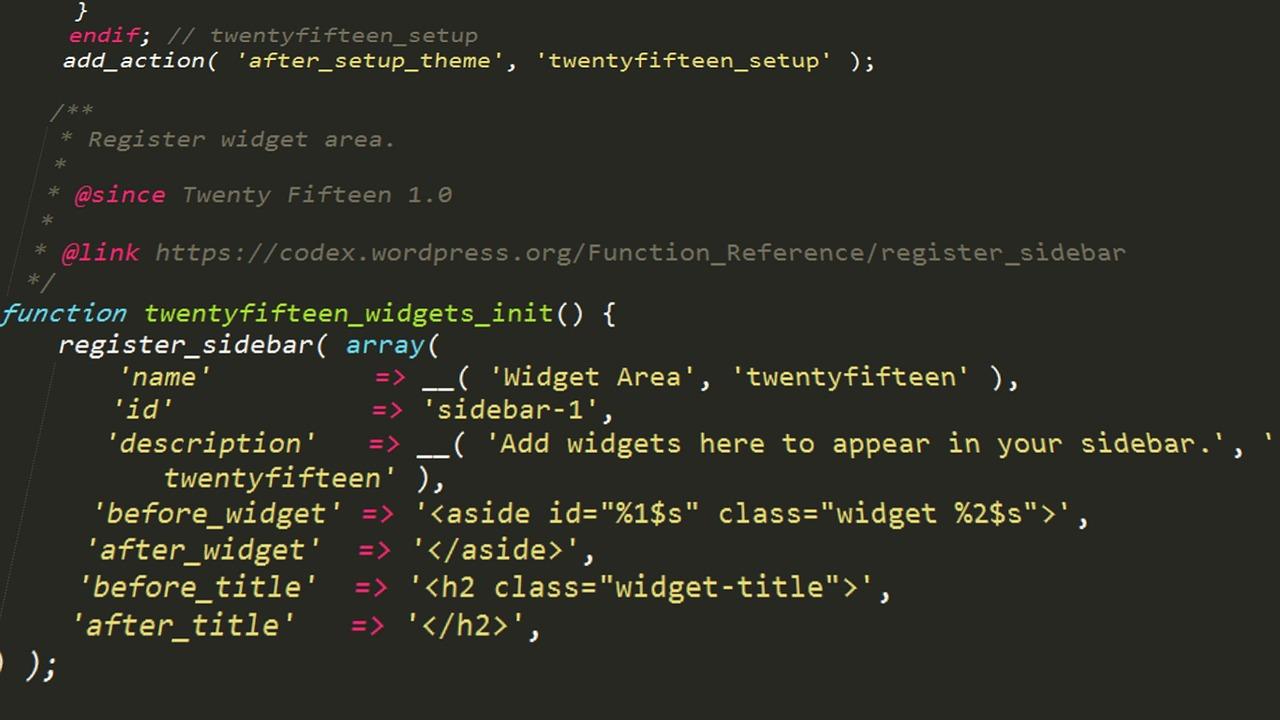
How to Effectively Embed Widgets for Seamless Integration
Integrating widgets into your WordPress site can transform the way you engage with your audience and streamline event management. Whether you’re using a plugin or embedding code directly, the right approach can make all the difference. Here are effective methods to seamlessly embed Eventbrite widgets into your WordPress site.
First, let’s explore the Eventbrite Plugin. This is by far the simplest approach for WordPress users, especially if you prefer a user-friendly interface. Once installed, the plugin allows you to:
- Automatically sync events: No need for manual entry; your Eventbrite events will display on your site in real-time.
- Customize the appearance: Adjust how your events look on your site to match your branding.
- Manage everything from WordPress: Control your events directly from your WordPress dashboard without logging into Eventbrite.
To get started with the plugin, follow these steps:
- Install and activate the Eventbrite plugin from the WordPress plugin repository.
- Connect your Eventbrite account by providing your API key.
- Choose the events you want to display using the easy-to-navigate settings panel.
If you prefer a more hands-on approach, you can also embed Eventbrite widgets manually using HTML. This gives you the flexibility to place the widget exactly where you want it on your site. Here’s how:
- Log into your Eventbrite account and navigate to the event you want to embed.
- Click on “Share” and select the “Embed” tab to copy the HTML code provided.
- Paste this code into the WordPress editor wherever you want the widget to appear. Make sure to use the “Custom HTML” block for a seamless integration.
Here’s a quick overview of the benefits of each method:
| Method | Pros | Cons |
|---|---|---|
| Eventbrite Plugin | Easy to use, real-time updates, centralized management | Dependent on plugin updates |
| Manual Embed | Full control over placement and design | Requires more technical skill |
With these methods, you can ensure that your visitors have access to your Eventbrite events without any hassle. The seamless integration improves user experience and can lead to higher engagement and ticket sales. Choose the method that best suits your workflow and enjoy the benefits of having your events showcased effortlessly on your WordPress site!
Tips for Optimizing Your Event Page for SEO
When it comes to promoting your event, having a fully optimized event page can make all the difference in the world. Here are some essential tips to enhance your event page for SEO:
- Use Relevant Keywords: Research and incorporate keywords related to your event into your titles, descriptions, and metadata. Consider phrases potential attendees might search for.
- Create Unique Content: Ensure your event description is engaging and informative. Avoid copying and pasting from other sources; original content helps improve your search ranking.
- Optimize Images: Use high-quality images for your event and ensure they are properly tagged with descriptive alt text. This not only helps with SEO but also enhances accessibility.
- Include a Clear Call-to-Action: Make it easy for visitors to register or buy tickets. A well-placed CTA can lead to higher conversion rates.
- Utilize Structured Data: Implement schema markup for events. This helps search engines understand the details of your event and can lead to rich snippets in search results.
Another key aspect is to focus on internal linking. Link your event page to relevant blog posts or other pages on your site. This not only helps with SEO but also keeps visitors engaged longer, increasing the chances of ticket sales.
| Element | SEO Tip |
|---|---|
| Page Title | Incorporate primary keywords and keep it under 60 characters. |
| Meta Description | Add a compelling summary with keywords and a CTA, under 160 characters. |
| URL Structure | Use short, descriptive URLs that include your main keywords. |
Don’t forget about mobile optimization. A significant portion of users will access your event page through their smartphones. Ensure your page loads quickly and is easy to navigate on small screens.
Lastly, promote your event on social media channels and encourage sharing. Social signals can indirectly influence your SEO ranking, and the more visibility your event gets, the better the chances of attracting attendees.
Troubleshooting Common Issues with Eventbrite and WordPress
When integrating Eventbrite with your WordPress site, you may encounter a few common issues that can hinder a smooth connection. One prevalent issue is authentication errors. This usually occurs when the API keys or tokens provided during the integration process are incorrect or have not been saved properly. To resolve this, double-check your API settings in both Eventbrite and your WordPress plugin settings to ensure they match precisely.
Another frequent problem is event display issues. Sometimes, events may not show up on your WordPress site even after a successful setup. This could be due to caching issues. To fix this, try clearing your WordPress cache. If you’re using a caching plugin, make sure to purge all cached data, and then refresh your site to see if the events appear.
If you notice that the event details displayed on your WordPress site are incorrect or not updated, it might be due to synchronization delays. Eventbrite syncs with WordPress at intervals, which means new events or changes may not reflect immediately. To troubleshoot this, you can manually refresh the event data from the plugin settings. Look for an option that allows you to sync or refresh events to ensure you’re showing the latest information.
Sometimes, users may experience styling conflicts between Eventbrite and their WordPress themes. This can lead to a visually unappealing event display. To resolve this, you can add custom CSS to your WordPress theme to adjust the look of the embedded events. Here’s a simple snippet to get you started:
css
    .eventbrite-event {
        border: 2px solid #f36f6f; / Change border color /
        padding: 10px; / Add some padding /
        border-radius: 5px; / Rounded corners /
    }
It’s also crucial to ensure that all plugins and themes are updated. Compatibility issues can arise when you use outdated versions. Regularly check for updates, and consider deactivating other plugins temporarily to see if they are causing conflicts.
if you find that your integration is consistently problematic, consider checking the support forums or documentation for both Eventbrite and WordPress. Often, other users will have encountered similar issues and may have found solutions that could work for you.
Here’s a quick reference table of potential issues and their solutions:
| Issue | Solution |
|---|---|
| Authentication Error | Double-check API keys |
| Event Not Displaying | Clear WordPress cache |
| Incorrect Event Details | Manually refresh event data |
| Styling Conflicts | Add custom CSS |
| Compatibility Issues | Update plugins/themes |

Enhancing User Experience: Best Practices for Event Management
Boosting User Interaction with Seamless Integrations
When it comes to enhancing user experience in event management, integrating platforms like Eventbrite with WordPress can significantly streamline the process. By creating a cohesive environment for your users, you not only simplify their journey from registration to attendance but also elevate their overall experience. Here’s how to effectively connect these two powerful tools.
Method 1: Using an Official Plugin
The easiest way to integrate Eventbrite with your WordPress site is by using the official Eventbrite plugin. Here’s what you can expect:
- Simple Installation: The plugin can be installed directly from your WordPress dashboard in just a few clicks.
- Easy Event Creation: You can create and manage events right from your WordPress site, eliminating the need to switch between platforms.
- Automatic Updates: Any changes you make in Eventbrite will automatically sync to your WordPress site, keeping your users informed.
Method 2: Embedding Event Listings
If you prefer a more hands-on approach, embedding Eventbrite listings directly into your WordPress posts or pages is a great alternative. Follow these steps:
- Log into your Eventbrite account and navigate to the event you want to embed.
- Click on “Manage,” then select “Order Confirmation.” Look for the “Embed” option.
- Copy the provided HTML code and paste it into the HTML editor of your WordPress page.
This method allows for greater customization of how events are displayed, ensuring they align with your site’s aesthetic and branding.
Enhancing User Engagement
Regardless of the method you choose, consider implementing features that foster user engagement:
- Responsive Design: Ensure that the integration looks good on all devices. A mobile-friendly layout is crucial for users on the go.
- Social Sharing Options: Encourage attendees to share events on their social media, broadening your reach.
- Clear Call-to-Actions: Make your registration buttons prominent and enticing to increase conversion rates.
Table of Key Features
| Feature | Eventbrite Plugin | Embedded Listings |
|---|---|---|
| Installation | One-click installation | Manual Embed |
| Syncing | Automatic updates | Manual updates required |
| Customization | Limited customization | High customization |
Integrating Eventbrite with WordPress can significantly improve the way users interact with your events. With the right approach, you can create a seamless experience that not only attracts more attendees but also keeps them engaged long after the event has ended. Select the method that best aligns with your website goals and watch your user experience soar!
Final Thoughts: Choosing the Right Method for Your Needs
When it comes to integrating Eventbrite with your WordPress site, the choice between the two methods can make a significant difference in how you manage your events. It’s essential to consider not just the technical aspects but also the goals you aim to achieve through this integration.
Here are a few factors to keep in mind:
- Ease of Use: If you prefer a straightforward approach, using plugins might be the way to go. They often come with user-friendly interfaces and require minimal technical knowledge.
- Customization: For those looking to tailor their event integration to their specific needs, custom coding might offer more flexibility. This option allows you to create a unique user experience tailored to your audience.
- Future Scalability: Think about your long-term plans. If you anticipate growing your event offerings significantly, a more robust solution like API integration may provide the scalability you need.
- Budget Considerations: While plugins can be cost-effective, some premium options may carry a price tag. Custom development can also vary greatly in cost, so consider what fits into your budget.
To help clarify your decision, here’s a quick comparison table:
| Method | Pros | Cons |
|---|---|---|
| Plugins |
|
|
| Custom Integration |
|
|
Ultimately, the decision will depend on your specific needs, technical skill level, and long-term event strategy. Whether you choose plugins for their simplicity or go the route of custom coding for flexibility, ensure that the method aligns with the experience you want to provide your users. Take the time to evaluate each option, and don’t hesitate to experiment with both. After all, finding the right fit can greatly enhance your event management process and contribute to your site’s overall success.
Frequently Asked Questions (FAQ)
Q&A: How to Connect Eventbrite With WordPress (2 Methods)
Q: Why should I connect Eventbrite with my WordPress site?
A: Great question! Connecting Eventbrite with your WordPress site can streamline your event management process. It allows you to display your events directly on your site, making it easier for visitors to find and register for them. Plus, it enhances your site’s functionality, and you can leverage Eventbrite’s powerful ticketing system without leaving your WordPress dashboard. Trust me, it’s a game changer!
Q: What are the two methods to connect Eventbrite with WordPress?
A: You’ve got two solid options! The first method is using the official Eventbrite WordPress plugin, which makes integration super easy. The second method involves using an iframe to embed your Eventbrite events directly into your WordPress posts or pages. Both methods have their pros and cons, so it really depends on your specific needs!
Q: Can you tell me more about the Eventbrite WordPress plugin?
A: Absolutely! The Eventbrite plugin is designed to simplify the integration process. Once installed, you can easily import your Eventbrite events, display them in a calendar format, and allow users to register without leaving your site. It’s user-friendly and doesn’t require any coding skills. Just install, configure, and you’re good to go!
Q: What about the iframe method? Is it easy to use?
A: Yes, the iframe method is quite straightforward! You simply grab the embed code from your Eventbrite event page and paste it into your WordPress site. This allows you to showcase your event form as part of your webpage. It’s a quick solution if you want to get started right away without installing any plugins.
Q: Are there any downsides to using the iframe method?
A: While using an iframe is simple, it comes with some limitations. For one, it may not match your site’s design perfectly since it’s essentially a separate frame. Additionally, if you want to manage events or ticket sales directly from WordPress, the iframe won’t give you that functionality. So if you’re looking for a more integrated experience, the plugin is the way to go!
Q: Which method do you recommend for beginners?
A: For beginners, I’d definitely recommend starting with the Eventbrite WordPress plugin. It’s user-friendly, requires no coding, and offers a more seamless experience for both you and your visitors. You can always explore the iframe method later if you feel comfortable!
Q: Is there any cost involved with using Eventbrite and WordPress together?
A: While connecting Eventbrite with your WordPress site is free, keep in mind that Eventbrite charges a fee for ticket sales, depending on the type of event and ticketing structure you choose. Always review their pricing details to understand any potential costs.
Q: Where can I find more help if I run into issues?
A: Both Eventbrite and WordPress have extensive support documentation. You can also find many helpful forums and community discussions online. If you’re looking for more personalized assistance, consider reaching out to a web developer or a freelance expert who specializes in WordPress integrations.
Q: I’m ready to get started! Any final tips?
A: Awesome! Make sure to take your time with the setup, and don’t hesitate to customize your events to match your brand. Test everything out before going live to ensure a smooth experience for your attendees. Good luck, and happy event planning!
—
Feel free to reach out if you have more questions or need further assistance!
To Conclude
And there you have it! Connecting Eventbrite with WordPress doesn’t have to be a daunting task. Whether you choose the straightforward approach of using a plugin or prefer the flexibility of embedding events manually, you now have the tools to enhance your website’s functionality and engage your audience like never before.
By integrating these two powerful platforms, you can streamline your event management process, keep your visitors informed, and ultimately drive more ticket sales. So why wait? Dive in, experiment with the methods we discussed, and watch your events come to life on your WordPress site!
If you found this guide helpful, why not share it with your fellow event planners or website owners? They’ll thank you for it! And remember, if you have any questions or run into any hiccups along the way, feel free to reach out. Happy event planning!

New Providers

Enjoy The Speed Of Downloading & Uploading With 1GBPS Port



Affordable Dedicated Servers & Colocation Services. Services: Dedicated Servers Colocation Private Cabinet Colocation DDoS Protection

Up to 85% off hosting + website builder

We specialize in providing Web hosting reviews. Where you can search for potential hosts.