
Transform your stunning Figma designs into a dynamic WordPress site effortlessly! With our complete guide, you’ll unlock the secrets to seamless conversion, empowering you to bring your creative visions to life. Start your journey today and inspire the world!
Easily Convert Figma to WordPress: A Complete Guide
Are you a designer eager to bring your stunning Figma creations to life on the web? Have you ever felt overwhelmed by the challenge of translating your meticulous designs into a fully functional WordPress site? If so, you’re not alone. Many creatives find themselves caught in the intricate web of design-to-development conversion, often feeling stuck between a vision and the technical know-how. But what if I told you that converting your Figma designs to WordPress can be a seamless and rewarding journey? In this complete guide, we will empower you with the knowledge and tools to transform your digital masterpieces into a vibrant online presence. Whether you’re a seasoned designer or just starting, you’ll discover step-by-step methods, practical tips, and inspiration to turn your ideas into reality. Join us as we unlock the potential of Figma and WordPress, and let your creativity flourish in the digital realm!
Understanding the Benefits of Converting Figma to WordPress
Converting Figma designs into WordPress sites offers a plethora of advantages that can significantly enhance your web development workflow and end product. One of the primary benefits is efficiency. By utilizing design-to-code tools, developers can drastically reduce the time it takes to launch a website, translating complex Figma designs into functional WordPress themes quickly and effectively. This speed not only benefits developers but also provides clients with faster turnaround times.
Another key advantage lies in design fidelity. When you convert Figma files to WordPress, the visual consistency between your design and the final product is maintained. This is crucial for brand integrity and user experience. Users expect a seamless transition from design concept to live application, and ensuring high fidelity minimizes discrepancies that could confuse or frustrate visitors.
Moreover, leveraging Figma’s collaborative features in conjunction with WordPress allows team members—including designers, developers, and stakeholders—to work together more effectively. This collaborative workflow encourages feedback and iterative improvements, leading to a more polished final product. With proper integration, designers can easily communicate their vision, while developers translate it into code without losing the essence of the original design.
Here’s a quick look at some other benefits of this conversion process:
- Responsive Design: Easily adapt designs for various screen sizes during the conversion process.
- Customizability: WordPress offers extensive customization options, allowing for greater flexibility post-conversion.
- SEO Optimization: Implementing SEO best practices during the development can be streamlined with the right tools.
- Plugin Integration: Easily utilize plugins to enhance functionality and performance once the design is live.
When considering the conversion, it’s also essential to evaluate the technical skills required. While some tools simplify the process, a foundational understanding of HTML, CSS, and PHP remains beneficial. This knowledge allows developers to fine-tune the code generated from the Figma designs, ensuring optimal performance and responsiveness.
| Benefit | Description |
|---|---|
| Speed | Quickly transform designs into functional sites, reducing project timelines. |
| Consistency | Maintain design integrity through accurate translations of elements. |
| Collaboration | Enhance teamwork between designers and developers for superior outcomes. |
Ultimately, converting Figma to WordPress not only streamlines the development process but also enriches the final product, ensuring that it meets both aesthetic and functional requirements. This powerful combination allows professionals to deliver impressive websites that resonate with users, driving both engagement and satisfaction.

Getting Started with Figma: A Designers Perspective
Figma has revolutionized the world of design, making it easier to create stunning visual layouts that can be effortlessly translated into functional websites. As a designer, your journey from crafting a pixel-perfect design in Figma to implementing it on WordPress is not just about converting layers but also about maintaining the integrity of your creative vision.
To seamlessly transition your Figma designs to WordPress, consider these essential steps:
- Export Assets: Begin by exporting images, icons, and other visual elements from Figma. Use the right formats (PNG, SVG, etc.) to ensure clarity and responsiveness on your WordPress site.
- Style Guide: Create a style guide within Figma that includes typography, colors, and component specifications. This will serve as your blueprint for developing styles in WordPress.
- Plugins: Leverage WordPress plugins that facilitate Figma integration. Tools like WP Figma can streamline the design import process, reducing manual work.
When it comes to coding, consider these tips to maintain your design’s fidelity:
- Responsive Design: Ensure that your designs adjust beautifully across different screens. Utilize CSS media queries to adapt styles based on device size.
- Custom Themes: If your design is unique, creating a custom WordPress theme can help in recreating your Figma layout without compromising on design.
- Widgets and Shortcodes: Utilize WordPress widgets and shortcodes to inject dynamic elements into your site while preserving your overall aesthetic.
For a smoother workflow, maintaining a collaborative environment is crucial. Share your Figma files with developers, allowing them to view layers and styles directly. This transparency reduces back-and-forth communications and speeds up the development process.
Here’s a quick reference table to guide you through the essential aspects of converting Figma to WordPress:
| Figma Element | WordPress Equivalent |
|---|---|
| Text Layer | WordPress Editor |
| Image | Media Library |
| Button | Custom Button Block |
| Frames | Page Sections |
Ultimately, the goal of converting your Figma design to WordPress is to create a user-friendly site that reflects your unique design perspective. With careful attention to detail and the right tools, you can bring your vision to life and provide users with an engaging online experience.
Preparing Your Figma Designs for Export
is a crucial step that can significantly impact the ease of translating your designs into a robust WordPress site. The goal is to ensure that every element of your design is not only visually appealing but also functional and ready for implementation. Here are some essential tips to consider:
- Organize Your Layers: Name your layers and groups logically, reflecting the content and functionality they represent. This will make it easier for developers to understand the structure of your design.
- Use Constraints: Set up constraints for responsive design, ensuring that elements resize appropriately for different screen sizes. This preparation will save time during the development phase.
- Export Settings: Choose the right format for your assets. PNGs are great for images, while SVGs are perfect for icons. Select the correct resolution to maintain quality without ballooning file sizes.
- Check Typography: Make sure to specify font sizes, styles, and line heights directly in Figma. This precision will ensure a seamless transition to CSS styles in WordPress.
- Color Palette: Document your color palette using Figma’s style guide feature. This not only aids in consistency but also serves as a reference for developers to apply CSS styles.
When it comes to exporting, consider using Figma’s export options effectively. Make sure to:
- Batch Export: Select multiple layers or frames to export them at once, saving time and streamlining the workflow.
- Export As GIF or MP4: If your design includes animations, exporting as GIFs or MP4s will preserve your animations when implemented in WordPress.
- Check for Clarity: Always preview your exports to ensure they maintain clarity and accuracy. Test the visuals in different browsers if possible.
remember that effective communication with your development team is key. Consider creating a style guide in Figma that outlines:
| Element | Style | Notes |
|---|---|---|
| Headings | H1, H2, H3 – font-family: Arial, sans-serif; color: #333; | Use consistent heading styles for SEO. |
| Buttons | Background: #0073aa; Text: #ffffff; | Ensure hover effects are clearly defined. |
| Links | Color: #1e73be; Underlined on hover; | Links must be distinguishable from normal text. |
By taking these steps, you’ll not only simplify the export process but also empower your development team to bring your vision to life efficiently. Well-prepared designs lead to a smoother conversion process, making it easier to build a WordPress site that truly reflects your original style.
Essential Tools and Plugins for Seamless Conversion
When transforming your Figma designs into a fully functional WordPress site, having the right tools and plugins at your disposal can make all the difference. These resources not only streamline the process but also ensure that your final product is both visually appealing and highly functional.
Design to Code Plugins: These plugins help bridge the gap between design and development. Consider using:
- Figma to WordPress: This plugin allows a direct import of your Figma designs into WordPress, ensuring minimal loss in design fidelity.
- Gutenberg Blocks: Utilize customizable blocks that can be tailored to replicate your Figma layout accurately.
Performance Optimization Tools: Once your design is converted, maintaining speed and efficiency is crucial. Implement these tools:
- WP Rocket: A powerful caching plugin that enhances loading times and overall performance of your site.
- Smush: An image optimization plugin that compresses images without sacrificing quality, crucial for a visually rich site.
SEO and Analytics Plugins: To ensure your new site reaches its full potential, integrate effective SEO and analytics tools:
- Yoast SEO: This plugin guides you in optimizing your content for search engines, making sure your designs don’t just look good but are also discoverable.
- Google Analytics Dashboard for WP: Easily integrate Google Analytics to track the performance of your site post-launch.
Collaboration and Feedback Tools: Lastly, maintain a smooth workflow by utilizing collaboration plugins:
- WP Feedback: This tool allows clients and team members to leave comments directly on the website, making it easier to gather feedback and implement changes promptly.
- Asana or Trello Integration: Use integration tools to manage your project efficiently, keeping everyone on track.
By strategically leveraging these essential tools and plugins, you can significantly enhance your Figma to WordPress conversion process. Embrace the synergy between design and development for a seamless transition that not only captivates users but also boosts your site’s effectiveness.
Step-by-Step Guide to Exporting Figma Design Elements
Exporting design elements from Figma not only streamlines your workflow but also enhances your project’s efficiency. Follow this simple guide to ensure a smooth transition of your Figma designs into WordPress.
1. Select Your Design Elements
Begin by identifying the specific elements you wish to export. This could be icons, buttons, images, or entire sections of your design. Use the selection tool in Figma to highlight the elements. Once selected, you can easily manage them as a group.
2. Configure Export Settings
After selecting your elements, navigate to the Export section in the right sidebar. Here, you will have the option to choose the desired format for your export. Common formats include:
- PNG: Ideal for raster images and screenshots.
- SVG: Perfect for scalable vector graphics that maintain quality across sizes.
- JPG: Suitable for photographs and images with complex color gradients.
Adjust the settings according to your needs, such as scale and suffix (e.g., @2x for high-resolution images).
3. Exporting Your Elements
Once your settings are configured, click on the Export button. Figma will compile your selected elements into the chosen format, ready for download. Save the files to a designated folder on your computer for easy access.
4. Uploading to WordPress
Now that you have your exported elements, the next step is to upload them to your WordPress site. Navigate to your WordPress dashboard and go to the Media section. Click on Add New and simply drag and drop your files or use the Select Files button to upload. Once uploaded, you can easily insert these files into pages or posts.
5. Implementing Your Design
After uploading, it’s time to integrate your design elements into your WordPress theme. Use the built-in editor to create visually appealing layouts. Whether using the block editor or a page builder like Elementor, you can now add your exported Figma elements to enhance your design.
6. Adjusting Styles and Responsiveness
Always check how your new design elements appear on various devices. Use CSS to make necessary adjustments for responsiveness and ensure a seamless user experience. Here’s a simple CSS snippet you can customize:
.your-class {
    max-width: 100%;
    height: auto;
}By following these straightforward steps, you can successfully export Figma design elements and elevate your WordPress site’s visual appeal effortlessly.
Transforming Figma Assets into WordPress Compatible Formats
When you design in Figma, you’re working with a powerful tool that allows for creativity and innovation. However, the real challenge lies in transforming those stunning designs into a format that can seamlessly integrate with WordPress. The good news is that with the right approach, this process can be straightforward and efficient.
To begin, it’s essential to understand the various asset types that you will need to export from Figma. Here are some common formats and their respective uses:
- SVG – Perfect for logos and icons, this vector format ensures crisp visuals at any size.
- PNG – Ideal for illustrations or images with transparency, PNG files maintain high quality without sacrificing performance.
- JPG – Best for photographs, this format balances quality and file size, making it suitable for web use.
- PDF – Use this for printable assets or detailed layouts that need to maintain their structure.
Once you have exported your assets, the next step is to incorporate them into your WordPress theme. This process typically involves uploading the files through the WordPress media library. However, for a more seamless integration, consider the following approaches:
- Custom Themes: Create a custom theme that leverages your Figma designs directly. This method allows for maximum flexibility and ensures that your site looks exactly as intended.
- Page Builders: Utilize popular page builders like Elementor or Beaver Builder. These tools enable you to drag and drop your Figma assets into your layout without any coding knowledge.
- Plugins: Explore plugins that can help you import Figma designs directly into WordPress, streamlining the process considerably.
Lastly, it’s crucial to ensure that your assets are optimized for web performance. Here’s a simple table that outlines best practices for asset optimization:
| Asset Type | Optimization Tips |
|---|---|
| SVG | Minify the SVG code to reduce file size. |
| PNG | Use tools like TinyPNG for compression. |
| JPG | Adjust quality settings to balance size and clarity. |
| Compress the file to enhance loading speed. |
By following these steps, you can transform your Figma assets into WordPress-compatible formats that not only look fantastic but also perform well. Embrace the journey of translating your designs into functional websites, and watch as your vision comes to life!

Implementing Responsive Design from Figma to WordPress
As you transition from Figma to WordPress, ensuring your design is responsive is crucial for user experience across all devices. A responsive design adapts seamlessly to different screen sizes, providing a fluid and engaging interface that keeps users coming back. To achieve this, follow these essential practices:
- Fluid Grids: Use percentage-based widths rather than fixed pixel values. This allows elements to resize proportionally as the viewport changes.
- Flexible Images: Ensure that your images scale correctly by setting their max-width to 100%. This prevents images from overflowing their containers.
- Media Queries: Implement CSS media queries to apply different styles for various screen sizes. This helps fine-tune the layout at specific breakpoints for optimal viewing.
To facilitate the conversion process, leverage the capabilities of WordPress themes that support responsive design. Many modern themes come with built-in features to support responsive layouts out of the box. Choose a theme that aligns with your design vision and is optimized for performance. Consider the following when selecting a theme:
- Cross-Browser Compatibility: Ensure the theme functions well across popular browsers.
- Performance Optimization: Look for themes that are lightweight and speed-optimized.
- Customization Options: Choose a theme that allows for easy customization without extensive coding.
Once you have your theme in place, it’s time to integrate your Figma designs. Utilize WordPress page builders like Elementor or Gutenberg blocks that enable drag-and-drop functionality. This allows you to replicate your Figma layouts with precision. Follow these steps for effective integration:
- Export assets from Figma in web-friendly formats (SVG, PNG, JPG).
- Use WordPress’s Customizer to adjust global styles, fonts, and colors that match your Figma design.
- Build out your layout using sections and columns, mirroring the grid system you’ve established in Figma.
To ensure that every user has an optimal experience, continuously test your site on various devices and screen sizes. Utilize tools like Chrome DevTools to simulate different devices and identify any responsive issues that may arise. embrace the iterative nature of design. Gather feedback from real users and make adjustments accordingly, creating a web presence that is not only visually appealing but also functional and user-friendly.
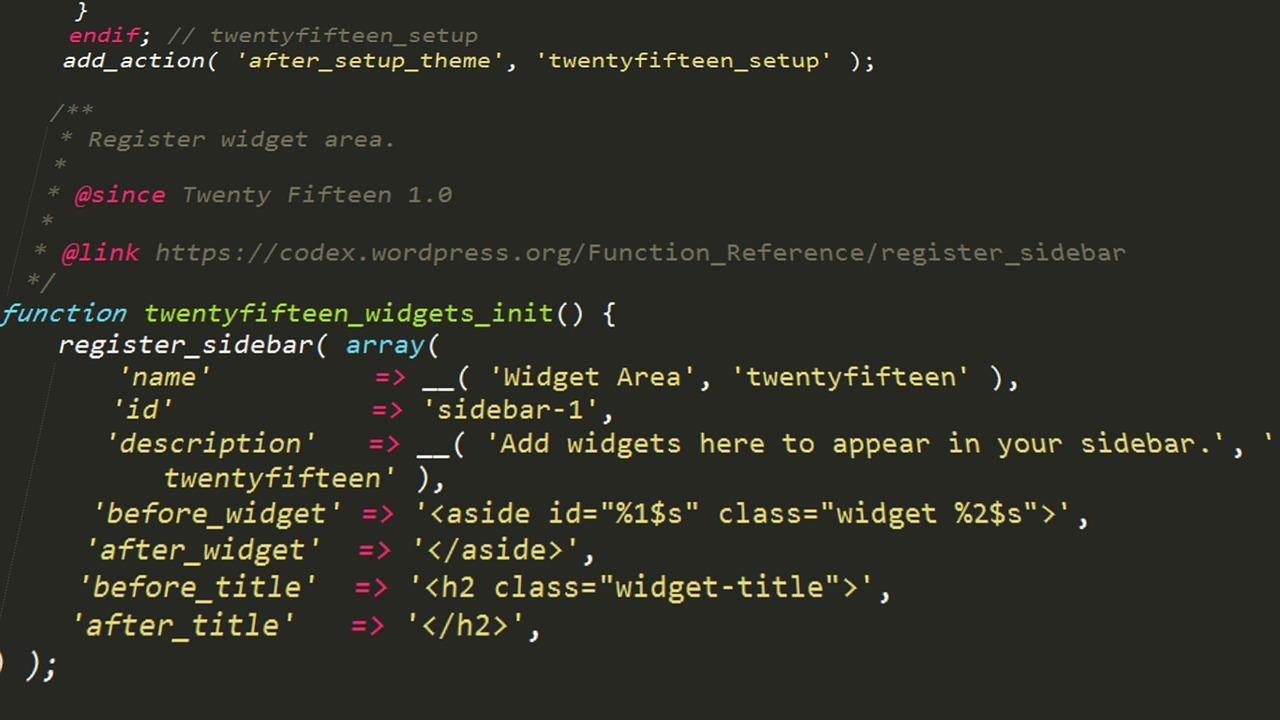
Customizing Your WordPress Theme to Match Figma Designs
Transforming your Figma designs into a WordPress theme is a rewarding journey that allows you to bring your creative vision to life. The first step in aligning your WordPress theme with your Figma designs is to select a flexible theme that serves as a solid foundation. Look for themes that are customizable, responsive, and compatible with popular page builders, as these factors will ease the conversion process.
Once you’ve chosen the right theme, start by analyzing your Figma layout. Identify key elements such as:
- Header and footer styles
- Typography choices
- Color schemes
- Button styles and hover effects
- Image placements and sizes
After pinpointing these elements, it’s time to dive into the WordPress Customizer. This built-in tool allows you to make real-time adjustments to your site’s appearance. Here, you can:
- Change colors to match your Figma palette
- Adjust font sizes and styles to reflect your design
- Customize the layout of widgets and menus
For more intricate designs, you might consider creating a child theme. This approach grants you the freedom to modify CSS and PHP files without overriding the parent theme. With a child theme, you can:
- Add custom CSS to tweak styles that the Customizer doesn’t cover
- Use hooks and filters to modify theme functionality
- Implement your own templates for specific layouts
Another crucial aspect is ensuring your site remains responsive. Use media queries and fluid grids to maintain the design integrity across various devices. It’s imperative that the final output not only looks good on desktops but also provides an excellent user experience on mobile devices. Test your design on multiple screen sizes to identify any inconsistencies.
Lastly, don’t underestimate the importance of SEO and performance. While it’s easy to get lost in design details, ensure that your theme remains lightweight and optimized for search engines. Utilize best practices such as compressing images, minimizing CSS and JavaScript, and incorporating alt tags for images.
By following these essential steps, you can bridge the gap between your Figma designs and WordPress, creating a stunning and functional website that resonates with your vision. The customization process may seem daunting, but with patience and creativity, your dream site is well within reach.
Integrating Figma Designs Using Page Builders
Integrating your Figma designs into WordPress using page builders opens a world of possibilities for creating visually stunning and highly functional websites. By following a structured approach, you can seamlessly transform your static designs into interactive web pages that resonate with your audience.
When utilizing page builders, consider the following essential steps:
- Export Assets: Extract images, icons, and other design elements from Figma. Ensure that you export them in web-friendly formats such as PNG or SVG for optimal quality.
- Choose a Page Builder: Select a WordPress page builder that aligns with your project requirements. Popular options include Elementor, Beaver Builder, and WPBakery, each offering unique features to bring your designs to life.
- Set Up Your Grid: To maintain consistency with your Figma layout, implement a grid system in your page builder. This helps in aligning your elements and ensures a cohesive look across different devices.
- Utilize Custom CSS: If specific design tweaks are needed, don’t hesitate to add custom CSS. This allows you to replicate complex styles and animations you created in Figma.
One of the major advantages of using page builders is their ability to handle responsive design effortlessly. Many builders come equipped with built-in responsive settings, enabling you to adjust layouts for desktop, tablet, and mobile views without hassle. This adaptability is crucial in today’s mobile-first web environment.
Additionally, consider incorporating a design system to streamline your workflow:
| Design Element | Figma Style | WordPress Equivalent |
|---|---|---|
| Button | Primary, Secondary | Button Widget with Custom Styles |
| Typography | Headings, Body Text | Text Editor with Custom Fonts |
| Color Palette | Brand Colors | Global Colors in Page Builder |
As you bring your Figma designs into WordPress, remember that the functionality and user experience are just as important as aesthetics. Utilize dynamic content options offered by your page builder to enhance interactivity. This could mean integrating forms, sliders, or animations that not only capture attention but also engage users effectively.
always test your integrations rigorously. Ensure that all elements are rendering correctly and maintain their functionality across various platforms. With dedication and the right tools, turning your Figma designs into a fully functional WordPress site can be an exhilarating journey that captivates your visitors.

Optimizing Your WordPress Site for Performance and SEO
Enhancing Your WordPress Site
To ensure your site not only looks great but also performs optimally, it’s crucial to focus on both speed and SEO. Start by optimizing images to reduce load times. Use formats like JPEG for photos and PNG for graphics, while tools like Smush or ShortPixel can help compress images without sacrificing quality.
The choice of theme plays a significant role in site performance. Opt for lightweight, well-coded themes that are mobile-responsive. Themes from reputable sources are often optimized for speed and SEO, allowing your Figma designs to translate smoothly into WordPress without unnecessary bloat.
- Minify CSS and JavaScript: Use plugins like Autoptimize or W3 Total Cache to combine and minify files.
- Leverage Browser Caching: Adjust your .htaccess file or use caching plugins to store static versions of your site.
- Implement a Content Delivery Network (CDN): Services like Cloudflare or MaxCDN can speed up content delivery globally.
For SEO, focus on optimizing your metadata. Craft compelling titles and descriptions for your pages and posts. Utilize plugins like Yoast SEO or Rank Math to ensure your content is structured properly for search engines.
Don’t overlook the importance of internal and external linking. Internal links help search engines crawl your site and improve user navigation, while external links to reputable sites can enhance your site’s credibility. Additionally, regularly updating your content signals to search engines that your site is active, which can boost your rankings.
Performance & SEO Checklist
| Task | Status | Notes |
|---|---|---|
| Image Optimization | ✅ | Use Smush for compression |
| Theme Selection | ✅ | Choose a lightweight theme |
| Minify Resources | ✅ | Installed Autoptimize |
| SEO Plugin Installed | ✅ | Yoast SEO configured |
Lastly, keeping your WordPress core, themes, and plugins updated is essential. Regular updates not only enhance performance but also protect your site from vulnerabilities. By consistently monitoring your site’s performance through tools like Google PageSpeed Insights and GTmetrix, you can make informed adjustments that lead to improved user experience and higher search engine rankings.
Troubleshooting Common Issues During Conversion
Converting your Figma designs to WordPress can be a rewarding endeavor, but like any creative process, it comes with its own set of challenges. Here are some common issues you may encounter and tips on how to resolve them effectively.
1. Missing Assets: One of the most frequent problems is missing images or icons after conversion. Make sure to:
- Export all necessary assets from Figma in appropriate formats (PNG, JPEG, SVG).
- Organize and upload these assets to the WordPress media library before finalizing your design.
- Check links to ensure every asset is properly referenced in your stylesheets.
2. Layout Discrepancies: Your design may look perfect in Figma but can appear distorted on WordPress. To address this:
- Utilize CSS flexbox or grid layout systems to maintain alignment and spacing.
- Test responsiveness across various devices and screen sizes, adjusting styles as needed.
- Use WordPress’s built-in customizer to tweak settings for better layout control.
3. Font Issues: Fonts may not render correctly if not set up properly. Ensure you:
- Use web-safe fonts or import fonts through Google Fonts or Adobe Fonts.
- Define font weights and sizes in your CSS to match your Figma design precisely.
- Consider using a plugin that helps integrate custom fonts easily into your WordPress theme.
| Issue | Solution |
|---|---|
| Missing Assets | Export and upload all assets to the media library. |
| Layout Discrepancies | Use CSS flexbox/grid for better layout control. |
| Font Issues | Import fonts properly and define styles accurately. |
4. Plugin Conflicts: Sometimes, plugins may interfere with your design. If you encounter this issue, follow these steps:
- Disable plugins one at a time to identify the conflicting one.
- Research if there are known compatibility issues and explore alternatives.
- Consider reaching out to plugin developers for support or updates.
By proactively addressing these common issues, you can streamline your conversion process and bring your Figma designs to life in WordPress with confidence. Embrace the challenges, learn from them, and watch your vision transform into a stunning website.
Showcasing Your Final Product: Best Practices for Presentation
When it comes to presenting your Figma designs converted to WordPress, the way you display your work can significantly impact how it’s perceived. Clarity, aesthetics, and organization are paramount. Ensure your presentation is clean and professional, allowing your audience to focus on the quality of your work rather than getting distracted by clutter.
Visual Consistency is key. Use a cohesive color palette and typography that mirror your design in Figma. This not only reinforces your brand identity but also helps the audience connect the dots between the design and the development phase. Here are some ways to achieve visual consistency:
- Utilize the same fonts and color schemes from your Figma mockups.
- Include screenshots of your Figma designs alongside the live WordPress site.
- Highlight any interactive elements with animations or videos for a more dynamic presentation.
Organize your content effectively. Break it down into segments that guide your audience through your process. A clear structure will demonstrate your thought process and craftsmanship. Consider using the following layout:
| Section | Description |
|---|---|
| Introduction | Brief overview of the project and its goals. |
| Design Process | Showcase the Figma designs with notes on key decisions. |
| Development Steps | Outline the conversion process, highlighting challenges and solutions. |
| Final Product | Live demo of the WordPress site, emphasizing functionality. |
| Q&A | Open the floor for questions to engage the audience. |
engagement is essential. Encourage feedback and invite questions. This not only demonstrates your confidence in your work but also opens up dialogue that can lead to valuable insights. Utilize platforms like social media to share snippets of your presentation. This not only increases visibility but also allows others to see the practicality of your design-to-development journey.
Case Studies: Successful Figma to WordPress Transitions
Transforming a design from Figma to WordPress might seem daunting, but many have successfully navigated this process, achieving stunning results that enhance user experience and drive engagement. Let’s explore a few inspiring case studies that demonstrate the potential of this transition.
Case Study 1: E-commerce Revamp
A local boutique specializing in handmade goods sought to modernize their online presence. Initially built on outdated technology, they turned to Figma to redesign their website for a fresh look. The transition to WordPress was seamless with the following steps:
- Custom Theme Development: A bespoke theme was created based on the Figma design, capturing the unique essence of the brand.
- Responsive Design: Ensured that the website was fully responsive, providing an optimal experience across devices.
- E-commerce Integration: Implemented WooCommerce for easy product management and a streamlined checkout process.
The result? A 150% increase in online sales and significantly improved customer engagement metrics.
Case Study 2: Portfolio Showcase
An aspiring photographer wanted a platform to showcase their portfolio. The transition from Figma to WordPress was executed flawlessly, leading to a professional yet artistic website. Key highlights of this transition included:
- Visual Storytelling: The design focused on high-quality visuals that resonated with the photographer’s style.
- Interactive Elements: Added features like image sliders and galleries to create an engaging experience.
- SEO Optimization: Ensured that the site was optimized for search engines to attract potential clients.
Within months, the photographer reported a significant rise in inquiries and bookings, showcasing the effectiveness of a well-executed transition.
Case Study 3: Blogging Success
A food blogger wanted to elevate their brand and content delivery. Utilizing Figma, they designed a vibrant layout that was then transformed into a WordPress site. Highlights from this project included:
- Content Focus: The design strategy prioritized readability and user engagement.
- Social Media Integration: Implemented social sharing buttons to boost reach.
- Email Subscription Feature: Incorporated a newsletter sign-up to grow their audience.
This transition resulted in a doubling of their monthly traffic and a thriving community of food enthusiasts.
Conclusion of Case Studies
These case studies illustrate not just the process of converting Figma designs to WordPress but also the remarkable outcomes that can be achieved. From increased sales to improved audience engagement, the potential for success is immense when leveraging the right tools and strategies.
| Case Study | Key Metrics |
|---|---|
| E-commerce Revamp | 150% increase in sales |
| Portfolio Showcase | Increased inquiries and bookings |
| Blogging Success | Doubled monthly traffic |
Inspiration for Your Next Project: Design Ideas and Trends
Design Trends to Embrace
As you embark on transforming your Figma designs into a stunning WordPress website, consider the latest trends that can elevate your project. Embracing modern aesthetics not only enhances user experience but also keeps your design relevant and engaging. Here are some current trends to inspire your design choices:
- Minimalism: Clean lines and ample white space can allow your content to shine.
- Bold Typography: Large, eye-catching fonts can create a strong visual hierarchy.
- Dark Mode: A sleek dark background can provide a contemporary feel and improve readability.
- Micro-Interactions: Subtle animations can enhance user engagement without overwhelming them.
Color Palettes That Pop
Your color scheme can set the mood for your entire website. Here are a few palettes that are trending this year:
| Color Palette | Description |
|---|---|
| Pastel Dreams | Soft hues that create a calm and inviting atmosphere. |
| Earthy Tones | Rich, natural colors that evoke a sense of groundedness. |
| Vibrant Contrasts | Bright colors that create energy and draw attention. |
Layouts to Capture Attention
The layout of your website is crucial for navigation and visual appeal. Consider these trending layouts that can make your site memorable:
- Asymmetrical Grids: Break the mold with layouts that feel dynamic and interesting.
- Full-Screen Images: Utilize striking visuals to captivate visitors right from the start.
- Card Designs: Organize content into bite-sized pieces that are easy to digest.
Interactive Elements
Engagement is key in keeping visitors on your site longer. Interactive elements can drastically improve user experience. Here are a few you might consider:
- Hover Effects: Simple animations can make elements more clickable and engaging.
- Dynamic Content: Use elements that change based on user interaction, like tabs and sliders.
- Feedback Forms: Integrate simple forms that allow users to share their thoughts instantly.
Frequently Asked Questions (FAQ)
Q&A: Easily Convert Figma to WordPress - A Complete Guide
Q1: What is Figma, and why is it popular among designers?
A1: Figma is a collaborative interface design tool that allows designers to create stunning visuals and prototypes seamlessly. Its real-time collaboration features make it a favorite for teams, enabling multiple users to work together without barriers. By using Figma, you can unleash your creativity and design beautiful websites that captivate users. The synergy between design and functionality it offers is truly transformative!
Q2: Why would someone want to convert Figma designs to WordPress?
A2: Converting Figma designs to WordPress opens up a world of possibilities. WordPress is one of the most powerful content management systems, allowing you to turn your static designs into dynamic, interactive websites. By making this conversion, you can harness the flexibility and scalability of WordPress while preserving the visual integrity of your original designs. Imagine the impact of your design coming to life on a platform that powers over 40% of the web!
Q3: What are the key steps to convert Figma designs to WordPress?
A3: The process can be broken down into a few essential steps:
- Export Assets from Figma: Start by exporting images, icons, and other design elements from Figma in web-friendly formats.
- Choose the Right WordPress Theme: Select a theme that aligns closely with your design. This will simplify the coding process and ensure your design fits seamlessly.
- Use Page Builders or Custom Code: Depending on your technical skills, either use a page builder like Elementor or dive into custom coding with HTML, CSS, and PHP to recreate your Figma layout.
- Implement Responsive Design: Ensure your site looks fantastic on all devices by implementing responsive design principles.
- Test and Launch: Before going live, thoroughly test your website to catch any issues and ensure everything functions as intended.
By following these steps, you can transition from a static design to a fully functioning WordPress site with ease!
Q4: Do I need coding skills to accomplish this conversion?
A4: While coding skills can certainly enhance your ability to customize and refine your site, they are not strictly necessary! Tools like page builders allow you to create beautiful, functional websites without writing a single line of code. However, a basic understanding of HTML and CSS can empower you to tweak styles and layouts, making your site even more unique. Don’t let a lack of expertise hold you back—embrace the learning curve and watch your ideas flourish!
Q5: How does this guide help beginners?
A5: This guide is designed with beginners in mind. We break down complex processes into simple, actionable steps and provide tips and tricks to help you navigate the conversion seamlessly. With clear visuals and practical advice, you’ll gain confidence as you transform your Figma designs into a live WordPress website. Remember, every expert was once a beginner—take that first step towards bringing your creative vision to life!
Q6: What are the benefits of using WordPress after converting my design?
A6: Once your design is live on WordPress, you will unlock a myriad of benefits:
- Ease of Use: WordPress’s user-friendly interface allows you to update and manage your content effortlessly.
- SEO-Friendly: WordPress is built with search engine optimization in mind, helping your site gain visibility.
- Extensive Plugins: Enhance your site’s functionality with thousands of plugins—everything from SEO to social sharing and beyond!
- Community Support: With a vast community of users and developers, finding support and resources is easier than ever.
By leveraging these benefits, you can create a powerful web presence that resonates with your audience and achieves your goals!
Q7: How can I ensure my converted WordPress site matches my original Figma design?
A7: To maintain fidelity to your original design, focus on these key elements:
- Consistency in Fonts and Colors: Use the same typography and color palettes from your Figma design in your WordPress CSS settings.
- Grid and Layout Alignment: Pay close attention to margins, padding, and alignments to replicate your design accurately.
- Testing Across Devices: Regularly test your site on various devices to ensure that your design remains intact and user-friendly.
By being meticulous in these areas, you can create a WordPress site that not only looks like your Figma design but also offers an exceptional user experience!
Q8: Is there a community or resources to help me on this journey?
A8: Absolutely! The community around both Figma and WordPress is vibrant and supportive. Join forums, social media groups, and online courses that cater to both tools. Websites like Stack Overflow, WordPress.org, and design-focused communities can provide invaluable insights and assistance. Remember, you’re not alone on this journey—tap into the collective knowledge of fellow creators and let your inspiration soar!
Q9: What’s the ultimate takeaway from this guide?
A9: The ultimate takeaway from this guide is that converting Figma designs to WordPress is not just a technical process; it’s an empowering journey that brings your creative visions to life. With the right tools, knowledge, and a dash of determination, you can create a stunning website that stands out in the digital landscape. Embrace the adventure, and let your designs captivate and inspire others! Your masterpiece is just a conversion away!
In Summary
Conclusion: Transform Your Vision into Reality
As we’ve explored in this guide, converting your Figma designs to WordPress doesn’t have to be a daunting task. With the right tools, techniques, and a sprinkle of creativity, you can effortlessly bring your unique vision to life on the web. Remember, your designs deserve to shine, to resonate with your audience, and to deliver an exceptional user experience.
Now is the time to take action! Harness the power of your Figma creations and watch as they transform into a dynamic, interactive website on WordPress. Whether you’re a seasoned designer or just starting out, this journey of conversion is not just about technical steps; it’s about crafting a digital space that reflects your brand’s identity and engages your visitors.
Believe in your capabilities, embrace the process, and let your passion guide you. The world is waiting to see what you can create. So roll up your sleeves, dive in, and start converting your Figma designs into WordPress masterpieces today. Your dream website is just a few clicks away!

New Providers

Enjoy The Speed Of Downloading & Uploading With 1GBPS Port



Affordable Dedicated Servers & Colocation Services. Services: Dedicated Servers Colocation Private Cabinet Colocation DDoS Protection

Up to 85% off hosting + website builder

We specialize in providing Web hosting reviews. Where you can search for potential hosts.