
Changing your WordPress username doesn’t have to be a hassle! In this article, we’ll walk you through two simple methods to update your username quickly and easily. Keep your site secure and enhance your brand—let’s dive in!
2 Simple Ways to Change WordPress Usernames – Step by Step
Are you tired of your WordPress username and ready for a change? Whether you’ve outgrown your old handle or just want something that better reflects your brand, changing your username can give your site a fresh feel. But don’t worry; it’s not as daunting as it sounds! In this article, we’ll walk you through two simple methods to change your WordPress username step by step. With just a bit of guidance, you’ll be able to update your username quickly and easily, ensuring you have a digital presence that truly represents you. So let’s dive in and give your site the update it deserves!
Understanding the Importance of Secure Usernames
In today’s digital landscape, the significance of secure usernames cannot be overstated. A username often serves as the first line of defense against unauthorized access to your WordPress site. When users choose weak or easily guessable usernames, they inadvertently pave the way for potential security breaches. Therefore, understanding how to create and manage secure usernames is essential for anyone looking to protect their online presence.
Choosing a unique username is crucial. Here are a few tips to consider:
- Avoid common names: Usernames like “admin,” ”user,” or ”test” are easily targeted by hackers.
- Incorporate random characters: Mixing letters, numbers, and symbols can significantly enhance security.
- Personalize your choice: Use a combination of your interests or hobbies to create something memorable yet difficult to guess.
Moreover, regularly changing your username can act as an added layer of security. Many WordPress users assume that once they set their username, it should remain unchanged. However, staying proactive about updating your credentials can help thwart potential threats. Consider the following when changing your username:
- Set reminders: Schedule periodic reminders to review and change your username.
- Monitor access: Keep an eye on your site’s activity logs for any unauthorized attempts.
When it comes to implementing a secure username strategy, a little foresight can go a long way. Beyond merely selecting a secure username, it’s vital to understand how this affects your site’s overall security posture. A combination of strong usernames and robust passwords creates a formidable barrier against cyber threats.
Here’s a simple table outlining the differences between weak and strong usernames:
| Weak Usernames | Strong Usernames |
|---|---|
| admin | user_87$Fi |
| johnsmith | J0hnSmiTH!23 |
| test | Te$T_#2023 |
Remember, the security of your WordPress site starts with you. By taking the time to understand the importance of secure usernames and implementing best practices, you can protect your site from unwanted intrusions and ensure a safer online experience for yourself and your visitors.
Navigating the WordPress Dashboard Like a Pro
Changing your WordPress username might seem like a daunting task, but it can be done with just a few clicks. Let’s break down the two simple methods you can use to update your username effortlessly.
Method 1: Using the WordPress Dashboard
The easiest way to change your username is directly through the WordPress Dashboard. Follow these simple steps:
- Log in to your WordPress admin area. This is typically found at
yourwebsite.com/wp-admin. - Navigate to Users > All Users. Here, you’ll see a list of all registered users on your site.
- Locate your username. Click on the Edit link below your username.
- Input your new username. In the Username field, enter the desired name.
- Save your changes. Click the Update User button at the bottom of the page.
Method 2: Creating a New User
If you prefer a more roundabout way, you can create a new user with the desired username and delete the old account. Here’s how:
- Go to Users > Add New. Fill out the required information, ensuring the Username is set to your preferred name.
- Assign a role. Decide what role this new user will have (Administrator, Editor, etc.).
- Send the new user a notification. This will allow them to set their password if needed.
- Click the Add New User button.
- Log in with the new username. After logging in, you can delete the old user by going back to Users > All Users, selecting the old username, and clicking Delete.
Important Considerations
| Consideration | Details |
|---|---|
| SEO Impact | Changing usernames won’t affect SEO, but consistency is key. |
| User Permissions | Ensure the new account has the same permissions as the old one if you wish to maintain functionality. |
| Password Transfer | Passwords do not transfer; inform users to reset passwords if necessary. |
By mastering these methods, you’ll be able to maintain your WordPress site more efficiently. Whether it’s for security reasons or simply personal preference, updating usernames can be seamless and straightforward.
Changing Usernames through the WordPress Profile Settings
If you’re looking to change your WordPress username, the Profile Settings offer a straightforward method that can be accomplished in just a few clicks. This is particularly useful for those who may want to enhance their brand’s identity or maintain privacy online. Follow these steps to make the change seamlessly.
To begin, log into your WordPress Dashboard and navigate to the Users menu. From here, click on Your Profile. This section contains all the personal details associated with your account, including your current username.
Once you’re in your profile settings, you’ll notice various fields for editing your information. Unfortunately, WordPress doesn’t allow you to change your username directly in this section. Instead, you have the option to:
- Change your display name: This is the name that will appear publicly. It can be a variation of your username or something entirely different.
- Create a New User: If changing the display name doesn’t suffice, you can also add a new user with the desired username and then delete the old account.
While changing the display name is simple, creating a new user involves a few additional steps. Here’s how to do it:
| Step | Action |
|---|---|
| 1 | Go to Users > Add New. |
| 2 | Fill in the new username and email. Set a strong password. |
| 3 | Assign a user role (e.g., Administrator). |
| 4 | Save the new user and log out. |
| 5 | Log in with the new username and delete the old account. |
After completing these steps, your new username will be active. Remember, deleting the old user account will remove all associated content unless you assign the content to the new user during the deletion process. Always double-check to avoid losing any important data!
By taking control of your WordPress username through the Profile Settings, you can tailor your online presence to better reflect your brand or personal identity. Whether you decide to change your display name or create a new user, the process is quick and user-friendly, ensuring that you can focus on what really matters – your content!
Utilizing the Functions.php File for Username Changes
One effective way to change usernames in WordPress is by leveraging the functions.php file. This method allows you to execute custom code that can easily update user information without needing to access the database directly. Before diving in, it’s important to back up your website to prevent any mishaps.
Follow these simple steps to utilize your theme’s functions.php file for updating usernames:
- Access Your Theme Files: Using an FTP client or your hosting provider’s file manager, locate the
functions.phpfile located in your active theme’s folder. - Add Custom Code: Open the
functions.phpfile in a code editor and append the following code snippet at the end of the file:
function change_username($user_id, $new_username) {
    if (username_exists($new_username)) {
        return 'Username already exists!';
    }
    $user = new WP_User($user_id);
    $user->user_login = $new_username;
    $user->display_name = $new_username; // Optional: Update display name
    $user->save();
    return 'Username updated successfully!';
}
In this snippet, the change_username function checks if the new username is already taken and updates it if not. You can call this function by adding the appropriate action hook or by directly invoking it via the WordPress dashboard.
To execute the function, you can either create a custom admin page or temporarily call it from within the theme by passing the user ID and desired new username:
echo change_username(1, 'new_username_here');
Replace 1 with the actual user ID and new_username_here with the new desired username. After you run this code, make sure to remove it from the functions.php file to maintain site security.
This approach is straightforward and gives you full control over username changes. However, always remember to ensure that your changes comply with WordPress username policies, and consider notifying users about their new usernames if applicable. Happy coding!
Why You Should Consider a Username Change Plugin
Changing your username in WordPress might seem like a straightforward task, but the process can be more complex than just a simple edit. This is where a username change plugin comes into play, offering an array of benefits that can save you time and enhance your website’s functionality.
Here are some compelling reasons to consider a username change plugin:
- Ease of Use: Many plugins are designed with user-friendliness in mind. With a few clicks, you can change usernames without diving into the database or complex settings.
- Bulk Changes: If you manage multiple users, a plugin allows you to change usernames in bulk, which is not possible through the standard WordPress interface.
- Security Enhancements: Regularly changing usernames can enhance your site’s security, making it harder for hackers to guess login details. A plugin can help facilitate this process seamlessly.
- Audit Trails: Many plugins keep a log of changes made, giving you a clear audit trail that helps maintain accountability and transparency.
When selecting a username change plugin, consider those that offer additional features. For instance, some plugins allow you to:
- Automatically notify users of their new username
- Redirect old usernames to the new ones, preserving links and bookmarks
- Integrate with other user management tools for enhanced functionality
Choosing the right plugin can significantly impact your user experience. Below is a simple comparison table of popular username change plugins:
| Plugin Name | Features | User Rating |
|---|---|---|
| WP Username Changer | Bulk changes, notifications | 4.5/5 |
| Change Username | Easy interface, log changes | 4.0/5 |
| Username Changer Pro | Redirects, security features | 4.7/5 |
a username change plugin is more than just a tool for altering usernames; it’s an essential resource for managing your WordPress site effectively. By saving time, enhancing security, and improving user engagement, these plugins can be a game-changer for site administrators.
Tips for Maintaining User Access After Changing a Username
Changing a username on WordPress can be a straightforward process, but it can also lead to unforeseen issues if not handled carefully. To ensure that users maintain access and continue to enjoy a seamless experience, consider the following strategies:
- Notify Users in Advance: Before making any changes, send out a notification to inform users about the upcoming username change. This ensures they are aware and can prepare for any potential disruptions.
- Provide a Clear Transition Plan: Outline the steps users need to take after the change. This may include how to log in with their new username or any adjustments to their profile settings.
- Monitor Login Issues: After changing usernames, keep an eye on login attempts. Be ready to assist users who might experience difficulties logging in due to the change.
- Utilize a Password Reset: If there are major concerns about access, consider prompting a password reset for affected accounts. This adds an extra layer of security and helps users regain access smoothly.
Additionally, it’s beneficial to implement the following practices:
| Practice | Description |
|---|---|
| Backup User Data | Before making changes, back up your user data to prevent any loss during the process. |
| Update User Roles | Ensure that user roles are intact after the change to avoid permission issues. |
| Test User Access | After the change, have a few users test their access to ensure everything functions as expected. |
Lastly, maintaining open lines of communication is crucial. Encourage users to reach out if they encounter any issues, and be prepared to address their concerns promptly. By taking these proactive measures, you can foster a positive user experience even after changing usernames.
Best Practices for Creating Strong Usernames
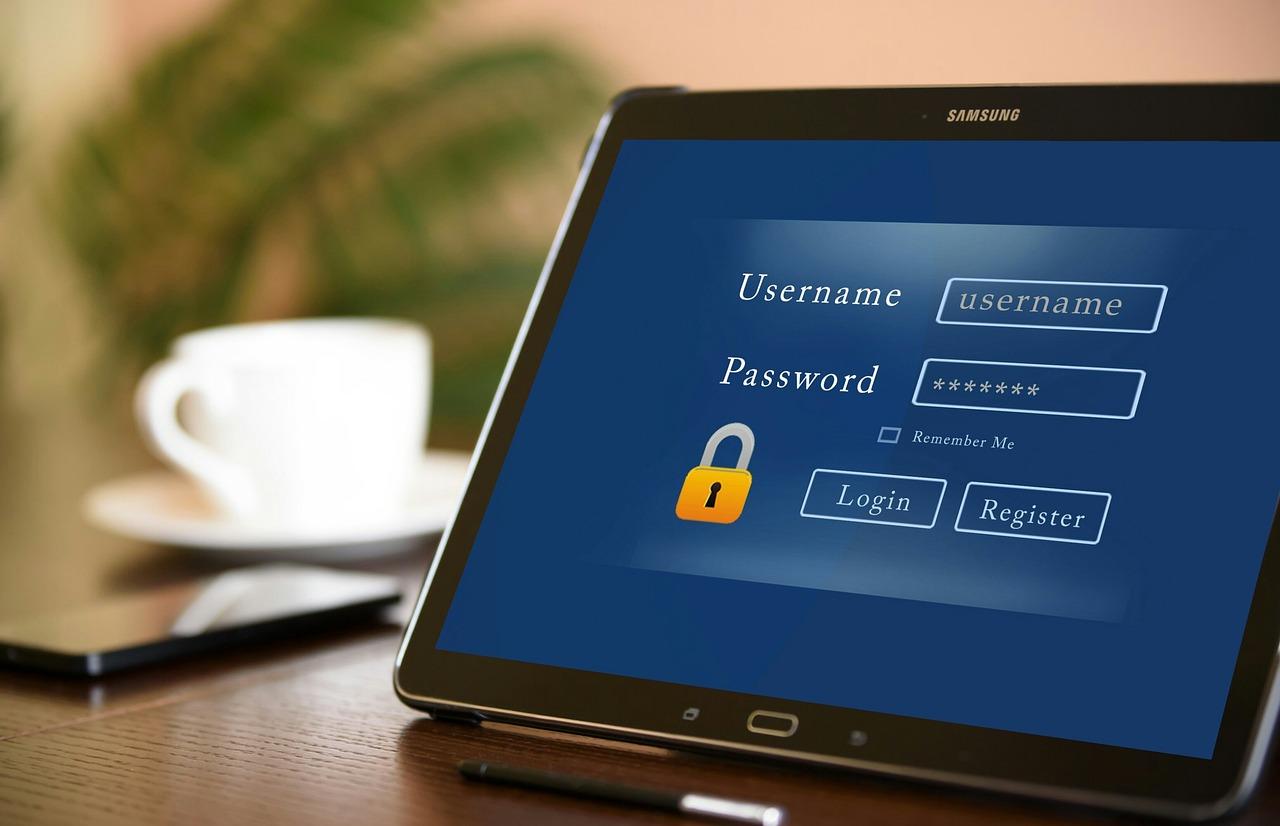
Creating a strong username is crucial for establishing a secure and recognizable online presence. Here are some best practices to consider:
- Keep it Unique: Avoid common names or easily guessable combinations. Opt for something that reflects your identity or brand.
- Use a Combination of Characters: Incorporate numbers, symbols, and letters to create complexity, making it harder for others to guess your username.
- Avoid Personal Information: Steer clear of using details like your full name, birthdate, or location that could compromise your privacy.
- Be Memorable: Aim for a username that sticks in people’s minds. A catchy or clever username can make it easier for others to remember you.
- Consider Future Use: Think about how your username might fit into different contexts. Choose something versatile that you won’t outgrow.
When coming up with a username, you can also consider utilizing these formats:
| Format | Description |
|---|---|
| Adjective + Noun | Example: CreativeWriter |
| Noun + Number | Example: Gamer1234 |
| Your Favorite Animal + Color | Example: BlueTiger |
| Your Hobby + Initials | Example: PhotoJD |
Lastly, before you finalize your username, it’s a good idea to check if it’s available across various platforms. Consistency in usernames not only builds your brand identity but also helps users find you more easily. Make use of username checkers online to ensure that your chosen username is free to use.
By following these guidelines, you can create a username that not only secures your account but also leaves a lasting impression on your audience. So, take your time brainstorming and crafting the perfect username!
Troubleshooting Common Issues When Changing Usernames
Changing usernames in WordPress can sometimes lead to unexpected issues. Here are some common problems you may encounter and how to troubleshoot them effectively.
- User Login Issues: After changing your username, you might find yourself unable to log in. Make sure you are using the new username instead of the old one. If you still can’t access your account, try resetting your password using the “Lost your password?” link on the login page.
- Permission Errors: If you notice that certain functionalities are missing after a username change, it may be due to permission settings. Ensure that the new username retains the same role and capabilities as the previous one. You can check this in the Users section of your WordPress dashboard.
- Author Archives Not Redirecting: If you have changed the username but the author archive pages still show the old username, you might need to update the permalinks. Go to Settings > Permalinks and simply click “Save Changes.” This refreshes the permalinks and should fix the issue.
In some cases, issues may arise related to how WordPress handles usernames in the database:
| Issue | Solution |
|---|---|
| Database References | Use a plugin like Better Search Replace to update old usernames in your database. |
| Comment Author Names | Manually update comment authors if they still reflect the old username. |
| Third-Party Plugins | Check if any plugins are caching data that reference the old username; clear the cache if necessary. |
Lastly, if you’ve made changes but still encounter issues, consider clearing your browser cache or using a different browser to rule out caching problems. Sometimes, the browser may still hold onto old data, preventing the new username from displaying correctly.
By addressing these common issues proactively, you can ensure a smooth transition when changing usernames in WordPress. Whether you are updating for branding purposes or correcting an error, following these troubleshooting tips will save you time and frustration.

Final Thoughts on Keeping Your WordPress Site Secure
In the realm of maintaining a WordPress site, security should always be a top priority. The importance of protecting user information cannot be overstated, especially when it comes to the admin and user accounts. A well-chosen username can serve as a first line of defense against unauthorized access. By changing default usernames or using less recognizable ones, you can significantly bolster your site’s security.
Here are a few key practices to enhance the security of your WordPress site:
- Regular Updates: Ensure that your WordPress core, themes, and plugins are up to date. Updates often contain critical security patches.
- Strong Passwords: Encourage users to create strong passwords. A combination of letters, numbers, and special characters can thwart many common attacks.
- Two-Factor Authentication: Implementing two-factor authentication adds an extra layer of security, making it harder for intruders to gain access.
- Limit Login Attempts: Use plugins to limit the number of failed login attempts, which can help mitigate brute force attacks.
Additionally, consider conducting regular security audits. Utilizing tools and plugins that scan for vulnerabilities can help identify weaknesses before they are exploited. Here’s a simple table to visualize some effective security plugins:
| Plugin Name | Key Feature | Cost |
|---|---|---|
| Wordfence | Firewall and Malware Scanner | Free / Premium |
| Sucuri Security | Website Monitoring and Malware Removal | Free / Premium |
| iThemes Security | Brute Force Protection | Free / Premium |
Lastly, always keep a backup of your site. In the unfortunate event that your site is compromised, having a recent backup can significantly reduce downtime and loss of data. Utilize reliable backup solutions that automate this process, ensuring that your site can be restored quickly and easily.
by implementing these essential security practices, you not only protect your WordPress site but also foster trust among your users. A secure site reflects professionalism and reliability, encouraging users to engage without fear. Remember, security is an ongoing process, not a one-time setup.
Frequently Asked Questions (FAQ)
Q&A: 2 Simple Ways to Change WordPress Usernames – Step by Step
Q: Why should I change my WordPress username?
A: Great question! Changing your WordPress username can enhance your site’s security and protect your privacy. If your username is easily guessable or publicly associated with your identity, it could make your site more vulnerable to attacks. By switching it up, you add an extra layer of protection and keep your online presence a bit more secure.
Q: What are the two methods to change my WordPress username?
A: There are two straightforward methods to change your username: via the WordPress dashboard and by using a plugin. Both approaches are user-friendly, so you can choose whichever you feel more comfortable with!
Q: Can you walk me through the first method using the WordPress dashboard?
A: Absolutely! Here’s how you do it:
- Log in to your WordPress admin panel.
- Go to “Users” and click on “All Users.”
- Find the user account you want to change and click on “Edit.”
- Under the “Username” field, enter your desired new username.
- Don’t forget to save your changes by clicking “Update User.”
And voila! You’ve successfully changed your username.
Q: What if I can’t change my username directly from the dashboard?
A: No worries! If WordPress doesn’t allow direct changes to the username (which it doesn’t for the admin account), you can use the second method with a plugin.
Q: How do I use a plugin to change my username?
A: It’s super simple! Here’s how:
- Go to “Plugins” in your WordPress dashboard and click on “Add New.”
- Search for a user management plugin, like “Username Changer,” and install it.
- Activate the plugin, then navigate to the settings or options provided by the plugin.
- You’ll see an option to change your username. Enter your new desired username and save the changes.
And that’s it! You’ve made the change without any hassle.
Q: Are there any risks in changing my username?
A: It’s always wise to be cautious! While changing your username is generally safe, ensure you remember your new username and update any related login information. Also, consider informing your team or site users if your username is publicly displayed to avoid any confusion.
Q: What’s the best practice after changing my username?
A: After changing your username, it’s a good idea to review your password for strength and update it if necessary. Additionally, check your user roles and permissions to ensure everything is set up correctly. This way, you keep your site secure and functioning smoothly!
Q: Can I change my username back if I don’t like the new one?
A: Yes, you can definitely change it back! Just follow the same steps you used to change it initially. Remember, you’re in control, so feel free to experiment until you find what feels right for you.
Q: Where can I find more information on WordPress user management?
A: You can start by checking the official WordPress documentation or exploring helpful blogs and tutorials online. There’s a wealth of resources out there that can guide you in managing your WordPress site effectively!
Feel free to reach out if you have any more questions or need further assistance. Happy WordPress-ing!
In Conclusion
And there you have it! Changing your WordPress username doesn’t have to be a daunting task. With the two simple methods we’ve covered—whether you prefer using the built-in dashboard or diving into a bit of code—you can easily make this change without any hassle.
Remember, your username can play a significant role in your online presence, so don’t hesitate to take the time to make it reflect who you are or what you want to achieve. If you found this guide helpful, why not share it with a friend or fellow blogger who might be looking to do the same?
Have any questions or run into issues while changing your username? Drop a comment below, and I’d be more than happy to help you out. Happy blogging, and here’s to a fresh start with your new username!

New Providers

Enjoy The Speed Of Downloading & Uploading With 1GBPS Port



Affordable Dedicated Servers & Colocation Services. Services: Dedicated Servers Colocation Private Cabinet Colocation DDoS Protection

Up to 85% off hosting + website builder

We specialize in providing Web hosting reviews. Where you can search for potential hosts.